
Introduction
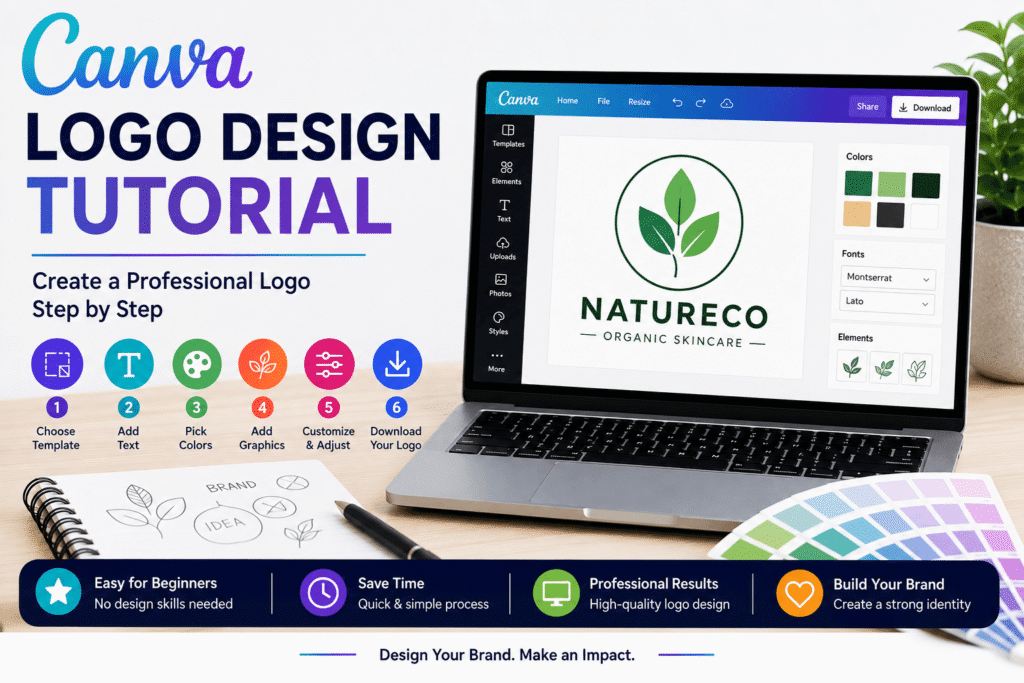
A strong logo can help people recognize your business, remember your brand, and understand your visual personality. With this Canva Logo Design Tutorial, beginners, entrepreneurs, marketers, and small business owners can create a polished logo without needing advanced graphic design software.
Canva provides templates, fonts, shapes, graphics, and drag-and-drop editing tools that make logo creation accessible. However, the tool itself does not guarantee a great result. Your logo still needs a clear concept, readable typography, appropriate colors, and a simple structure.
Table of Contents
- Why Logo Design Matters
- What Makes a Good Logo?
- Canva Logo Design Tutorial: Step-by-Step
- Choose the Right Logo Style
- Pick Fonts and Colors Carefully
- Customize Your Canva Logo
- Export Your Logo Correctly
- Common Logo Design Mistakes
- Practical Logo Design Checklist
- Internal and External Link Opportunities
- Frequently Asked Questions
- Conclusion
Why Canva Logo Design Matters for Your Brand
Your logo is often one of the first visual elements customers notice. It can appear on your website, social media profiles, packaging, business cards, presentations, email signatures, and advertisements.
For that reason, a logo should do more than look attractive. It should support recognition and create a consistent visual identity.
A good logo can help your business:
- Create a professional first impression
- Improve brand recognition
- Build visual consistency
- Stand out from competitors
- Support marketing campaigns
- Create a recognizable social media presence
- Strengthen customer trust
However, a logo should not try to explain everything about a business. Its primary job is identification. Strong logo design usually combines simplicity, memorability, versatility, and relevance.
What Makes a Good Canva Logo Design?
Before opening Canva, take a few minutes to think about the brand.
Ask yourself:
- What does the business offer?
- Who is the target customer?
- What personality should the brand communicate?
- Should the logo feel modern, friendly, premium, creative, or professional?
- Where will the logo be used most often?
For example, a children’s education company might use friendly shapes and approachable typography. A financial consultancy may need a more refined and trustworthy visual direction.
Keep Your Canva Logo Design Simple
Simple logos are generally easier to recognize, reproduce, and adapt across different platforms. A complicated design may look impressive when large but become difficult to understand when reduced to a small social media icon.
Make It Memorable
Try to create one distinctive visual idea rather than combining too many unrelated elements.
A unique shape, letter treatment, or carefully selected symbol can become the memorable part of your identity.
Design a Logo That Works at Any Size
Your logo may appear on a large poster today and a tiny website favicon tomorrow. Therefore, test the design at different sizes before finalizing it.
Simplicity also makes a logo more versatile across digital and print applications.
Canva Logo Design Tutorial: Step-by-Step Guide
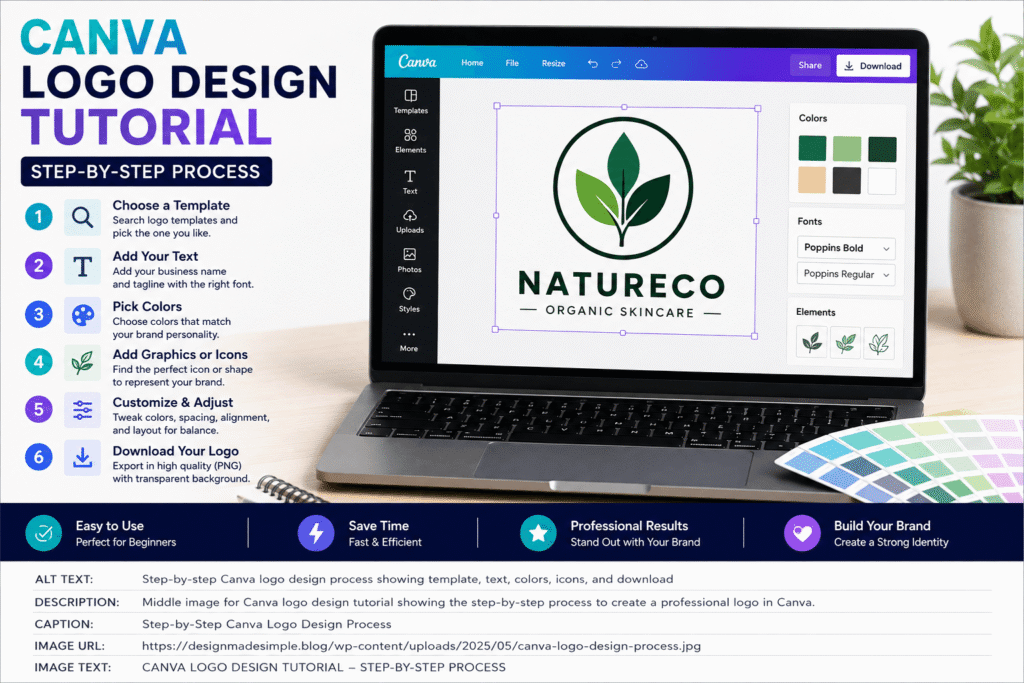
Now let’s move into the practical part of this Canva Logo Design Tutorial.
Step 1: Start Your Canva Logo Design With a Clear Concept
Open Canva and search for “Logo.” Canva provides logo templates for different industries and styles. You can also start with a blank design if you want more control.
Before selecting a template, write down three words that describe your brand.
For example:
Modern + Creative + Friendly
Use these words as a filter while designing. If an element does not support the personality you want, remove it.
Step 2: Choose a Canva Logo Template
Templates can save time, especially if you are new to graphic design.
Browse several options instead of immediately choosing the first attractive design. Look for a layout that has the right structure rather than one that already has perfect colors or text.
For example, if you are creating a photography business logo, look for layouts with clean typography and simple visual marks.
Remember that a template is a starting point. Customize it significantly so your final design reflects your own brand.
Step 3: Customize Your Logo Text and Fonts
Click the existing text and enter your business or brand name.
Typography deserves special attention because your business name needs to remain readable.
For most logos, one typeface or a carefully controlled combination is enough. Avoid using several decorative fonts simply because they are available.
Test the name at a small size. If the letters become difficult to read, choose a cleaner font.
Step 4: Choose Colors for Your Canva Logo
Color can influence how a logo feels.
For example:
- Blue can communicate calmness and trust.
- Red can create energy and attention.
- Green can suggest nature, growth, or wellness.
- Black can create a premium or sophisticated feel.
- Orange can communicate warmth and creativity.
These associations are not universal rules, so always consider your audience and industry.
A limited color palette usually creates a cleaner result. Adobe’s logo guidance similarly recommends controlled color choices and emphasizes simplicity and versatility.
Step 5: Add Graphics to Your Logo Design
Canva allows you to search for graphics and visual elements that can become part of your logo.
Choose an icon that connects naturally with the brand.
For instance, a bakery might explore simple food-related imagery, while a technology company could use an abstract geometric mark.
Avoid extremely common symbols if they make your logo look interchangeable with hundreds of other businesses.
The goal is not to add an icon simply because there is empty space. Every visual element should have a reason to exist.
Step 6: Improve Logo Alignment and Spacing
This is one of the easiest ways to make a beginner logo look more professional.
Check:
- Equal spacing between elements
- Consistent alignment
- Balanced proportions
- Adequate empty space
- Clear visual hierarchy
Do not fill every part of the canvas. White space gives the logo room to breathe.
A clean design often looks more professional than one packed with decorative details.
Step 7: Create Different Canva Logo Variations
Once your primary logo is finished, consider creating a few practical variations.
You may need:
- Main logo
- Icon-only version
- Horizontal version
- Dark-background version
- Light-background version
- Social profile version
This makes your brand easier to manage across websites, social networks, documents, and marketing materials.
Canva’s Brand Kit can also help organize logos, fonts, colors, and other brand assets for consistent use across designs.
Benefits of Using Canva for Logo Design
Beginner-Friendly Editing
Canva uses a drag-and-drop interface, making it easier for beginners to experiment with layouts, typography, colors, and graphics.
Fast Design Process
Instead of building every component from scratch, you can start with a template and customize it.
Easy Brand Consistency
Once your visual direction is established, you can reuse colors, fonts, and logo variations across other marketing materials.
Useful for Small Businesses
A new business may not have a large design budget. Canva can provide a practical starting point for entrepreneurs who need a basic visual identity quickly.
How to Export Your Canva Logo Correctly
When the design is complete, choose the appropriate download format for the intended use.
For many web applications, PNG is useful, particularly when you need a transparent background. Canva specifically recommends PNG for many web uses and explains that transparent PNGs can be placed over different backgrounds.
Before downloading, check the available export options in your Canva account because formats and features can vary by plan.
Save your original editable Canva design as well. That way, you can return later to create variations or make updates.
Important Trademark Consideration
If you plan to trademark your logo, be careful about using stock graphics or customizable logo templates.
Canva states that stock elements and free customizable templates are not exclusive, which can create problems for trademark protection. For a trademarkable logo, original elements are important.
Common Canva Logo Design Mistakes to Avoid
Using Too Many Fonts
Several fonts can quickly make a logo look messy. Start with one strong typeface and only introduce another when there is a clear design reason.
Adding Too Many Colors
A rainbow of colors rarely improves a logo. Begin with one or two primary colors and test whether the design works in black and white.
Choosing Trends Over Brand Personality
A trendy design can become dated. Instead, use current trends selectively while keeping the underlying concept distinctive and useful for the long term.
Copying Another Brand
Inspiration is useful, but your final logo should have its own visual identity. Do not create a near-copy of a competitor’s mark.
Ignoring Small-Size Testing
Always preview your logo as a small social profile image or favicon. Tiny details that look beautiful on a large screen may disappear completely.
Forgetting Different Backgrounds
Test your logo against white, black, and other likely background colors. A versatile logo should remain recognizable in different contexts.
Practical Canva Logo Design Checklist
Before publishing your logo, check the following:
- Business name is easy to read
- Logo communicates the right brand personality
- Colors are limited and intentional
- Typography is clear
- Icon or symbol has a purpose
- Elements are properly aligned
- There is enough white space
- Logo works at small sizes
- Logo works in black and white
- Transparent version is available when needed
- Editable Canva design is saved
- Trademark considerations have been reviewed
Get More Canva Logo Design Tips From Design Made Simple
A logo is only the beginning of your visual identity. Once you have a strong mark, you can build a consistent system around it with colors, typography, social media graphics, website visuals, and marketing materials.
If you are unsure how to turn your logo idea into a complete brand identity, Design Made Simple can help you explore practical design strategies and creative resources.
Ready to improve your brand? Explore more design tutorials on Design Made Simple, or contact your design team for professional guidance on creating a consistent visual identity.
Frequently Asked Questions About Canva Logo Design
1. Can I Create a Professional Logo With Canva?
Yes. Canva provides logo templates, fonts, graphics, editing tools, and customization options that can help beginners create professional-looking logos. The quality ultimately depends on the concept, typography, colors, layout, and originality of the design.
2. Is Canva Good for Logo Design Beginners?
Yes. Canva is particularly useful for beginners because its drag-and-drop interface reduces the technical barrier to creating a logo. It allows users to experiment with templates and customize text, colors, graphics, and layouts.
3.Can I Make a Logo in Canva for Free?
You can create logos using Canva’s available free tools and assets. However, some premium templates, elements, and export features may require a paid plan. Always check the current options available in your Canva account.
4. What File Format Is Best for a Canva Logo?
PNG is a practical option for many website and digital applications, especially when you need a transparent background. Canva recommends PNG for many web uses.
For professional branding, however, consider your complete production requirements and whether you need additional scalable or print-ready formats.
5. Can a Canva Logo Be Trademarked?
It depends on how the logo was created. Canva states that stock images, graphics, and customizable templates are not exclusive and therefore cannot simply be treated as exclusive trademark material. Creating a logo from original elements is a safer approach when trademark protection is important.
Conclusion: Create a Professional Logo With Canva
This Canva Logo Design Tutorial shows that creating a professional-looking logo does not have to be complicated. The most important part is not finding the fanciest template. Instead, focus on a clear concept, simple structure, readable typography, appropriate colors, and a distinctive visual idea.
Start with your brand personality, explore several concepts, customize your chosen design, and test it at different sizes and backgrounds. Finally, save the editable version and export the formats you actually need.
Canva can make the design process accessible, but good results still come from thoughtful design decisions. When your logo is simple, memorable, versatile, and aligned with your brand, it can become a valuable part of your business identity.