
Introduction
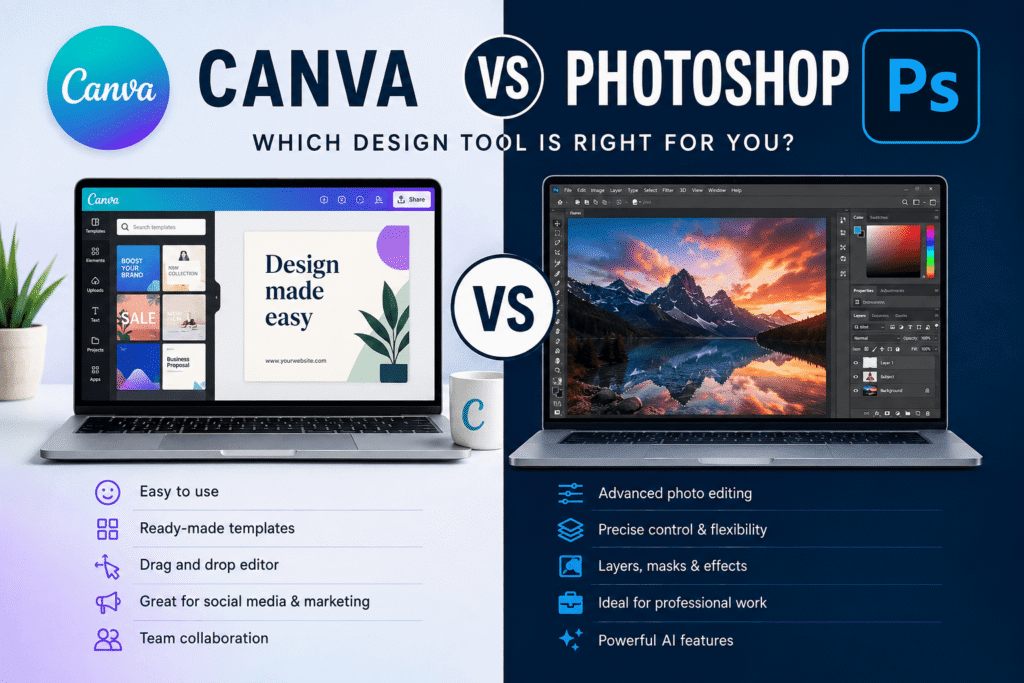
Canva vs Photoshop is not really a battle between a “good” tool and a “better” tool. Both platforms solve different design problems. Canva focuses on speed, templates, collaboration, and accessibility, while Photoshop offers deeper image editing, precision, compositing, and professional control.
For a small business owner creating social media graphics, Canva may be the faster choice. For a photographer retouching images or a designer creating complex composites, Photoshop can provide much more control.
The right choice depends on what you create, how much control you need, and how comfortable you are with professional design software.
In this guide, we’ll compare Canva and Photoshop across usability, features, photo editing, branding, AI tools, collaboration, and real-world workflows.
Table of Contents
- Why Canva vs Photoshop Matters
- Canva vs Photoshop: The Main Difference
- Canva: Best Features and Advantages
- Photoshop: Best Features and Advantages
- Canva vs Photoshop for Different Users
- Canva vs Photoshop for Photo Editing
- Canva vs Photoshop for Branding
- AI Features Compared
- How to Choose the Right Tool
- Common Mistakes to Avoid
- Practical Checklist
- FAQ
- Conclusion
Why Canva vs Photoshop Matters
Choosing design software can affect how quickly you work and how professional your final results look.
A beginner may become frustrated when opening Photoshop for the first time because the interface contains numerous tools, panels, menus, and technical options. Canva takes a different approach by simplifying many design tasks through templates and drag-and-drop editing.
At the same time, simplicity has limits.
A professional designer may eventually need advanced masking, detailed selections, sophisticated retouching, complex layer structures, and pixel-level control. That’s where Photoshop becomes much more useful.
The important question isn’t simply “Which software is better?”
Instead, ask:
- What type of content do I create?
- How much editing control do I need?
- How often do I design?
- Do I work alone or with a team?
- Do I need templates or complete creative freedom?
- Am I designing for social media, marketing, photography, print, or professional client work?
Your answers will make the decision much easier.
Canva vs Photoshop: The Main Difference
The biggest difference between Canva and Photoshop is their design philosophy.
Canva is designed to make visual content creation accessible. Its interface emphasizes templates, ready-made elements, layouts, collaboration, and fast content production.
Photoshop is designed for detailed creative control. It gives users sophisticated tools for editing, manipulating, compositing, and refining images.
Canva at a glance
Canva is particularly useful for:
- Social media posts
- Presentations
- Flyers
- Posters
- Simple marketing graphics
- YouTube thumbnails
- Business documents
- Presentations
- Basic photo editing
- Branded content
Canva has also expanded significantly into AI-assisted creation. Its Magic Studio includes tools for generating and modifying designs, images, text, and other visual content.
Photoshop at a glance
Photoshop is particularly useful for:
- Professional photo retouching
- Image compositing
- Detailed selections
- Background removal
- Digital artwork
- Product photography
- Advanced typography effects
- Complex advertising visuals
- Professional client projects
- Pixel-level image manipulation
Adobe has also integrated generative AI directly into Photoshop. Generative Fill can add, replace, or remove visual elements using text prompts while maintaining editable workflows.
Canva vs Photoshop: Features and Benefits
1. Easy learning curve
Canva is one of the easiest design platforms for beginners.
You don’t need extensive knowledge of layers, masks, channels, or advanced selections to create an attractive design.
Choose a template, replace the text and images, adjust the colors, and export your work.
This makes Canva especially useful for entrepreneurs, marketers, teachers, bloggers, and social media managers.
2. Templates save time
Templates can dramatically reduce production time.
Instead of creating a social media post from an empty canvas, you can start with a professionally structured layout and customize it.
For businesses producing content every day, this can be a major productivity advantage.
3. Great for marketing content
Canva works particularly well when you need many variations of the same visual.
For example, a small business could create:
- Instagram posts
- Facebook graphics
- LinkedIn banners
- Email graphics
- Presentation slides
- Promotional flyers
The same brand colors, fonts, and visual style can be applied across different designs.
4. Collaboration is straightforward
Canva is also useful for teams that need to create and review visual content together.
A marketing manager can prepare a design, a copywriter can review the text, and another team member can make final adjustments without requiring everyone to be an advanced designer.
Photoshop: Best Features and Advantages
1. Advanced image editing
Photoshop remains extremely powerful for detailed image manipulation.
Its selection tools allow designers to isolate subjects and specific areas of an image, while adjustment layers and other non-destructive techniques provide greater editing control. Adobe’s current selection workflows include Object Selection, Remove Background, and Selection Brush tools.
2. Professional retouching
Photographers and commercial designers often need more than basic brightness or contrast adjustments.
They may need to:
- Remove distractions
- Retouch skin
- Correct colors
- Replace backgrounds
- Combine multiple photographs
- Create realistic shadows
- Adjust individual objects
- Build complex composites
Photoshop is designed for this level of work.
3. Powerful compositing
Imagine creating an advertisement with a product photographed in a studio and placing it into a completely different environment.
Photoshop provides the tools needed to combine multiple assets while controlling layers, masks, lighting, shadows, and perspective.
4. Generative AI
Photoshop’s AI capabilities have become another major reason professionals use the platform.
Generative Fill can add new objects, remove unwanted elements, or expand an image based on a prompt. Adobe’s current tutorials show these workflows working together with selections and editable generative layers.
Canva vs Photoshop for Different Users
There isn’t one universal winner.
For beginners: Canva
If you’re new to graphic design, Canva is usually easier to learn.
Its templates and simple interface allow you to start producing useful content without spending weeks learning technical tools.
For social media managers: Canva
If your main job is producing frequent social media content, Canva can be extremely efficient.
You can create multiple formats without rebuilding every design from scratch.
For photographers: Photoshop
Photographers who need detailed retouching and image manipulation will generally benefit more from Photoshop.
For professional graphic designers: Photoshop
Professional designers working on complex visual projects may prefer Photoshop because of its depth and control.
For small businesses: Canva
A small business that needs regular promotional graphics but doesn’t employ a full-time designer may find Canva more practical.
For advanced creative projects: Photoshop
If your project requires complex compositing, detailed image manipulation, or precise visual effects, Photoshop is the stronger option.
Canva vs Photoshop for Photo Editing
This is one of the biggest areas where the two platforms differ.
Canva is excellent for quick photo adjustments.
For example, you might upload a product photo, remove its background, add text, apply a visual effect, and place it into a promotional design.
Photoshop goes much deeper.
A professional editor can work with individual layers, masks, selections, adjustments, and detailed retouching techniques.
Adobe’s latest Photoshop workflows also allow users to combine automatic selections with Generative Fill for sophisticated image modifications.
Simple rule:
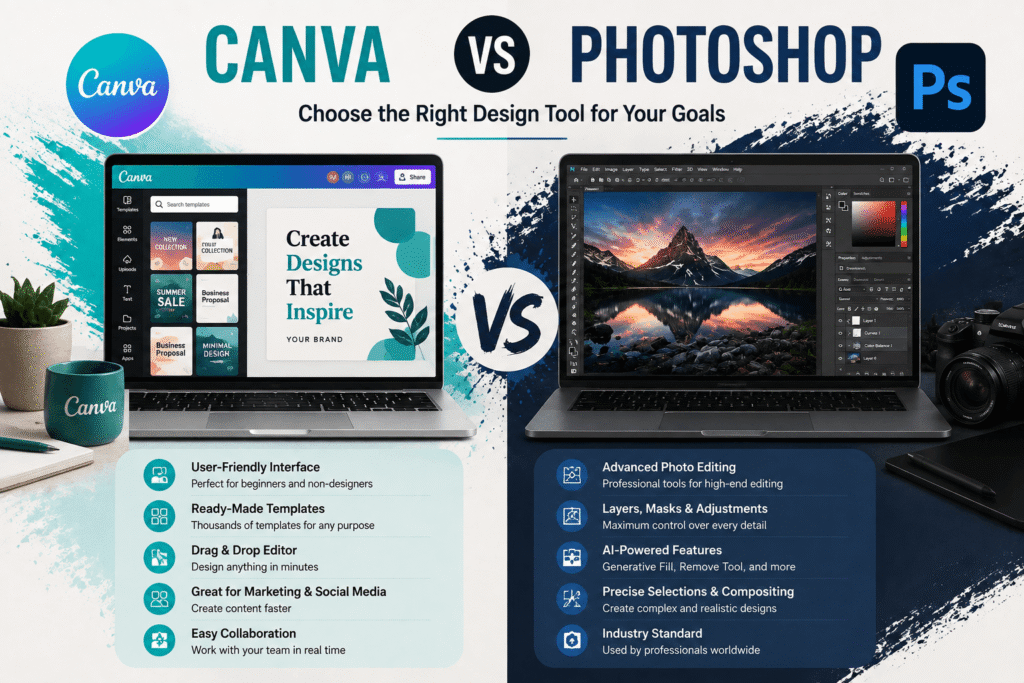
Use Canva when you want to make a photo part of a design. Use Photoshop when the photo itself needs serious editing.
Canva vs Photoshop for Branding
Branding is another area where both platforms can be useful.
Canva is excellent for maintaining consistency across everyday marketing materials.
For example, a business can establish a recognizable visual system using:
- Brand colors
- Fonts
- Logos
- Social media templates
- Presentation layouts
- Marketing graphics
This is especially useful when several team members need to create content.
Photoshop becomes more valuable when branding requires custom artwork, advanced image manipulation, product composites, campaign visuals, or sophisticated advertising graphics.
Canva vs Photoshop: AI Features Compared
AI has changed the Canva vs Photoshop discussion.
Canva has built AI into a broader content creation workflow. Its Magic Studio includes AI-assisted design, image editing, content generation, resizing, animation, and other creative functions.
Photoshop approaches AI differently.
Its generative features are closely connected to professional image-editing workflows. You can select a specific area and use Generative Fill to add or replace content.
Which AI approach is better?
Choose Canva if you want:
- Faster content creation
- AI-assisted layouts
- Marketing graphics
- Quick visual variations
- Simple creative workflows
Choose Photoshop if you want:
- Detailed AI image editing
- Precise selections
- Professional compositing
- More control over generated elements
- Advanced retouching workflows
How to Choose the Right Tool
Use this simple decision process.
Step 1: Identify your main task
If you primarily create social media posts, presentations, flyers, and marketing graphics, start with Canva.
If you primarily edit photographs or create complex artwork, consider Photoshop.
Step 2: Consider your skill level
Beginners often benefit from Canva’s simpler workflow.
Experienced designers may appreciate Photoshop’s deeper toolset.
Step 3: Think about production speed
Ask yourself whether you need to create one highly customized image or dozens of marketing assets every week.
For high-volume content production, Canva can be extremely efficient.
Step 4: Consider your future needs
Don’t choose software only for today’s project.
If you plan to become a professional designer or photographer, learning Photoshop can be a valuable long-term skill.
If your priority is marketing productivity, Canva may provide a faster route to consistent content.
Step 5: Don’t be afraid to use both
In many real-world workflows, Canva and Photoshop don’t have to compete.
A designer might edit a product photograph in Photoshop and then use Canva to create social media variations.
That hybrid approach can give businesses both creative control and production speed.
Common Canva vs Photoshop Mistakes to Avoid
Choosing software because it is popular
Popularity doesn’t mean the tool is right for your workflow.
Choose based on your actual requirements.
Using advanced software for simple tasks
If you only need a quick Instagram graphic, spending excessive time building it in Photoshop may reduce productivity.
Expecting Canva to replace professional image editing
Canva is powerful, but highly technical photo manipulation may still require Photoshop.
Expecting Photoshop to be instantly easy
Photoshop has a steeper learning curve. Give yourself time to understand layers, selections, masks, and adjustment workflows.
Ignoring your workflow
The best design tool is the one that helps you consistently produce the right quality of work within your available time.
Canva vs Photoshop: Practical Checklist
Before choosing your primary design tool, ask:
- Do I mainly create marketing graphics?
- Do I need professional photo retouching?
- Do I need ready-made templates?
- Do I create content frequently?
- Do I work with other team members?
- Do I need advanced layers and masking?
- Do I need detailed image compositing?
- Am I a beginner or experienced designer?
- Do I need AI-assisted design features?
- Would using both platforms improve my workflow?
If most of your answers involve speed and marketing content, Canva may be the better starting point.
If most involve detailed image editing and creative control, Photoshop may be the better investment.
CTA: Need Help Choosing the Right Design Workflow?
Choosing between Canva and Photoshop is easier when you understand your specific goals.
Whether you’re building a business brand, improving your marketing content, or developing professional design skills, the right workflow can save time and improve consistency.
Want more practical design guidance? Explore Design Made Simple for tutorials, AI design tools, branding ideas, and creative resources that help you design with confidence.
Canva vs Photoshop: Frequently Asked Questions
1. Is Canva better than Photoshop for beginners?
Canva is generally easier for beginners because its interface, templates, and drag-and-drop workflow reduce the technical knowledge needed to create attractive designs.
2. Is Photoshop better than Canva for photo editing?
Yes, Photoshop is generally better for advanced photo editing. It offers detailed selections, layers, masking, retouching, compositing, and professional image manipulation.
3. Can Canva replace Photoshop?
Canva can replace Photoshop for many everyday marketing and content-design tasks, but it does not provide the same depth of professional image-editing control. The right choice depends on your workflow.
4. Which is better for social media design, Canva or Photoshop?
Canva is usually more convenient for social media design because it provides templates, quick resizing, reusable layouts, and a workflow designed around fast content creation.
5. Should I learn Canva or Photoshop first?
If you’re completely new to design, starting with Canva can help you understand layouts, typography, colors, and visual hierarchy. You can then learn Photoshop when you need more advanced editing and creative control.
Conclusion: Canva vs Photoshop — Which One Should You Choose?
The Canva vs Photoshop decision ultimately comes down to what you need to create.
Canva is an excellent choice for beginners, marketers, business owners, social media managers, and teams that value speed and easy content production. Its templates, collaboration features, and growing AI capabilities make it highly practical for everyday visual communication.
Photoshop is better suited to photographers, professional designers, artists, and advanced users who need detailed editing, precise selections, complex compositing, and greater control over individual image elements. Its current AI-powered workflows also make sophisticated image editing faster than before.
So, which one should you choose?
Choose Canva for speed and simplicity. Choose Photoshop for depth and control. And when your workflow demands both, using Canva and Photoshop together can be the smartest solution.