
Introduction
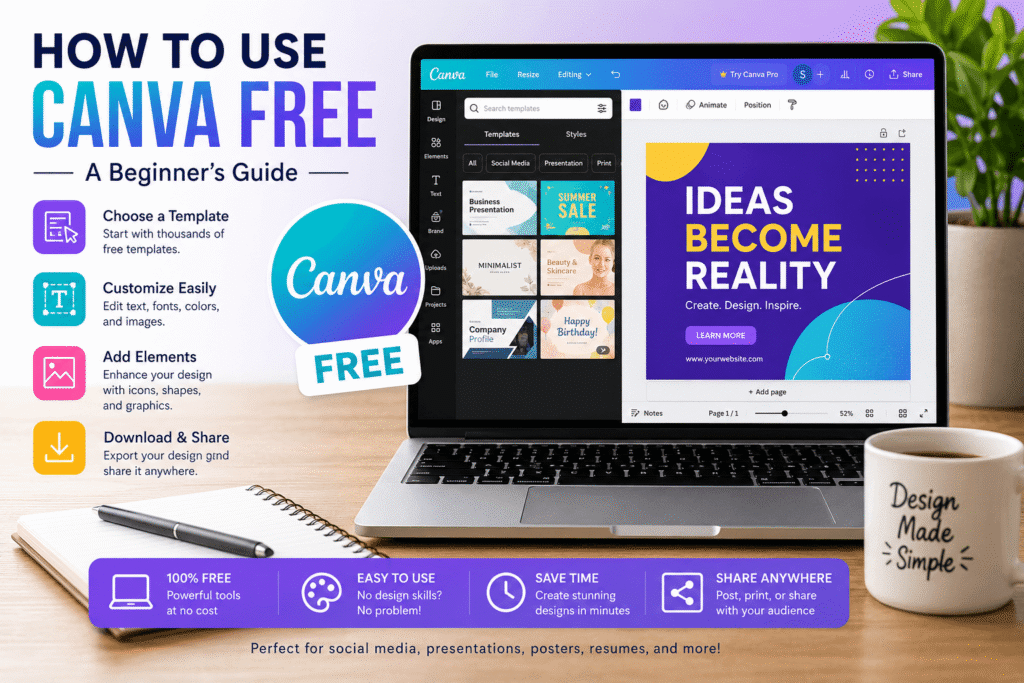
If you want to create professional-looking graphics without learning complicated design software, learning how to use Canva Free is a great place to start. Canva makes it possible to create social media posts, presentations, flyers, resumes, videos, documents, and other visual content using an easy drag-and-drop editor.
The best part is that you can start without paying for a premium subscription. Canva offers a free individual option, although some advanced tools, content, and features require a paid plan.
This guide explains how Canva Free works, what you can create with it, how to get better results, and which mistakes beginners should avoid.
Table of Contents
- What Is Canva Free?
- Why Canva Free Matters
- How to Use Canva Free Step by Step
- What Can You Create With Canva?
- Benefits of Using Canva Free
- Canva Free vs Paid Features
- Common Canva Mistakes to Avoid
- Practical Canva Checklist
- Internal and External Link Opportunities
- Frequently Asked Questions
- Conclusion
What Is Canva Free?
Canva Free is the no-cost version of Canva’s online visual design platform. It is designed for people who want to create visual content without investing in professional design software.
The platform combines templates, images, graphics, text tools, video editing, presentations, documents, and other creative features in one interface. Canva’s current editor also includes tools for images, text, video, audio, charts, documents, whiteboards, and more.
For beginners, this means you can start with a template instead of building a design from a blank page.
For example, a small business owner could create:
- Instagram posts
- Facebook graphics
- Business presentations
- Promotional flyers
- Simple brochures
- YouTube thumbnails
- Email graphics
- Event invitations
- Resumes
- Business documents
Canva also provides free AI-powered features in selected areas, although availability and usage limits can vary. Canva currently lists tools such as Magic Write, Dream Lab, and Magic Media among its free AI options.
Why Learning Canva Free Matters
Good visual communication is important for businesses, creators, students, marketers, and professionals.
However, not everyone has access to a professional designer or the time to learn advanced software.
That is where Canva can help.
A restaurant can create a weekly promotional post. A freelancer can design a proposal. A student can build a presentation. A startup can prepare social media graphics. A content creator can create thumbnails and short videos.
The goal is not simply to make something attractive.
The goal is to communicate a message clearly.
How to Use Canva Free Step by Step
If you are completely new to Canva, follow these steps.
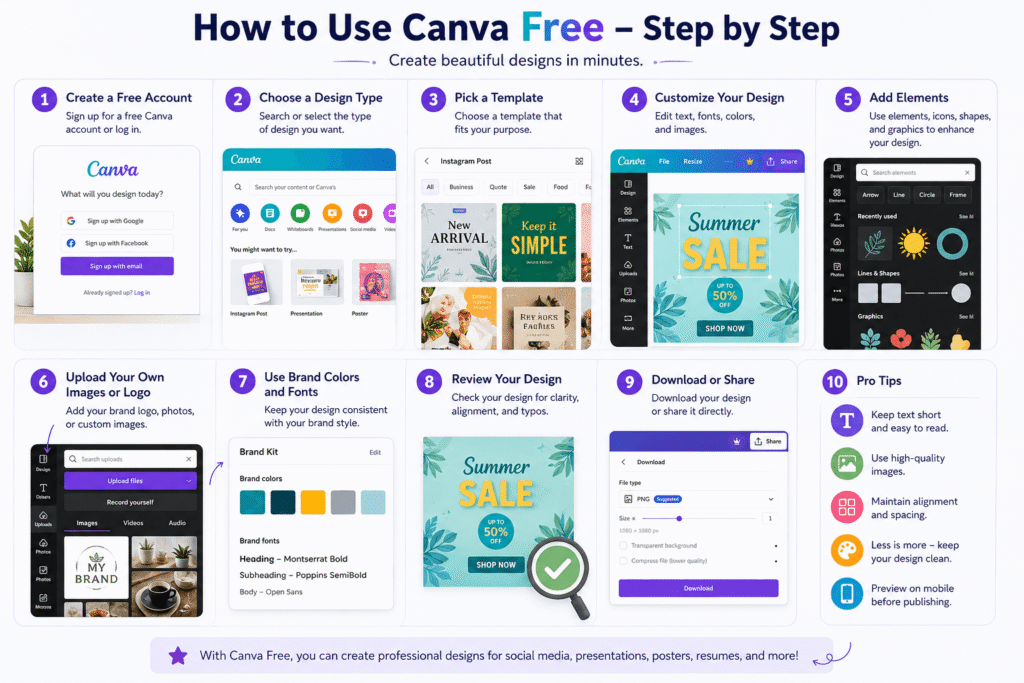
1. Create a Free Canva Account
Start by creating a Canva account. You can use Canva through a web browser or supported apps.
Once you sign in, you will reach the Canva home screen, where you can search for a design type or start a new project.
You do not need advanced graphic design experience to begin.
2. Choose the Right Design Type
Think about what you want to create before opening the editor.
For example:
- Instagram post
- Presentation
- Poster
- Flyer
- Resume
- YouTube thumbnail
- Video
- Business card
Selecting the correct format helps Canva automatically prepare an appropriate canvas size.
If you cannot find exactly what you need, you can also create a custom-size design.
3. Start With a Template
One of the easiest ways to learn how to use Canva Free is to begin with a template.
Search for your desired design and browse the available options.
Do not choose a template simply because it looks impressive.
Instead, ask:
Does this layout fit my message?
Look for a design with:
- Clear typography
- Enough white space
- Strong visual hierarchy
- A simple layout
- Easy-to-read text
Then customize the template to match your purpose.
Canva promotes ready-made templates as one of its core design features, making it easier for beginners to start without designing everything from scratch.
4. Customize the Text
Click the text elements to replace the existing wording.
Keep your message short.
For example, instead of writing:
“Discover all of the exciting new products and services that our business is currently offering to customers this month.”
Try:
“New This Month”
Then add a short supporting sentence.
Simple copy usually works better in visual content.
5. Change Fonts Carefully
Canva provides numerous typography options, but using too many fonts can make a design look messy.
A simple combination is usually enough:
- One font for the headline
- One font for supporting text
You can also use different font weights and sizes to create hierarchy.
For example:
Headline: Large and bold
Supporting text: Smaller and regular
Call to action: Medium or bold
If you want to improve your typography skills, consider linking to a relevant typography article.
[Internal Link Suggestion: Link the phrase “typography trends” to “/typography-trends-2026”.]
6. Add or Replace Images
You can upload your own images or explore Canva’s available visual elements.
When selecting an image, think about relevance first.
A beautiful image that does not support your message can weaken the design.
For a business promoting a summer product, for example, choose an image that communicates the product, audience, or experience rather than simply selecting a colorful photograph.
7. Use Graphics and Elements
Canva includes design elements such as shapes, icons, illustrations, lines, and other visual components.
Use these elements to support your layout.
Avoid filling every empty space.
White space gives your design room to breathe and helps important information stand out.
8. Apply Your Own Brand Style
Even when using a template, your design should feel like your brand.
Try to maintain consistency with:
- Brand colors
- Logo
- Typography
- Image style
- Tone of voice
- Layout
This becomes especially important when creating several social media posts.
[Internal Link Suggestion: Link the phrase “branding strategies” to “/branding-strategies-for-businesses”.]
9. Review the Design
Before downloading, zoom out and look at the entire design.
Ask yourself:
- Is the main message obvious?
- Can I read the text easily?
- Is anything unnecessary?
- Does the image support the message?
- Is the layout balanced?
- Is the call to action clear?
A design can have excellent individual elements and still feel confusing as a whole.
10. Download or Share Your Design
When your design is finished, use Canva’s sharing or download options.
Choose the file format based on the purpose.
For example, a social graphic may work well as an image file, while a document or printable resource may require a PDF.
Always check the final file before publishing or sending it to a customer.
What Can You Create With Canva Free?
One major advantage of Canva is the range of content you can produce from one platform.
Social Media Graphics
Create posts, promotional graphics, quote cards, announcements, and other social content.
Presentations
Create slides for meetings, school projects, webinars, sales presentations, or training sessions.
Marketing Materials
You can create flyers, posters, simple brochures, promotional graphics, and other marketing assets.
Videos
Canva also supports video creation and editing, including tools for trimming and working with video content.
Resumes and Professional Documents
Job seekers can use templates to create visually organized resumes and other professional materials.
Simple Websites
Canva also offers website creation tools that allow users to build simple business or event websites without traditional web development skills.
Benefits of Using Canva Free
Canva Free is useful for beginners, creators, students, freelancers, marketers, and small-business owners who need attractive visual content without investing in expensive design software.
1. Easy to Learn
Canva uses a simple drag-and-drop editor, making it accessible even if you have little or no graphic design experience. You can start with a template, replace the text and images, and quickly create a finished design.
2. Saves Time
Starting from a blank canvas can take a lot of time. Canva’s ready-made templates give you a useful starting point, allowing you to focus on your message and brand instead of building every element from scratch.
3. No Expensive Software Required
One of the biggest advantages is the ability to create many types of visual content without purchasing traditional professional design software. This makes it particularly helpful for students, new creators, and small businesses working with limited budgets.
4. Useful for Social Media
You can create graphics for platforms such as Instagram, Facebook, LinkedIn, Pinterest, and other social channels. Consistent templates can also help maintain a recognizable visual style across your content.
5. Supports Different Design Projects
Canva is not limited to social media. You can use it for:
- Presentations
- Flyers
- Posters
- Resumes
- Invitations
- Business documents
- Marketing graphics
- Simple videos
- YouTube thumbnails
Having multiple design options in one platform makes it easier to manage everyday creative tasks.
6. Helps Beginners Learn Design
Using Canva can be a practical way to develop fundamental design skills. As you customize templates, you can learn about typography, alignment, contrast, spacing, color, and visual hierarchy.
Over time, these principles can help you create better designs even when working without a template.
7. Supports Consistent Branding
A consistent visual identity helps people recognize your business or content. By using the same colors, fonts, logo placement, and design style, you can make your visual materials feel more professional.
8. Useful for Small Businesses
Small businesses often need regular promotional content but may not have an in-house designer. Canva can help business owners create everyday graphics for announcements, promotions, presentations, and social media.
For more advanced projects, professional design support may still be valuable. However, Canva can handle many routine visual tasks efficiently.
9. Makes Collaboration Easier
Canva is designed around online workflows, making it practical for teams and clients who need to work on visual projects together. This can be useful for marketing teams, remote businesses, freelancers, and content creators.
10. Gives You Room to Experiment
Because you can quickly test different layouts, fonts, images, and colors, Canva makes experimentation less intimidating.
Try creating the same design in two or three different layouts. Compare them and ask which version communicates the message most clearly.
That simple habit can help you develop stronger visual decision-making skills.
Bottom line: Canva Free is valuable because it combines simplicity, flexibility, and accessible design tools. You do not need to become a professional designer to create useful, polished visual content.
Common Mistakes to Avoid
Using Too Many Fonts
Three, four, or five fonts can quickly make a design look inconsistent.
Stick with a small typography system.
Adding Too Many Elements
More graphics do not automatically mean better design.
Remove anything that does not contribute to the message.
Ignoring Alignment
Even small alignment problems can make a design look unprofessional.
Use Canva’s guides and positioning tools to create cleaner layouts.
Choosing Poor Color Combinations
Make sure text has enough contrast against its background.
Accessibility matters too. Canva provides accessibility tools that can help users identify issues involving color contrast, typography, and alternative text.
Copying Templates Too Literally
Templates are starting points, not finished solutions.
Change the typography, imagery, colors, spacing, and wording so the design fits your brand.
Forgetting Licensing
Before using content commercially, understand the applicable Canva content license.
Canva provides an official licensing guide explaining the differences between Free and Pro content.
Practical Canva Free Checklist
Before publishing your next design, use this checklist:
- Choose the correct design size
- Start with a suitable template
- Keep the main message clear
- Use two or three fonts at most
- Maintain consistent colors
- Use high-quality relevant images
- Leave enough white space
- Check alignment
- Review text for spelling mistakes
- Check readability on mobile
- Confirm the correct download format
- Review content licensing
- Check accessibility where appropriate
- Preview the final design before publishing
Try Canva Free and Improve Your Design Workflow
You do not need expensive software to start creating better visual content.
If you are a beginner, creator, student, marketer, freelancer, or small-business owner, Canva Free gives you a practical environment for learning and producing everyday designs.
The key is to focus on communication rather than decoration.
Start with one project.
Choose a template.
Customize it.
Review the hierarchy.
Remove unnecessary elements.
Then publish and learn from the result.
Ready to improve your visual content? Explore more practical design tutorials, AI tools, branding resources, and creative tips on Design Made Simple to build better designs with confidence.
Frequently Asked Questions
1. Can I use Canva for free?
Yes. Canva offers a free option for individuals. However, some premium content and advanced features require a paid subscription.
2. Is Canva Free good for beginners?
Yes. Canva Free is particularly useful for beginners because its templates and drag-and-drop editor reduce the technical knowledge needed to create visual content.
3. What can I make with Canva Free?
You can create many types of visual content, including social media graphics, presentations, documents, simple marketing materials, videos, and other designs. Available features and content can vary between Free and paid plans.
4. Can I use Canva designs for business?
Canva can be used for business projects, but you should check the applicable content license for the specific elements you use, particularly when working with premium or third-party content.
5. Is Canva Free enough for a small business?
For many small businesses, Canva Free can be enough for basic social media graphics, presentations, promotional materials, and simple visual content. A paid plan becomes more useful when a business needs specific premium features, greater asset access, or advanced brand and workflow tools.
Conclusion
Learning how to use Canva Free can give beginners and small businesses a practical way to create attractive visual content without mastering complicated design software.
Start with templates, keep your layouts simple, use consistent typography and colors, and always design around the message you want people to understand.
Canva Free is not about having every premium feature. It is about making the most of the tools available to you.
With regular practice, you can use Canva to create more consistent social media graphics, presentations, marketing materials, and professional visual content.
The next step is simple: choose one project, open Canva, and start designing.