
Introduction
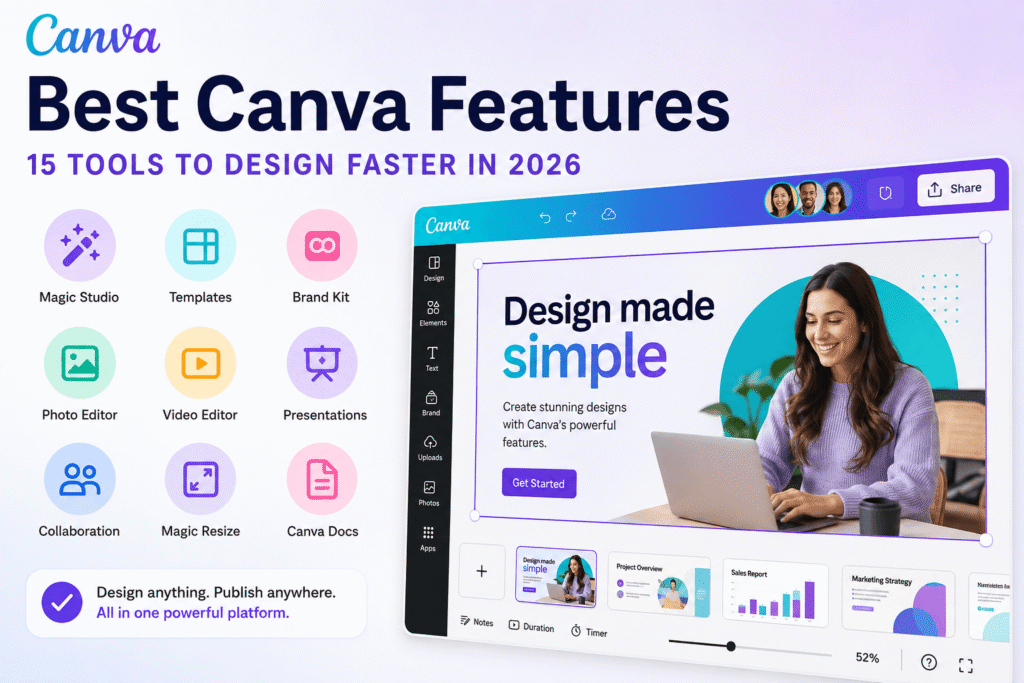
The best Canva features can turn a complicated design task into a simple, repeatable workflow. Instead of switching between several applications for graphics, presentations, videos, documents, branding, and social media, Canva brings many of these tasks into one visual platform.
That makes Canva useful for beginners, marketers, entrepreneurs, educators, content creators, and professional designers. Its current feature set also goes well beyond basic templates. AI-powered creation, brand management, collaboration, resizing, presentations, video editing, and other visual communication tools are becoming increasingly important.
Canva’s 2026 updates also show a stronger focus on AI-assisted workflows, editable outputs, brand consistency, and moving from an initial idea to finished content more quickly.
If you are using Canva only to create simple social media posts, you may be missing some of its most valuable capabilities.
Table of Contents
- Why Canva Features Matter
- Best Canva Features to Know
- Canva AI and Magic Studio
- Templates and Magic Design
- Brand Kit for Consistent Branding
- Photo Editing and Background Removal
- Video and Presentation Tools
- Collaboration and Team Features
- Resize and Repurpose Content
- Canva Docs and Visual Workflows
- Benefits of Using Canva
- How to Get More From Canva
- Common Canva Mistakes to Avoid
- Canva Features Checklist
- FAQ
- Conclusion
Why the Best Canva Features Matter
Modern content teams need to create more visual content without making their workflow unnecessarily complicated.
A small business may need a logo, Instagram post, presentation, email graphic, advertisement, product image, and short video in the same week. A freelancer may need to create client presentations and branded social media content. Meanwhile, a beginner may simply want professional-looking designs without spending months learning advanced software.
This is where Canva becomes practical.
Canva has increasingly positioned itself as a visual communication platform rather than simply a graphic design editor. Its tools cover different types of content and workflows, while AI is being integrated into creation and editing.
Best Canva Features You Should Know
Here are some of the most useful Canva features to explore in 2026.
1.Canva AI and Magic Studio Features
AI is one of the biggest developments in Canva.
Magic Studio brings AI-powered tools into the design workflow. Depending on the feature and plan available to you, AI can help with generating designs, writing, images, editing, and other creative tasks.
Canva has also introduced Canva AI 2.0, which moves toward conversational creation and editable, layered outputs. The company describes the system as capable of understanding a user’s intent and helping create and refine designs through conversation.
For example, instead of starting with a blank presentation, you could describe the topic, audience, and desired style and use AI to create an initial direction.
Best for: brainstorming, first drafts, content creation, and speeding up repetitive work.
2. Magic Design for Faster Content Creation
Magic Design is particularly helpful when you know what you want to communicate but do not know how to structure the design.
You can provide a prompt or media and let Canva generate a starting point. Canva says Magic Design can create designs and presentations from ideas, while allowing users to customize the result afterward.
This is useful for:
- Social media campaigns
- Presentations
- Promotional graphics
- Marketing materials
- Quick visual concepts
The important point is that AI should provide a starting point—not replace your creative judgment.
3. Canva Templates for Beginners and Businesses
Canva’s template library remains one of its most practical strengths.
Templates give beginners a professionally structured starting point. Instead of deciding every dimension, layout, font, and spacing choice from scratch, you can choose a suitable design and customize it.
Templates can save time when creating:
- Instagram posts
- YouTube thumbnails
- Business presentations
- Posters
- Flyers
- Resumes
- Invitations
- Marketing graphics
The best approach is to customize templates enough that they reflect your brand and message rather than publishing them exactly as downloaded.
4. Canva Brand Kit for Consistent Branding
For businesses, the Brand Kit can be one of the most valuable Canva features.
It allows brand assets such as logos, fonts, and colors to be organized and readily available during design work. Canva also provides brand templates, guidelines, folders, controls, and approval workflows for teams.
Imagine a small UK-based consulting company that needs LinkedIn graphics every week. Instead of repeatedly searching for the correct logo and color codes, the team can keep those assets accessible within its design workflow.
This reduces inconsistency and makes production faster.
5. Magic Switch for Content Repurposing
Creating one design is rarely enough.
A campaign may need different versions for Instagram, Facebook, LinkedIn, TikTok, presentations, and other channels.
Canva’s Magic Switch is designed to help transform content into different formats. Canva highlights its ability to resize designs for platforms such as Instagram, TikTok, Facebook, and LinkedIn.
This is especially useful for marketers who want to turn one campaign idea into multiple pieces of content without rebuilding everything manually.
Canva Features for Photos, Video, and Presentations
6. Canva Photo Editing Features
Canva includes practical photo editing tools that can handle common tasks without requiring advanced image-editing software.
Depending on your plan and available tools, you can work with:
- Cropping and resizing
- Filters
- Adjustments
- Background removal
- Image effects
- AI-assisted editing
- Overlays and design elements
For simple marketing graphics, these tools can be enough.
7. Canva Video Editing Features
Video has become essential for social media marketing, education, presentations, and online business.
Canva provides a drag-and-drop video workflow with templates, media, animations, transitions, music, recording tools, and AI-assisted options. Its video presentation tools can also combine slides with screen recordings or talking-head footage.
For example, a freelancer could create a short tutorial by combining:
- A title slide
- Screen recording
- Supporting graphics
- Captions
- Background music
- A final call to action
That workflow can be much simpler than learning a dedicated video-editing application for basic projects.
8. Canva Presentation Features
Canva is also useful for creating presentations.
Instead of relying on text-heavy slides, you can combine typography, images, charts, icons, animations, and video.
Magic Design for Presentations can generate an initial presentation from a short description, giving users a starting structure before they refine the content.
Canva Collaboration Features for Teams
9. Real-Time Canva Collaboration
Design projects often involve more than one person.
Canva’s collaboration features allow teams to work together, comment, assign tasks, and review designs. Canva’s business features also include real-time collaboration and approval workflows.
This can help marketing teams reduce unnecessary email exchanges and keep feedback closer to the actual design.
For example:
Writer → Designer → Marketing Manager → Approver
Instead of sending multiple file versions around, the team can collaborate within the same visual workspace.
10. Canva Docs and Visual Workflows
Canva Docs combines written information with visual content.
This can be useful for proposals, project plans, reports, meeting documents, and other materials where text alone feels too plain.
Canva has also developed workflows that connect documents with presentations, helping users move from written ideas toward visual communication.
Benefits of Using the Best Canva Features
The biggest advantage of Canva is not one individual tool. It is the way multiple tools can fit into one workflow.
Save Time With Canva Design Tools
Templates, AI assistance, resizing, brand assets, and reusable designs can reduce repetitive tasks.
Maintain Brand Consistency
Brand tools help teams use the correct colors, fonts, logos, and visual elements.
Create More Content
Repurposing a single idea into multiple formats makes content production more efficient.
Lower the Learning Curve
Beginners can start with templates and gradually learn more advanced design techniques.
Support Teamwork
Comments, collaboration, approvals, and shared assets make team-based design easier.
How to Use Canva Features More Effectively
Having many tools does not automatically make your designs better. Your workflow matters.
Step 1: Start With the Goal
Before opening Canva, decide what you are creating and who will see it.
Ask:
- What action should the viewer take?
- Where will the design be published?
- What information matters most?
- What brand guidelines must be followed?
Step 2: Choose the Right Format
Start with the correct canvas size instead of designing randomly and fixing dimensions later.
Step 3: Use a Template as a Starting Point
Choose a layout that matches your message. Then change the typography, colors, imagery, and spacing.
Step 4: Apply Your Brand
Use your approved logo, colors, fonts, and imagery consistently.
Step 5: Use AI for Speed, Not Blindly
AI can generate ideas and first drafts, but always check facts, wording, imagery, composition, and brand fit.
Step 6: Repurpose the Final Design
Turn strong content into additional formats where appropriate.
Step 7: Review Before Publishing
Check spelling, alignment, contrast, image quality, spacing, and calls to action.
Common Canva Features Mistakes to Avoid
Even with excellent tools, beginners can make predictable mistakes.
Using Too Many Fonts
Two or three complementary typefaces are usually easier to manage than a collection of unrelated fonts.
Overloading the Design
More elements do not necessarily create a better design. Give important information enough space.
Ignoring Mobile Viewing
A design that looks good on a desktop monitor may be difficult to read on a phone.
Copying Templates Too Closely
Templates are starting points. Add your own visual identity and message.
Letting AI Make Every Decision
AI can accelerate design, but human taste, context, originality, and judgment still matter.
Canva’s own 2026 trend research emphasizes this balance, noting a growing interest in human, imperfect, and distinctive visual expression rather than purely polished output.
Forgetting Accessibility
Use readable text, sufficient contrast, clear hierarchy, and meaningful visual structure.
Best Canva Features Checklist
Before publishing a Canva design, ask yourself:
- Is the purpose of the design clear?
- Is the correct size being used?
- Is the headline easy to understand?
- Are fonts readable?
- Is the color contrast strong enough?
- Are brand colors and logos correct?
- Is there enough white space?
- Are images high quality?
- Have spelling and grammar been checked?
- Does the design work well on mobile?
- Have AI-generated elements been reviewed?
- Is the call to action clear?
FAQ: Best Canva Features
What Are the Best Canva Features for Beginners?
The best Canva features for beginners include templates, drag-and-drop editing, Magic Design, photo editing, and presentation tools. These features make it easier to create professional-looking designs without advanced graphic design experience.
Which Canva Feature Is Best for Branding?
Brand Kit is one of the best Canva features for branding. It helps businesses organize logos, brand colors, fonts, and other visual assets so designs stay consistent across different marketing channels.
Is Canva Good for Social Media Marketing?
Yes. Canva is useful for creating social media posts, stories, ads, videos, thumbnails, and other marketing graphics. Templates and resizing tools can also help marketers create content for multiple platforms more efficiently.
Can Canva AI Replace a Professional Designer?
No. Canva AI can speed up brainstorming, content creation, editing, and repetitive design tasks, but it does not replace human creativity and professional design judgment. Designers still need to make decisions about branding, layout, messaging, accessibility, and visual quality.
Are the best Canva features available for free?
Some Canva features are available on the free plan, while advanced tools, premium templates, stock content, and certain AI capabilities may require a paid plan. Canva’s available features and plan limits can change, so check the current Canva plan details before upgrading.
Ready to Create Better Designs With Canva?
The best Canva features are most powerful when you use them as part of a clear design process rather than treating them as shortcuts.
Start with your goal, choose an appropriate format, build around a strong visual hierarchy, use templates intelligently, and apply your brand consistently. Then use AI and automation where they genuinely save time.
For beginners, Canva can provide an accessible entry into design. For marketers and businesses, it can support faster content production. For experienced designers, its collaborative and AI-assisted tools can help reduce repetitive work.
If you want to improve your visual content strategy, explore more tutorials on Design Made Simple and build a workflow that combines creativity, consistency, and efficient design tools.
CTA: Want to create stronger visuals for your business or brand? Explore more design guides on Design Made Simple, learn practical Canva techniques, and turn your ideas into professional content faster.
Conclusion: Choosing the Best Canva Features
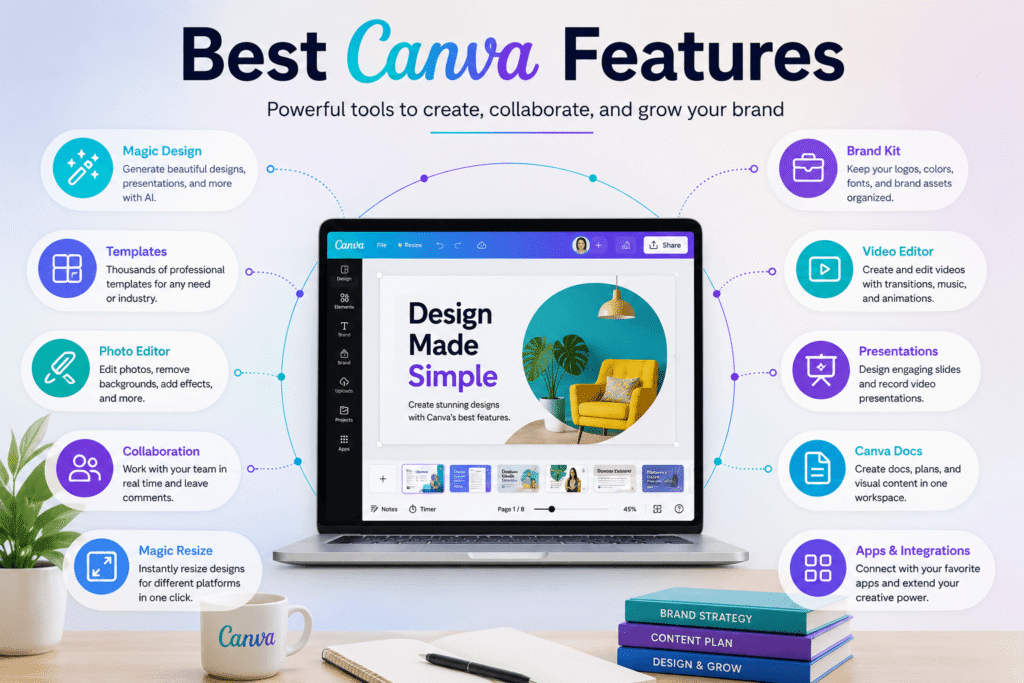
The best Canva features go far beyond ready-made templates. AI-assisted creation, Magic Design, Brand Kit, photo editing, video tools, presentations, collaboration, documents, and content repurposing can help individuals and teams move from an idea to finished visual content with less friction.
The key is not to use every feature at once. Choose the tools that solve your biggest workflow problems.
If you are a beginner, start with templates and basic editing. If you manage a brand, explore Brand Kit and collaboration. If you create content regularly, experiment with AI, video, presentations, and repurposing.
Used thoughtfully, Canva can become much more than a simple design editor—it can become a practical part of your complete visual communication workflow.