
Introduction
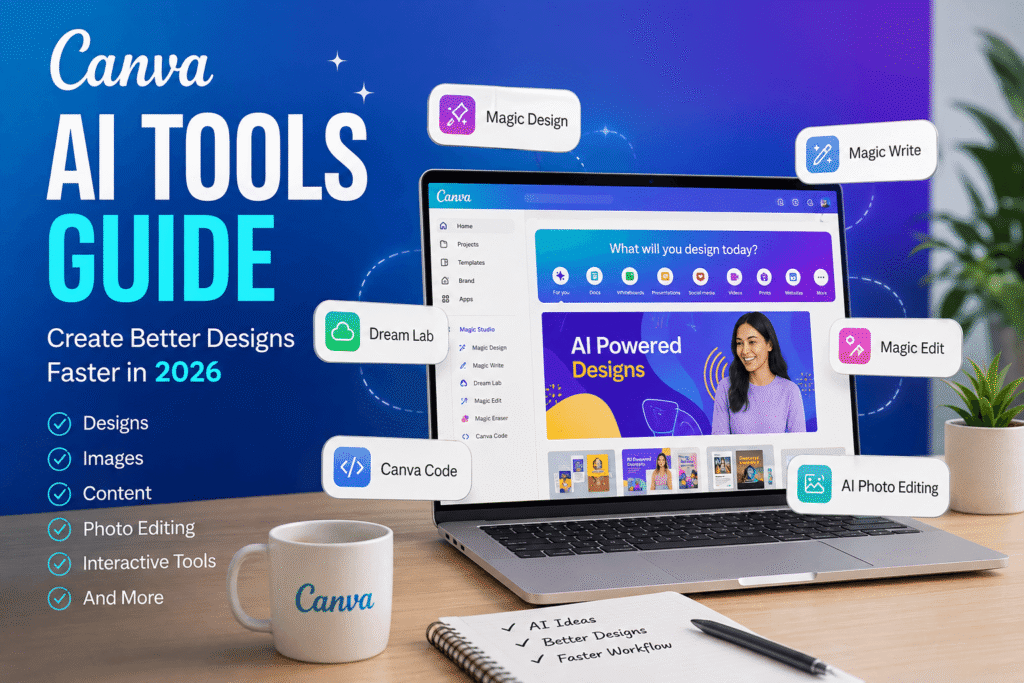
The Canva AI Tools Guide you need in 2026 is not just about generating pretty images. Canva has expanded its artificial intelligence features into a broader creative workflow covering design, writing, images, photo editing, interactive content, and more. Canva introduced Canva AI as a conversational creative partner, while newer developments such as Canva AI 2.0 are designed to help users move from an idea to editable creative work more quickly.
For beginners, this means less time searching through templates and more time refining ideas. For marketers, business owners, educators, and professional designers, it can also reduce repetitive production work.
The key, however, is knowing which AI feature to use, how to write useful prompts, and where human creativity still matters.
Table of Contents
- Why Canva AI Tools Matter
- What Are Canva AI Tools?
- Best Canva AI Tools to Know in 2026
- Benefits of Using Canva AI
- How to Use Canva AI Effectively
- Practical Canva AI Workflow
- Common Mistakes to Avoid
- Canva AI Checklist
- CTA: Take Your Designs Further
- Frequently Asked Questions
- Conclusion
Why Canva AI Tools Matter for Modern Design
Creating digital content can become repetitive.
A small business may need social media graphics, advertisements, presentations, product visuals, email graphics, and promotional materials every week. Meanwhile, designers may spend significant amounts of time resizing layouts, rewriting copy, removing objects, or producing variations.
AI can reduce some of that repetitive work.
Canva’s AI ecosystem is designed to keep many creative tasks inside one platform instead of forcing users to move between separate writing, image-generation, editing, and design applications. Canva says its AI tools can help generate designs, images, documents, and interactive experiences from prompts.
For users in the USA, Canada, the UK, and Europe, this can be especially useful for creating localized marketing content while maintaining consistent branding.
What Are Canva AI Tools?
Canva AI tools are artificial intelligence-powered features built into Canva’s visual communication platform.
Rather than being one single tool, Canva AI represents a collection of capabilities that can assist with different stages of the creative process.
Depending on the feature and account type, users can work with AI to:
- Generate design concepts
- Create written content
- Generate images
- Edit photos
- Remove or modify visual elements
- Adapt content for different formats
- Create interactive experiences
- Work with data-driven content
- Improve existing creative assets
Canva’s newer AI direction is increasingly conversational. Canva AI 2.0, announced in 2026, is designed around starting with an idea or brief and developing it into editable creative work.
This is an important change because traditional design workflows often begin with a blank canvas or template. AI allows the initial idea to become the starting point.
Best Canva AI Tools to Know in 2026
1. Canva AI for Creative Workflows
Canva AI works as a conversational creative assistant. Instead of manually deciding which tool to open first, you can describe what you want to create.
For example:
“Create a clean social media campaign for a modern coffee brand using warm, premium visuals.”
The resulting concept can then become the foundation for further editing.
Canva describes the tool as an all-in-one creative partner for generating designs, images, documents, and other creative outputs.
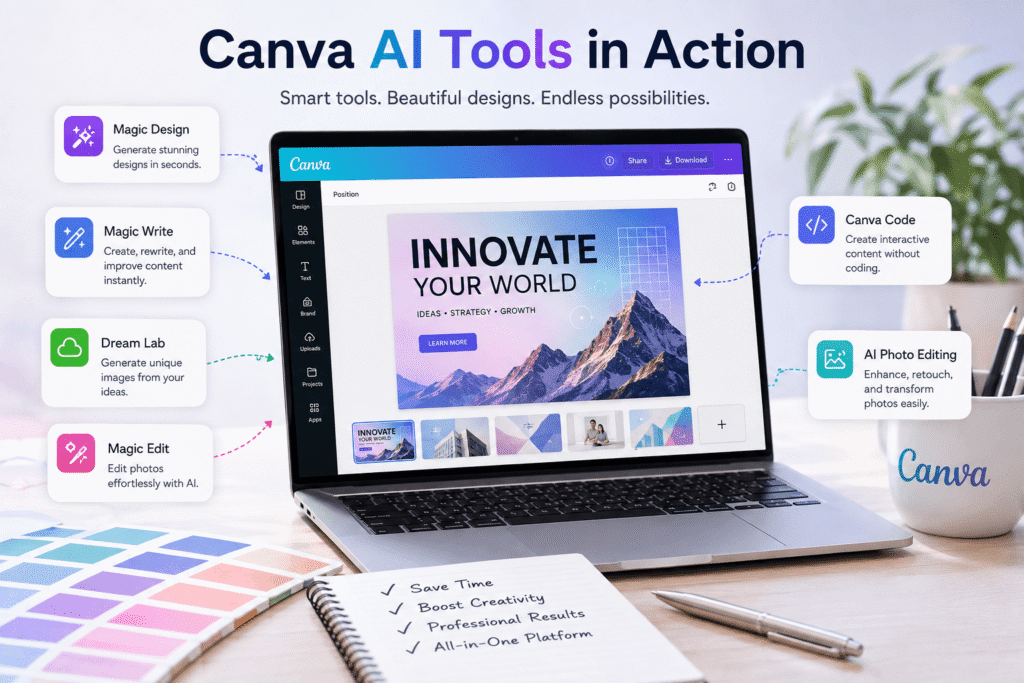
2. Magic Design for Faster Canva Designs
Magic Design is useful when you have an idea but do not know how the final layout should look.
It can help generate design directions for content such as:
Social media posts
Presentations
Posters
Marketing graphics
Promotional content
Instead of spending several minutes searching for the right template, you can begin with a description and refine the generated result.
3. Magic Write for AI Content Creation
Magic Write is Canva’s AI writing assistant.
It can help brainstorm ideas, draft content, rewrite text, summarize information, and improve wording. Canva says Magic Write works across different Canva content types and can help users create copy for social posts, campaigns, documents, and presentations.
For example, a small business owner could prompt:
“Write five friendly Instagram captions for a new skincare product aimed at young professionals.”
The important step is to edit the result afterward. AI should accelerate your writing process, not replace your judgment.
4. Dream Lab for AI Image Generation
Canva’s Dream Lab can generate images from text prompts and offers different styles and aspect ratios. Canva has also described the ability to use style references and refine generated images through prompts.
A strong prompt should explain:
Subject
Style
Composition
Lighting
Mood
Color direction
Aspect ratio
Intended use
For example:
“Create a professional lifestyle photograph of a minimalist home office, natural morning light, neutral colors, clean composition, suitable for a technology blog.”
Specific prompts generally give you more useful starting points than vague instructions such as “make a nice office.”
5.Magic Edit for AI Photo Editing
Magic Edit can help modify parts of an existing image using AI.
This is useful when a photograph is almost right but needs a small visual adjustment.
For example, you might want to replace an object, change part of a scene, or introduce a different visual element.
However, always inspect the result carefully. AI image editing can sometimes produce unusual textures, inconsistent lighting, or unrealistic details.
6. Canva AI Photo Editing Features
Canva has continued expanding AI-powered photo editing capabilities, including easier background and image adjustments. Canva’s 2025 AI announcements highlighted major improvements to its Photo Editor and AI-assisted background generation.
These features are useful for marketers who need quick product images or social media visuals without opening more complicated editing software.
7. Canva Code for Interactive Designs
One of Canva’s more interesting AI developments is Canva Code.
It allows users to describe an interactive experience, such as a quiz, calculator, or mini-game, and have AI generate the experience without traditional coding. Canva says these interactive creations can be used within designs, websites, presentations, and documents.
This expands Canva beyond static graphic design.
Benefits of Using Canva AI Tools
Faster AI-Powered Content Creation
AI can help turn an initial idea into a usable first draft quickly.
That does not mean the first output should automatically be published. Instead, it gives you something concrete to improve.
Easier Canva Design for Beginners
People without formal graphic design training can experiment with layouts, images, and visual concepts without starting completely from scratch.
Better Creative Ideas With Canva AI
AI can produce multiple directions when you are stuck.
For instance, a marketer could ask for ten campaign concepts and then select the strongest two for further development.
More Consistent AI-Assisted Branding
When AI features are combined with Canva’s branding tools, teams can work toward more consistent visual communication.
This is particularly useful for businesses managing frequent social media campaigns.
Fewer Tool Switches
One major advantage is workflow consolidation.
Instead of writing copy in one application, generating images in another, and designing somewhere else, many tasks can happen within the Canva environment.
How to Use Canva AI Tools Effectively
Step 1: Define Your Canva AI Design Goal
Before opening an AI feature, identify what you actually need.
Ask:
- Who is the audience?
- What is the purpose?
- Where will the content be published?
- What action should the audience take?
- What brand style should be used?
Step 2: Write a Better Canva AI Prompt
Weak prompt:
“Make a business post.”
Better prompt:
“Create a professional LinkedIn post for a UK-based accounting firm announcing a free tax-planning consultation. Use a trustworthy, modern visual style.”
The second prompt gives the AI useful context.
Step 3: Generate Multiple AI Design Ideas
Do not immediately accept the first result.
Create multiple variations and compare:
- Layout
- Typography
- Image quality
- Message clarity
- Brand alignment
- Audience relevance
Step 4: Add Human Creativity to AI Designs
AI can generate a starting point, but your creative judgment determines whether the result is actually good.
Adjust spacing, typography, colors, imagery, copy, and hierarchy.
Step 5: Review Your Canva AI Results
This is particularly important for business content.
Check:
- Names
- Dates
- Prices
- Statistics
- Product information
- Claims
- Spelling
- Brand details
AI-generated content can contain mistakes, so never assume generated information is automatically accurate.
Canva itself notes that AI-generated content is subject to its AI Product Terms and Acceptable Use Policy.
A Practical Canva AI Workflow
Imagine you own a small Canadian fitness business.
You could use this workflow:
1. Strategy: Define the campaign goal.
2. Writing: Use Magic Write to brainstorm captions and headlines.
3. Design: Use Canva AI or Magic Design to generate visual directions.
4. Images: Generate supporting visuals with an AI image feature.
5. Editing: Refine photographs and remove unwanted elements.
6. Branding: Apply your brand colors, fonts, and visual identity.
7. Resize: Adapt the final concept for different platforms.
8. Review: Check every detail manually.
This approach combines AI speed with human decision-making.
Common Canva AI Mistakes to Avoid
Using Vague Prompts
The less information you provide, the more likely you are to receive generic results.
Publishing AI Content Without Editing
AI-generated copy and visuals should be reviewed before publication.
Ignoring Brand Identity
A beautiful design can still be ineffective if it does not match your brand.
Overusing AI
Not every creative decision needs automation. Sometimes a simple template or manually designed concept is faster and better.
Forgetting Accessibility
Check contrast, font size, readability, and visual hierarchy before publishing.
Treating AI as a Replacement for Designers
AI is best viewed as a productivity and ideation assistant. Strong design still depends on strategy, communication, taste, context, and human review.
Canva AI Tools Practical Checklist
Before publishing an AI-assisted design, check:
- A human has reviewed the final result.
- The design has a clear objective.
- The target audience is defined.
- The prompt includes useful context.
- The design follows brand guidelines.
- Text has been proofread.
- Images look realistic and appropriate.
- Important facts have been verified.
- Typography is readable.
- Color contrast is sufficient.
- The design fits the intended platform.
Take Your Canva AI Designs Further
AI can make design production faster, but strategy still makes the biggest difference.
If you are a business owner, marketer, creator, or designer who wants stronger visual content, start by identifying the tasks that consume the most time. Then use Canva AI selectively to automate brainstorming, first drafts, image creation, and repetitive production work.
For more practical graphic design tutorials, AI tool guides, branding strategies, and creative resources, explore Design Made Simple and build a smarter design workflow step by step.
Frequently Asked Questions About Canva AI Tools
1. What are Canva AI tools?
Canva AI tools are artificial intelligence features that help users generate and edit designs, text, images, photos, interactive content, and other creative assets within Canva.
2. Is Canva AI suitable for beginners?
Yes. Canva AI is designed to make creative tasks easier for people with different levels of design experience. Beginners can use prompts and generated concepts as starting points, then customize the results.
3. Can Canva AI create images?
Yes. Canva includes AI image-generation capabilities such as Dream Lab, which can generate visuals from text prompts and support different styles and aspect ratios.
4. Can Canva AI write content?
Yes. Magic Write can help generate, rewrite, summarize, brainstorm, and refine text. However, users should review AI-generated content for accuracy, tone, originality, and brand suitability.
5. Are Canva AI tools free?
Access and usage limits can vary by feature and Canva plan. Canva provides some AI capabilities to free users while additional usage or features may require paid access. Because Canva’s plans and AI limits can change, check the current official Canva plan information before making a purchasing decision.
Conclusion
The Canva AI Tools Guide shows how quickly creative workflows are changing. Canva AI, Magic Design, Magic Write, Dream Lab, AI photo editing, and Canva Code can help users move from an idea to a usable creative asset with less repetitive work. Canva’s 2026 AI developments also show a broader shift toward conversational, editable, AI-assisted design workflows.
Still, the best results come from combining artificial intelligence with human creativity. Use AI to brainstorm, accelerate production, explore alternatives, and handle repetitive tasks. Then bring your own judgment to the final design.
For beginners and professionals alike, that balance is what makes Canva AI genuinely useful: let AI speed up the process, but let human creativity make the final decision.