
Introduction
Finding fresh Canva Instagram post ideas can make it much easier to keep your Instagram feed attractive, useful, and consistent. Whether you run a small business, build a personal brand, manage social media, or simply want better-looking posts, Canva gives you a practical way to create professional visuals without advanced design skills.
The challenge, however, is not always learning Canva. It is knowing what to post.
A strong Instagram strategy needs more than attractive graphics. Your content should educate, entertain, build trust, showcase your products or services, and encourage people to take action. With the right Canva templates and a clear content plan, you can turn simple ideas into polished Instagram posts in less time.
Canva provides ready-made Instagram templates, customizable layouts, stock media, editing tools, and options for creating single-image posts and carousels.
This guide shares practical Canva Instagram post ideas you can adapt for your business, personal brand, blog, or creative portfolio.
Table of Contents
- Why Canva Instagram Posts Matter
- 15 Canva Instagram Post Ideas
- How to Create an Instagram Post in Canva
- Instagram Design Tips for Better Engagement
- Common Canva Instagram Mistakes to Avoid
- Canva Instagram Post Checklist
- Internal and External Link Opportunities
- CTA: Take Your Instagram Design Further
- Frequently Asked Questions
- Conclusion
Why Canva Instagram Post Ideas Matter
Instagram is highly visual, so the quality and consistency of your graphics can influence how people perceive your brand.
For a small business, a clean Instagram feed can make the company appear more professional. For a creator, well-designed posts can make educational content easier to understand. For marketers, consistent visuals can strengthen brand recognition.
Canva is particularly useful because you can start with a professionally designed template and customize it to match your brand. Canva also provides Instagram-specific dimensions, making the design process easier for beginners.
Good Instagram content can help you:
- Explain products or services clearly
- Build a recognizable visual identity
- Educate your target audience
- Promote offers and launches
- Share customer success stories
- Increase saves and shares
- Encourage comments and conversations
- Maintain a consistent publishing schedule
The goal is not to make every post complicated. Instead, focus on creating content that gives your audience a reason to stop, read, save, share, or respond.
15 Canva Instagram Post Ideas to Try in 2026
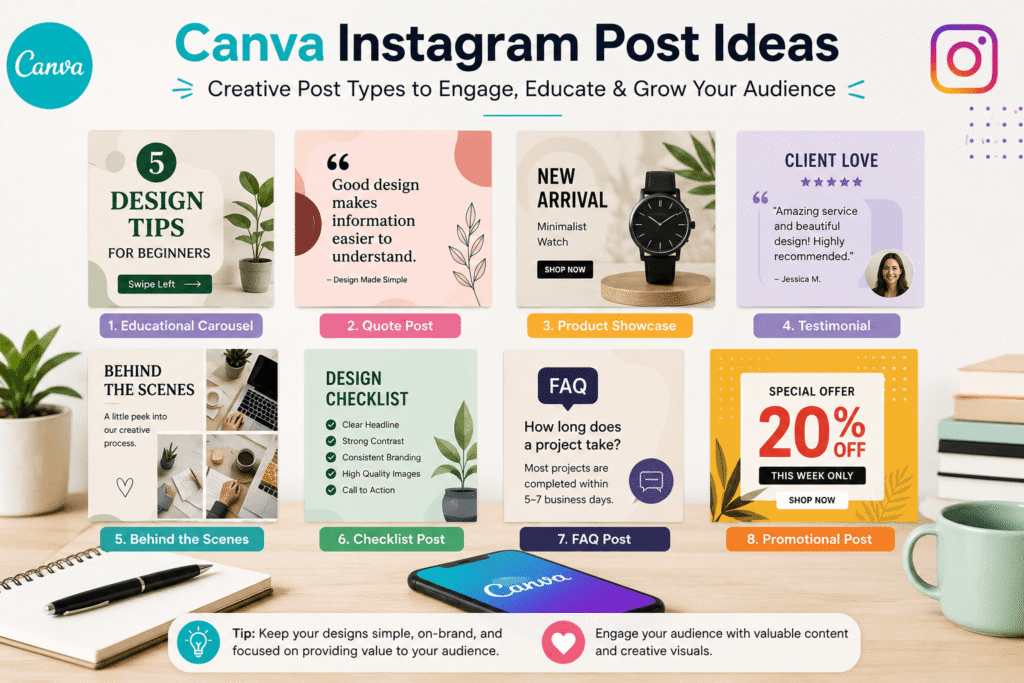
1. Educational Canva Instagram Post Ideas
Educational carousels are one of the easiest ways to turn your expertise into useful content.
For example, a graphic designer could create:
Slide 1: 5 Logo Design Mistakes
Slide 2: Using too many fonts
Slide 3: Poor colour contrast
Slide 4: Designing without scalability
Slide 5: A simple solution
Slide 6: Save this guide for later
Carousels work especially well for tutorials, checklists, tips, comparisons, and step-by-step explanations.
2. Quote Post Ideas in Canva
Inspirational or industry-related quotes can give your feed variety.
However, avoid posting random quotes without context. Instead, connect the quote to your niche.
For example:
“Good design makes information easier to understand.”
Then use the caption to explain what the quote means for your audience.
Choose a strong typeface, generous spacing, and a simple background. Your design should feel intentional rather than crowded.
3. Canva Product Showcase Posts
If you sell products, use Canva to create clean product-focused graphics.
Show:
- Product features
- Benefits
- Different colours or versions
- Before-and-after results
- Pricing or special offers
- How the product works
For example, a skincare business could create a carousel explaining three benefits of a new product, followed by a simple call to action.
Canva’s Instagram tools are designed for promotional content such as product launches, offers, bestsellers, and explainers.
4. Before-and-After Instagram Post Ideas
Before-and-after posts are excellent for visually demonstrating transformation.
They can work for:
- Graphic designers
- Interior designers
- Photographers
- Fitness businesses
- Hair and beauty brands
- Website designers
- Marketing agencies
Use a split layout with clear labels such as Before and After.
Keep the typography and colours consistent so the comparison is easy to understand.
5. Quick Canva Instagram Tips Posts
Create a simple graphic around one useful tip.
For example:
“3 Ways to Improve Your Instagram Graphics”
- Use fewer fonts.
- Increase contrast.
- Leave enough white space.
One useful idea per post makes your content easier to consume and share.
6. Customer Testimonial Post Ideas
Social proof can help potential customers feel more confident about your business.
Turn a genuine customer review into a branded Canva graphic.
Include:
- Short testimonial
- Customer first name or business name, where appropriate
- Relevant product or service
- Small brand logo
- Simple visual treatment
Avoid making the design too promotional. Let the customer’s words remain the focus.
7. Behind-the-Scenes Instagram Posts
Your audience does not always want polished promotional content.
Show how your product is made, how you prepare a project, what happens before a launch, or how your team works.
A simple photo collage can make an effective behind-the-scenes post.
This approach also gives your brand a more human personality.
8. Canva FAQ Instagram Post Ideas
Turn common customer questions into individual posts.
For example:
Question: How long does a logo design take?
Then answer the question briefly and clearly.
You can create a series called “Your Questions Answered” and publish one question each week.
This is particularly useful for service businesses because it addresses objections before someone contacts you.
9. List-Style Instagram Carousel Ideas
List posts are easy to understand and can generate saves.
Try topics such as:
- 7 Canva shortcuts beginners should know
- 5 fonts for modern branding
- 6 Instagram content ideas for small businesses
- 8 design mistakes to avoid
- 10 ideas for your next social media post
Use one idea per slide and maintain the same layout throughout the carousel.
10. Seasonal Canva Instagram Posts
Seasonal posts can make your content feel timely.
Depending on your audience and market, you could create designs around:
- New Year
- Valentine’s Day
- Spring
- Summer
- Back-to-school season
- Halloween
- Thanksgiving
- Christmas
- Black Friday
- Local business events
Canva currently offers templates covering many holidays, celebrations, announcements, and seasonal occasions.
Just make sure the topic genuinely fits your brand rather than using every holiday as a marketing opportunity.
11. Brand Story Instagram Post Ideas
People connect with stories.
Create a carousel explaining:
- Why you started
- A problem you wanted to solve
- How your business developed
- What your brand believes
- Where you want to go next
Use authentic photos and simple typography.
This type of content can be especially valuable for personal brands and small businesses.
12. Canva Mini Infographic Ideas
Turn statistics, processes, or educational information into visual content.
For example:
“How a Logo Goes From Idea to Final Design”
Use icons, numbers, arrows, and short explanations.
Keep the amount of text under control. The purpose of an Instagram infographic is to simplify information, not recreate a full blog article.
13. Promotional Instagram Post Ideas
When you have a sale, make the offer immediately obvious.
A promotional Canva post might include:
SUMMER SALE
25% OFF
Selected Services
Book Before August 31
Use strong contrast and a clear call to action.
Avoid putting every detail on the graphic. Important terms can go into the caption.
14. User-Generated Content Posts
If customers share your product or service, ask permission before reposting their content.
Then create a branded frame or carousel that highlights their experience.
This can combine authentic customer content with your visual identity.
Always make sure you have the appropriate rights or permission to use content. Meta advises Instagram users to post content they created themselves or have the right to share.
15. Save-Worthy Canva Checklist Posts
Create a checklist people can save for later.
For example:
Instagram Design Checklist
☐ Clear headline
☐ Strong contrast
☐ Brand colours
☐ Easy-to-read fonts
☐ One main message
☐ Clear call to action
These posts are simple to create but can provide genuine value.
How to Create Canva Instagram Posts
Creating a post does not have to take hours.
Step 1: Choose Your Instagram Post Format
Open Canva and search for Instagram Post.
For standard feed graphics, Canva’s current size guide lists 1,080 × 1,080 px for square posts and 1,080 × 1,350 px for portrait images. Stories are listed at 1,080 × 1,920 px.
Step 2: Select a Canva Instagram Template
Search by your topic or style.
Try terms such as:
- Instagram carousel
- Minimalist Instagram post
- Business Instagram post
- Quote Instagram post
- Product Instagram post
- Educational carousel
Canva’s template library includes thousands of Instagram designs in different styles and categories.
Step 3: Apply Your Brand Style
Change the:
- Colours
- Fonts
- Images
- Logo
- Icons
- Headline
- Call to action
Do not customize every element just because you can. Keep the design simple.
Step 4: Write a Strong Instagram Headline
Your first slide or image should communicate the main idea quickly.
Instead of:
“Some Things You Should Know About Graphic Design”
try:
“5 Graphic Design Mistakes Beginners Make”
The second version creates a clearer reason to continue reading.
Step 5: Add a Clear Call to Action
Tell people what to do next.
Examples include:
- Save this post
- Share it with a friend
- Comment below
- Visit our website
- Send us a message
- Download the free guide
- Book a consultation
Step 6: Check Your Canva Instagram Design
Look at your post on a smaller screen.
Ask:
- Can I read the headline quickly?
- Is the main message obvious?
- Does the design look balanced?
- Is the branding consistent?
- Is anything unnecessary?
Canva supports downloading designs in formats such as JPG, PNG, and MP4, as well as direct sharing options.
Canva Instagram Design Tips for Better Engagement
A beautiful design is useful, but strategy matters just as much.
Keep Your Canva Instagram Designs Simple
Do not try to teach five different lessons in one graphic.
Give each post one clear purpose.
Use Consistent Branding
Your headline should normally receive the strongest visual emphasis. Supporting information should be smaller.
Stay Consistent
Choose a repeatable visual system.
For example:
- Two brand fonts
- Three main colours
- Consistent logo placement
- Similar headline styles
- Repeatable carousel layouts
This helps people recognize your content while scrolling.
Design for Mobile Instagram Users
Instagram is primarily consumed on mobile devices. Use readable fonts and avoid tiny text.
Test Different Instagram Content Formats
Try single images, carousels, short videos, and other formats. Then compare results using your account analytics.
For paid campaigns, Meta also recommends testing creative variables rather than assuming one design will perform best for every audience.
Common Canva Instagram Post Mistakes to Avoid
Even a good template can look weak when it is poorly customized.
Avoid these mistakes:
Avoid Using Too Many Fonts
Two or three complementary typefaces are usually enough.
Don’t Overload Your Instagram Design
Too much text, too many icons, and too many colours can make the post difficult to understand.
Avoid Copying Trends Without Context
A trendy visual style is not automatically suitable for your brand.
Canva’s current template library includes many trending aesthetics, from minimalist designs to editorial, collage, scrapbook, and bold typographic styles.
Use trends selectively and adapt them to your audience.
Keep Your Canva Designs Consistent
A completely different visual style every day can make your feed feel disconnected.
Use Images You Have Permission to Use
Do not simply download images from Google or another Instagram account and place them into your Canva design. Use licensed assets, your own images, or content you have permission to use.
Canva Instagram Post Checklist
Before publishing, use this quick checklist:
- Does the post have one clear purpose?
- Is the headline easy to understand?
- Is the text readable on mobile?
- Are the colours consistent with the brand?
- Are images properly licensed?
- Is the design visually balanced?
- Does the caption add useful context?
- Is there a relevant CTA?
- Have you checked spelling and grammar?
- Does the post fit your overall content strategy?
CTA: Take Your Canva Instagram Post Ideas Further
Your Instagram feed does not need to look complicated to look professional.
Start with one of the Canva Instagram post ideas above, adapt it to your audience, and build a repeatable visual style. If you are creating content for a business, focus on posts that answer customer questions, demonstrate expertise, showcase results, and guide people toward the next step.
Need help improving your brand visuals or creating a stronger content strategy?
Explore more practical design guides on Design Made Simple, or contact us to discuss your next creative project.
Frequently Asked Questions About Canva Instagram Post Ideas
1. What are the best Canva Instagram post ideas?
Some of the most useful ideas include educational carousels, product showcases, testimonials, before-and-after graphics, FAQs, quick tips, mini infographics, seasonal posts, and behind-the-scenes content.
2. What size should a Canva Instagram post be?
For square Instagram posts, Canva lists 1,080 × 1,080 pixels. For portrait feed images, Canva lists 1,080 × 1,350 pixels. Stories are listed at 1,080 × 1,920 pixels.
3. Can beginners create Instagram posts in Canva?
Yes. Canva is designed with a beginner-friendly drag-and-drop editor and provides customizable templates, stock media, and editing features.
4. How can I make Canva Instagram posts look professional?
Use a limited colour palette, consistent fonts, strong visual hierarchy, high-quality images, sufficient white space, and one clear message per post. Most importantly, keep your branding consistent across multiple posts.
5. Can I use Canva templates for business Instagram posts?
Yes. Canva provides templates for business promotions, product showcases, announcements, educational content, and many other Instagram formats. Always check the applicable licensing terms for assets you use and make sure third-party content is properly licensed.
Conclusion: Start Using Canva Instagram Post Ideas Today
The best Canva Instagram post ideas are not necessarily the most complicated ones. A simple educational carousel, customer testimonial, product graphic, checklist, or behind-the-scenes post can be highly useful when it has a clear purpose.
Start by choosing content your audience actually wants to see. Then use Canva to create a consistent visual system around it. Keep your layouts readable, use your brand colours carefully, and test different content formats over time.
Most importantly, do not rely on templates alone. Your ideas, expertise, personality, and understanding of your audience are what make the content valuable.
With the right strategy, Canva can help you create an Instagram feed that looks professional while making content creation faster and more manageable.
Start with one Canva Instagram post idea today, customize it for your audience, and turn it into a repeatable content series.