
Introduction
Your YouTube channel deserves a banner that looks professional on every device. Whether you are a content creator, small business owner, educator, or marketer, the right channel art helps communicate your brand and make a memorable first impression. Understanding the correct YouTube banner size is the first step toward creating a design that looks polished on mobile phones, computers, and televisions.
Fortunately, you do not need advanced graphic design skills to create attractive channel art. With Canva, you can choose a template, customize your colors and typography, and build a banner that reflects your channel’s personality.
In this guide, you will learn the recommended dimensions, how to protect important content from cropping, and how to create a professional YouTube banner in Canva.
Table of Contents
- Why YouTube Banner Size Matters
- What Is the Correct YouTube Banner Size?
- Understanding the YouTube Banner Safe Area
- Benefits of Professional YouTube Channel Art
- How to Make a YouTube Banner in Canva
- YouTube Banner Design Tips for Beginners
- Common YouTube Banner Mistakes to Avoid
- YouTube Banner Design Checklist
- Create Better Channel Branding
- Frequently Asked Questions
- Conclusion
Why YouTube Banner Size Matters
Your channel banner is the large image displayed at the top of your YouTube channel page. It introduces your brand before visitors explore your videos, playlists, and other content.
A well-designed banner can communicate what your channel offers, establish a consistent visual identity, and help visitors understand why they should subscribe.
However, YouTube displays banner images differently across devices. A design that looks perfect on a computer may appear cropped on a smartphone or television if important elements are positioned incorrectly.
For example, imagine you run a cooking channel featuring quick family recipes. Your banner includes your channel name, a short message, and photographs of your favorite dishes. If your text sits too close to the edges, some viewers may see only part of your message.
Choosing the correct dimensions and positioning important elements carefully helps prevent this problem.
It is especially useful for:
- New YouTubers building their first channel.
- Businesses using video to promote products or services.
- Educators publishing tutorials and lessons.
- Creators developing a recognizable personal brand.
- Marketers managing YouTube channels for clients.
What Is the Correct YouTube Banner Size?
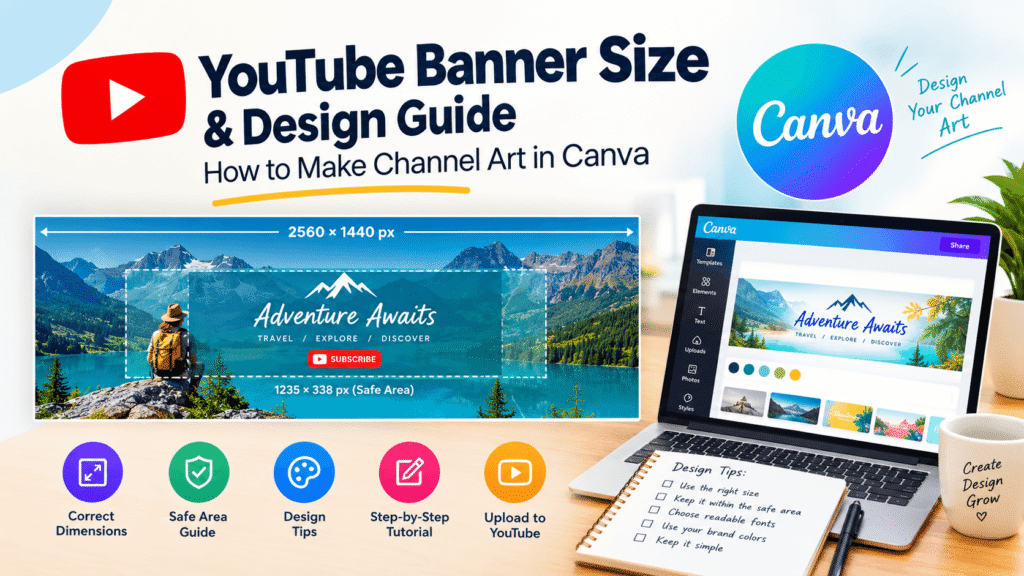
The recommended YouTube banner size is 2560 × 1440 pixels. YouTube identifies these dimensions as its recommendation for displaying channel art across devices, including televisions. The minimum upload dimensions are 2048 × 1152 pixels.
Here are the key specifications to remember.
Banner Specification Recommended Requirement
Recommended dimensions 2560 × 1440 pixels
Minimum dimensions 2048 × 1152 pixels
Aspect ratio 16:9
Safe area at minimum dimensions 1235 × 338 pixels
Maximum file size 6 MB
Supported formats JPG, PNG, GIF, BMP
These requirements come from YouTube’s official banner image guidelines. Check the latest specifications before uploading because platform requirements can change.
Why Use 2560 × 1440 Pixels?
Starting with the recommended dimensions gives you a large canvas for creating detailed, high-quality channel art.
It also helps you design for larger displays without relying on a smaller image that may look less polished when stretched.
In Canva, you can create a custom design using a width of 2560 pixels and a height of 1440 pixels. Alternatively, choose a suitable YouTube banner template and confirm its dimensions before editing.
Design tip: Use a high-quality original photograph, logo, illustration, or background. Avoid enlarging small, low-resolution images because they may look blurry.
Understanding the YouTube Banner Safe Area
The safe area is the central portion of your banner where important content should remain visible across different devices.
YouTube recommends a safe area of 1235 × 338 pixels when working at its minimum banner dimensions of 2048 × 1152 pixels. The visible portion changes depending on the device, so you should preview your design before publishing.
Think of the banner as a large background image with a smaller central space reserved for essential information.
What Belongs Inside the Safe Area?
- Keep these elements near the center:
- Channel name or business name.
- Logo or primary brand symbol.
- Short tagline or channel description.
- Upload schedule, if relevant.
- A brief call to action, where appropriate.
Decorative photographs, background textures, and supporting illustrations can extend toward the outer edges.
How to Protect Your Banner Text
Suppose you manage a digital marketing channel. You might place your brand name in the center, with the tagline “Simple Marketing Strategies” directly underneath.
Keep both lines within the safe area. You can position decorative shapes or subtle illustrations toward the edges without risking the visibility of your main message.
In Canva, use guides and alignment tools to organize your layout. If your chosen template includes a safe-area guide, check that it matches YouTube’s current specifications. Otherwise, create your own guide and remove it before exporting.
Benefits of Professional YouTube Channel Art
An attractive banner does more than decorate your channel. It supports your overall content strategy and brand identity.
Builds Brand Recognition
Consistent colors, typography, and imagery make your channel easier to recognize. When your banner matches your logo, thumbnails, and other marketing materials, viewers experience a more cohesive brand.
Communicates Your Channel’s Purpose
A visitor should quickly understand what your channel is about. A travel creator might use destination photography, while a technology educator could use a clean layout with subtle digital illustrations.
The design should support your content rather than compete with it.
Makes Your Channel Look Professional
A thoughtful banner shows that you pay attention to presentation. This can be especially valuable for businesses, freelancers, and creators who want to build credibility with potential customers.
Supports Your Publishing Schedule
If you upload videos every Tuesday, for example, you could include a short line announcing your schedule. This gives returning viewers a useful reminder without overcrowding the design.
Only include a schedule you can realistically maintain.
How to Make a YouTube Banner in Canva
Canva makes channel art accessible to beginners because it offers customizable templates, design elements, text tools, and image editing features.
Follow these steps to create your banner.
Step 1: Open Canva and Choose Your Canvas
Visit Canva’s official website and sign in to your account.
Search for YouTube banner templates. You can start with a template or create a custom canvas measuring 2560 × 1440 pixels.
If you choose a template, verify its dimensions rather than assuming every result uses the recommended size.
Step 2: Select a Template That Fits Your Brand
Choose a layout that suits your channel’s subject and audience.
For example:
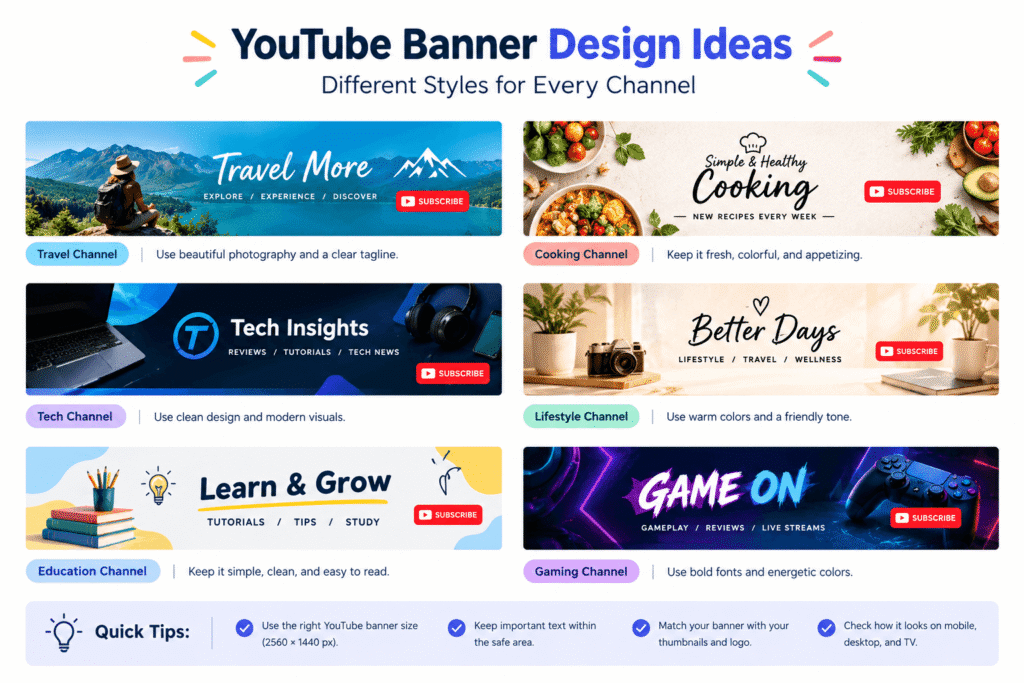
Gaming channel: Bold typography, energetic colors, and gaming-inspired graphics.
Business channel: Clean spacing, restrained colors, and professional imagery.
Educational channel: Clear text, simple illustrations, and an organized layout.
Lifestyle channel: Personal photography, warm colors, and approachable typography.
Design channel: Strong visual composition, creative typography, and a distinctive color palette.
A template is a starting point, not a finished brand identity. Customize it so your banner looks different from other channels using similar designs.
Step 3: Add Your Channel Name and Logo
Your channel name should be one of the most noticeable elements.
Choose a font that remains readable at smaller display sizes. If you have a logo, position it near the channel name without making either element feel crowded.
Keep your text short. A banner is not the place for a long introduction or a complete list of services.
Step 4: Customize Colors, Fonts, and Images
Use a consistent color palette that matches your existing branding.
For a business channel, you might choose two primary colors and one accent color. A creative channel could use a more expressive palette, provided the text remains easy to read.
You can also add original photographs, illustrations, shapes, or subtle textures.
Avoid combining too many fonts or decorative effects. A clear visual hierarchy usually works better than a design filled with competing elements.
Step 5: Check the Safe Area
Before exporting, examine your layout carefully.
Confirm that your channel name, logo, tagline, and other essential information remain within the central safe area.
Keep decorative details toward the edges, where cropping is less likely to affect the message.
If Canva provides a preview or guide in your chosen workflow, use it to check alignment. Otherwise, add temporary guides manually and remove them before downloading.
Step 6: Download Your YouTube Banner
When the design is ready, select Canva’s download option.
Choose PNG or JPG and ensure the final file meets YouTube’s size limit of 6 MB. If necessary, adjust the format or compression while maintaining acceptable image quality.
Give the file a descriptive name, such as youtube-channel-banner.png, so you can find it easily.
Step 7: Upload Your Banner to YouTube Studio
Open YouTube Studio and navigate to Customization → Profile. Select the banner image option, upload your file, and review the preview.
Check the visible crop before publishing. Once everything looks correct, select the publish option to apply the changes to your channel. YouTube’s official help guide explains the current channel-branding process.
Finally, view your channel on a phone and computer. If possible, check a television display as well.
YouTube Banner Design Tips for Beginners
The correct dimensions provide a foundation, but good design choices make your channel art more effective.
Keep Your Message Simple
Use one main message and a small number of supporting elements.
For example, a photography channel could use its name, a short tagline, and one strong photograph. That is often more effective than including several paragraphs and multiple promotional messages.
Use Readable Typography
Choose fonts that match your brand personality without sacrificing readability.
Avoid extremely thin fonts for essential text, especially when the banner will be viewed on smaller screens.
Match Your Video Thumbnails
Your banner and thumbnails should feel connected. Reusing a consistent color palette or typography style can help viewers recognize your content.
For additional guidance, explore our article on how to make YouTube thumbnails in Canva. Replace this placeholder with the correct published URL if your permalink differs.
Design for Your Audience
Consider what your viewers expect from your content.
A finance channel may benefit from a clean, trustworthy appearance. A children’s educational channel may use bright colors and friendly illustrations, while a luxury brand might prefer restrained colors and elegant typography.
The goal is not to follow every design trend. It is to create a visual identity that suits your audience and content.
Common YouTube Banner Mistakes to Avoid
Even a visually appealing design can perform poorly if it ignores practical requirements.
Avoid these common mistakes:
Using the wrong dimensions: Start with 2560 × 1440 pixels whenever possible.
Ignoring the safe area: Keep essential text and logos near the center.
Adding too much text: Use a concise message that viewers can understand quickly.
Choosing low-resolution images: Start with clear, high-quality source files.
Using too many fonts: Limit your design to a small, consistent font combination.
Ignoring brand consistency: Coordinate your banner with your profile picture and thumbnails.
Forgetting mobile previews: Check how the banner appears on different screens.
Uploading an oversized file: Keep the final image within YouTube’s 6 MB limit.
Using misleading claims: Make sure your banner accurately represents your channel and publishing plans.
Remember that a banner supports your channel; it does not replace useful videos, clear titles, or consistent publishing.
YouTube Banner Design Checklist
Before uploading your channel art, use this checklist:
- Canvas measures 2560 × 1440 pixels.
- Image follows the 16:9 aspect ratio.
- Important content fits within the safe area.
- Channel name is easy to read.
- Logo and colors match the brand.
- Images look sharp and professional.
- Text is concise and relevant.
- File size is 6 MB or smaller.
- Exported image uses an accepted format.
- Banner has been previewed in YouTube Studio.
- Final design has been checked on mobile and desktop.
- Banner communicates the channel’s purpose clearly.
Completing these checks helps you avoid preventable cropping and presentation issues.
Create Better Channel Branding
Your banner is one part of a larger visual identity. To create a stronger channel, coordinate your banner, profile image, thumbnails, and video presentation.
If you are building a business channel, use consistent brand colors and messaging. If you are a creator, develop a visual style that reflects your personality and content.
You can also revisit your banner when your channel changes direction, introduces a new series, or updates its branding.
For more practical design advice, explore the tutorials and resources available on Design Made Simple.
Ready to Improve Your Channel’s Visual Identity?
A professional banner can help your channel make a stronger first impression. Start with the recommended dimensions, keep your message clear, and check the design on different devices before publishing.
If you need help creating cohesive channel graphics, branding materials, or professional marketing visuals, contact your design team or a qualified designer to discuss your goals. A consistent visual identity can make your content look more polished across YouTube and other marketing channels.
Frequently Asked Questions
1. What is the correct YouTube banner size?
The recommended YouTube banner size is 2560 × 1440 pixels, with a 16:9 aspect ratio. YouTube’s minimum upload dimensions are 2048 × 1152 pixels.
2. What is the YouTube banner safe area?
The safe area is the central part of the banner where important text and logos should appear. At the minimum banner dimensions, YouTube recommends a safe area of 1235 × 338 pixels.
3. Can I create a YouTube banner in Canva for free?
Yes. Canva offers free design tools and templates that can help beginners create channel art. Some templates, images, and other features may require a paid plan, so check the options available in your account.
4. What file format should I use for a YouTube banner?
YouTube accepts JPG, GIF, BMP, and PNG banner images, subject to its current requirements. Keep the file at or below 6 MB and preview the image before publishing.
5. How do I upload a banner to my YouTube channel?
Open YouTube Studio, navigate to Customization → Profile, select the banner image option, and upload your design. Review the crop, then publish your changes. Check the official YouTube Help Center if the interface differs from these steps.
Conclusion
Choosing the correct YouTube banner size is essential for creating channel art that looks professional across devices. The recommended 2560 × 1440-pixel canvas gives you a strong starting point, while the safe area helps protect your logo, channel name, and main message from unwanted cropping.
With Canva, you can build a polished banner without advanced design experience. Choose a suitable template, customize your brand colors and typography, keep the layout simple, and preview the final image before uploading it.
Most importantly, make your banner reflect the content and personality of your channel. When your channel art works alongside consistent thumbnails and useful videos, it helps create a recognizable experience for your audience.
Start designing today, review your banner on different screens, and make adjustments until your channel presents the right first impression.