
Introduction
If you have ever searched for an easy way to create social media graphics, presentations, posters, resumes, videos, or business content, you have probably encountered Canva. But what is Canva, and why has it become such a popular design platform?
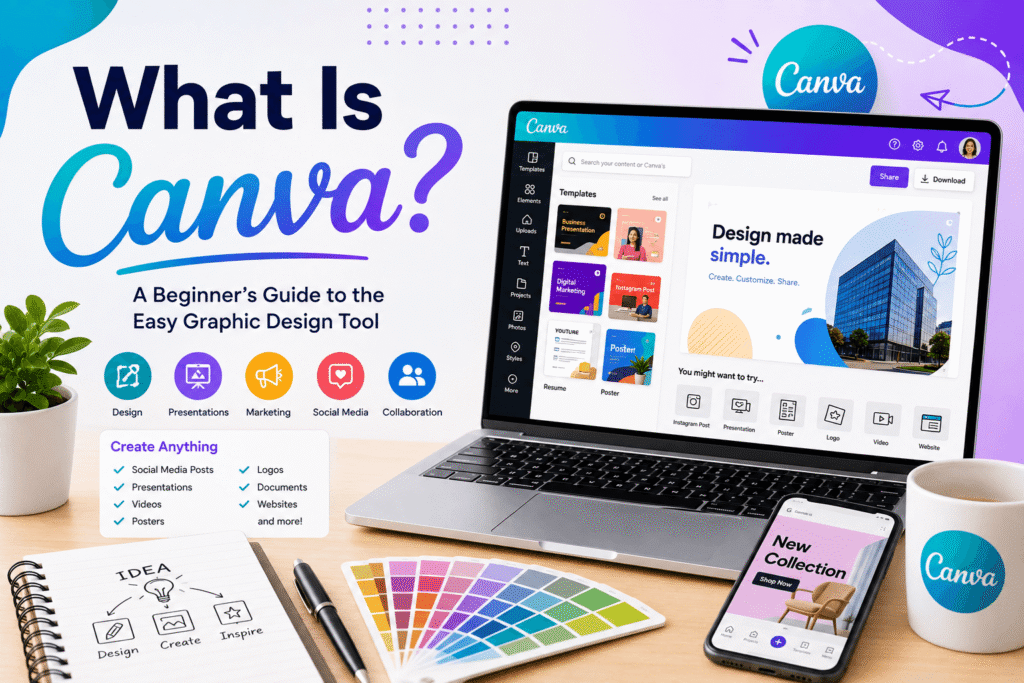
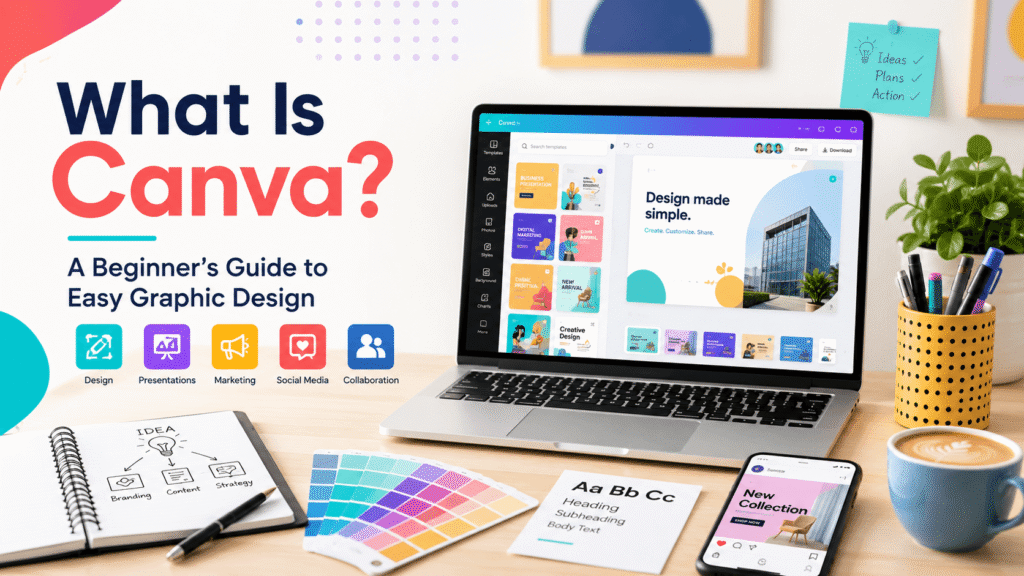
Canva is an online visual communication and design platform that allows people to create professional-looking content without needing advanced graphic design skills. Its drag-and-drop editor, templates, media library, collaboration features, and growing collection of AI tools make visual content creation accessible to beginners and professionals alike.
Today, Canva goes beyond simple graphics. Its Visual Suite includes tools for presentations, documents, whiteboards, social media, video, websites, print, email, and more.
Table of Contents
- What Is Canva?
- Why Is Canva So Popular?
- What Can You Create With Canva?
- Key Canva Features
- Benefits of Using Canva
- Canva Free vs. Paid Plans
- How to Use Canva: Step-by-Step
- Is Canva Good for Beginners?
- Common Canva Mistakes to Avoid
- Canva Design Checklist
- Internal and External Link Opportunities
- Frequently Asked Questions
- Conclusion
Why Does Canva Matter?
Good visual content is no longer limited to professional graphic designers.
A small business may need Instagram posts, Facebook graphics, presentations, flyers, advertisements, and branded documents. A freelancer may need a portfolio and client presentation. A marketer may need dozens of visual assets every month.
Hiring a designer for every small task is not always practical. Traditional professional design software can also have a steep learning curve.
This is where Canva fills an important gap.
Canva gives users a simpler environment for creating visual content. Instead of starting with a completely blank canvas, you can choose a template, customize the text and images, adjust colors, and create something that fits your purpose.
For businesses in the USA, Canada, the UK, and Europe, this can be particularly useful when teams need to produce consistent marketing materials quickly.
What Is Canva Used For?
So, what is Canva actually used for?
The short answer is: almost any type of everyday visual communication.
Canva supports a broad range of design formats, including:
- Social media posts
- Instagram Stories
- YouTube thumbnails
- Presentations
- Posters
- Flyers
- Business cards
- Resumes and CVs
- Infographics
- Logos
- Brochures
- Videos
- Websites
- Whiteboards
- Documents
- Email designs
- Marketing materials
- Educational resources
Canva’s current platform includes hundreds of design categories and combines multiple creative formats within its Visual Suite.
For example, imagine that a local coffee shop wants to promote a summer offer.
Instead of creating every piece of content separately, the owner could develop a visual style and then create a social post, promotional poster, digital advertisement, and presentation using the same branding.
That makes Canva more than a graphics editor. It can become part of a business’s everyday content workflow.
Key Canva Features
1. Drag-and-Drop Editor
One of Canva’s biggest advantages is its straightforward editor.
You can select an element and move it around the page, change its size, edit text, replace images, and experiment with layouts without needing extensive technical knowledge.
This makes the platform approachable for people who have never used professional design software.
2. Ready-Made Canva Templates
Templates are another major reason beginners choose Canva.
Instead of figuring out dimensions, spacing, typography, and layout from scratch, you can start with a professionally structured design and customize it.
Templates are available for different purposes, including business, education, marketing, social media, presentations, and print.
However, a template should be treated as a starting point rather than the final design.
Changing the colors, typography, imagery, spacing, and messaging can make your design more distinctive.
3. Photos, Graphics, Videos, and Other Media
Canva provides access to visual assets that can be incorporated into designs.
Depending on your plan and the specific asset, you can use photographs, illustrations, videos, audio, icons, and other creative elements.
This saves time because you do not always need to find every design component separately.
4. Canva AI
AI has become an increasingly important part of Canva.
Canva has integrated AI capabilities into its creative workflow, including tools designed to help with writing, image generation, animation, editing, and other creative tasks.
In 2026, Canva also introduced Canva AI 2.0 as a research preview, describing a more conversational approach where users can begin with an idea or brief and generate editable design outputs.
For beginners, AI can help overcome the blank-page problem. However, human judgment is still important. AI-generated content should be reviewed for accuracy, brand consistency, originality, and suitability.
5. Collaboration
Canva is also useful for teams.
Users can collaborate on designs, leave comments, assign tasks, and work together on visual projects. Canva’s Visual Suite is designed to connect creative work across formats rather than treating every asset as an isolated project.
That can help marketing teams, freelancers, educators, and business owners reduce unnecessary back-and-forth.
6. Multiple Design Formats in One Platform
Canva has expanded significantly beyond traditional graphic design.
Its Visual Suite brings together documents, presentations, spreadsheets, whiteboards, social content, video, websites, print, and email within a connected platform.
This is useful when one campaign requires several different types of content.
Benefits of Using Canva
Canva Saves Time
Starting with templates and reusable brand assets can reduce the time needed to create routine content.
Canva Is Beginner-Friendly
You do not need to understand advanced design software before creating your first project.
Canva Supports Brand Consistency
Businesses can establish recurring colors, fonts, imagery, and layouts so their marketing materials look connected.
Canva Makes Content Creation More Accessible
A small business owner, student, marketer, freelancer, or teacher can create useful visual materials without becoming a professional designer.
Canva Supports Modern Content Workflows
With video, presentations, websites, documents, social media, AI, collaboration, and other features available in one ecosystem, Canva can support more of the content-production process.
Canva Free vs. Canva Pro
One common question is whether Canva is free.
Yes. Canva offers a free plan with basic design tools, templates, media, cloud storage, and other features. Paid plans provide additional premium content and capabilities. Canva’s current pricing page lists Free and Pro options, along with business offerings.
The right plan depends on your needs.
Canva Free
The free plan can be suitable for:
- Beginners
- Students
- Occasional projects
- Personal social media content
- Simple business graphics
Canva Pro
A paid plan can make more sense for users who regularly create professional content and need additional premium assets, tools, AI capabilities, and brand-focused features.
Before upgrading, consider how frequently you design and which premium features you actually need.
How to Use Canva: Step-by-Step
If you are completely new to Canva, start with a simple project.
Step 1: Choose Your Design Type
Decide what you want to create.
For example:
Instagram post → Presentation → Flyer → Resume → YouTube thumbnail
Choosing the correct format first helps you work with appropriate dimensions.
Step 2: Select a Template
Search Canva’s template library for a design related to your project.
Do not worry about finding the perfect template. Choose one with a useful structure.
Step 3: Customize the Design
Replace the sample text and images with your own content.
Adjust:
- Colors
- Fonts
- Images
- Icons
- Spacing
- Alignment
- Layout
Step 4: Apply Your Brand Style
If you are designing for a business, use consistent brand colors and typography.
Consistency is often more valuable than adding lots of decorative elements.
Step 5: Review the Design
Before exporting, check your work carefully.
Look for:
- Spelling errors
- Uneven spacing
- Poor contrast
- Misaligned elements
- Low-quality images
- Unnecessary decorations
Step 6: Export or Share
Once your design is ready, choose an appropriate file format or share it with collaborators.
Common Canva Mistakes to Avoid
Canva makes designing easier, but easy tools can still produce poor results when used without a clear design strategy.
Using Too Many Fonts
Two or three complementary typefaces are usually easier to read than a page filled with different fonts.
Copying a Template Too Closely
Templates are useful starting points. However, simply changing one sentence and an image may leave your design looking generic.
Adding Too Many Elements
More graphics do not automatically make a design better.
White space gives important content room to breathe.
Ignoring Contrast
Text needs enough contrast against its background to remain readable.
This is particularly important for websites, presentations, and social media graphics.
Designing Without a Goal
Before opening Canva, ask:
What should the viewer understand, feel, or do after seeing this design?
That question can guide your layout, headline, imagery, and call to action.
Canva Design Checklist
Before publishing your next Canva project, use this quick checklist:
- Is the main message immediately clear?
- Is the text easy to read?
- Are the colors consistent?
- Did I use appropriate fonts?
- Is there enough white space?
- Are images high quality?
- Is the design appropriate for its platform?
- Is the branding consistent?
- Did I proofread the content?
- Does the design have a clear purpose?
A simple checklist can prevent many avoidable design problems.
Why Canva Is More Than a Design Tool
The biggest change in Canva is the shift from individual graphics toward a broader visual communication platform.
A business might begin with one Instagram graphic. Later, it may need a presentation, email campaign, website, video, document, sales material, or internal report.
Instead of moving between completely different applications, Canva aims to connect many of these workflows.
Recent updates also show how strongly AI is becoming part of the platform. Canva has continued introducing AI-powered creation and workflow features, including image-to-video capabilities and broader AI functionality.
For users, the important question is not simply whether Canva has more features.
The real question is whether those features help you communicate more effectively.
CTA: Ready to Improve Your Designs?
Knowing Canva is only the beginning. The real value comes from using it with good design principles.
Whether you are building social media content, improving your brand visuals, creating presentations, or learning graphic design from scratch, the right strategy can make simple Canva designs look much more professional.
Explore more practical design tutorials, AI design tools, branding advice, and creative resources on Design Made Simple. If you need professional guidance for a design or branding project, consider contacting your design team or booking a consultation.
Frequently Asked Questions
1. What is Canva?
Canva is an online visual design and communication platform used to create graphics, presentations, documents, videos, websites, social media content, and other visual materials. It is designed to be accessible to people without advanced design experience.
2. Is Canva free to use?
Yes. Canva offers a free plan with basic design features, templates, media, and other tools. Paid plans provide additional premium features and content.
3. Is Canva good for beginners?
Yes. Canva is particularly beginner-friendly because its drag-and-drop editor and templates simplify many common design tasks. Beginners can start with templates and gradually learn principles such as typography, color, spacing, and composition.
4. Can Canva be used for business?
Yes. Businesses can use Canva to create social media content, presentations, marketing materials, documents, websites, videos, and branded visual assets. Canva also provides collaboration and brand-management features for organizations.
5. Does Canva use artificial intelligence?
Yes. Canva includes AI-powered features for tasks such as writing, image generation, editing, animation, and other creative workflows. Canva has also introduced newer AI capabilities designed to make creation more conversational and flexible.
Conclusion
So, what is Canva?
Canva is an accessible visual communication platform that helps people create professional-looking designs without requiring advanced graphic design skills. Its templates, drag-and-drop editor, media library, collaboration tools, AI capabilities, and wide range of formats make it useful for individuals, creators, marketers, educators, freelancers, and businesses.
However, great design is not simply about choosing a template.
The strongest Canva projects combine good typography, clear messaging, thoughtful layouts, consistent branding, appropriate imagery, and a specific goal.
If you are a beginner, start small. Create one social media graphic, presentation, or flyer. Experiment with typography and spacing. As your skills improve, use Canva as a creative tool rather than relying on templates alone.
With the right approach, Canva can become much more than a quick design solution. It can become a practical part of your everyday visual communication workflow.