
Introduction
A strong Canva Facebook Cover Design can make your Facebook profile or business Page look more professional within minutes. Your cover image is one of the first visual elements visitors notice, so it should communicate your brand, personality, or offer clearly.
Fortunately, you do not need advanced graphic design skills to create an attractive Facebook cover. With Canva, you can choose a ready-made layout, customize colors and fonts, add your own images, and create a polished design quickly.
Whether you are a small business owner, freelancer, content creator, marketer, or beginner designer, this guide will show you how to create a Facebook cover that looks professional on different screens.
Table of Contents
- Why Facebook Cover Design Matters
- What Is a Canva Facebook Cover Design?
- Facebook Cover Photo Size
- How to Create a Facebook Cover in Canva
- Design Tips for a Professional Cover
- Benefits of Using Canva
- Common Facebook Cover Mistakes
- Practical Checklist
- CTA
- Frequently Asked Questions
- Conclusion
Why Canva Facebook Cover Design Matters
Your Facebook cover is more than a decorative banner. It gives visitors an immediate impression of your brand.
For a business, the cover can introduce your services, promote a campaign, highlight a product, or reinforce brand identity. For creators and individuals, it can communicate interests, expertise, or personality.
A well-designed cover can help you:
- Create a stronger first impression
- Make your Facebook Page look trustworthy
- Reinforce your visual branding
- Highlight an important message
- Promote products, services, or events
- Make your profile easier to recognize
- Maintain consistency across social media
However, an attractive design alone is not enough. The image must also work across desktop and mobile screens.
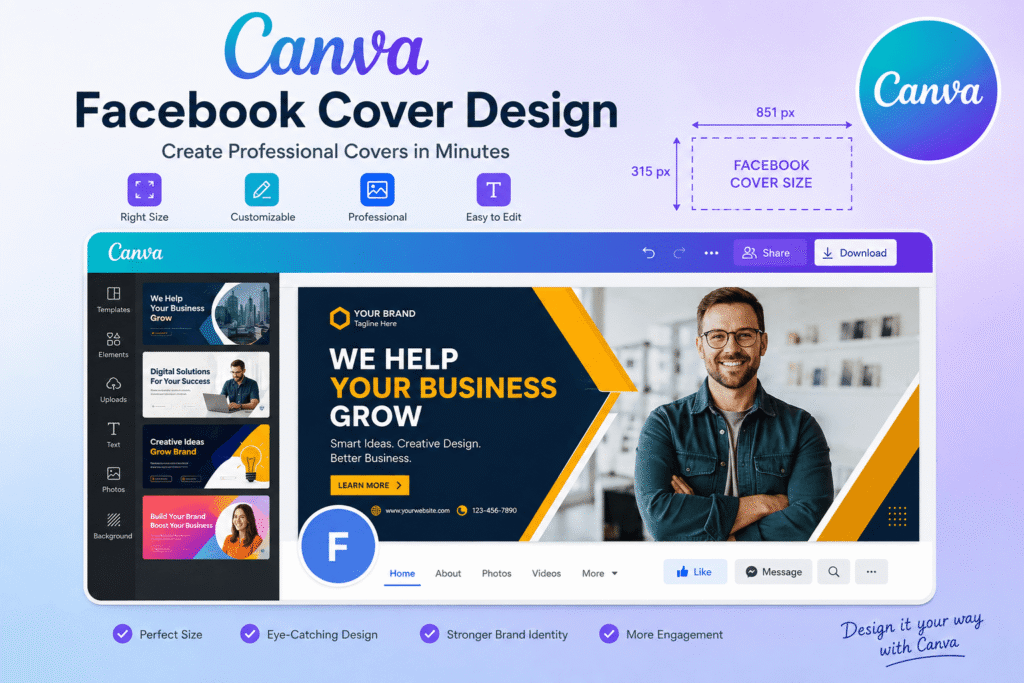
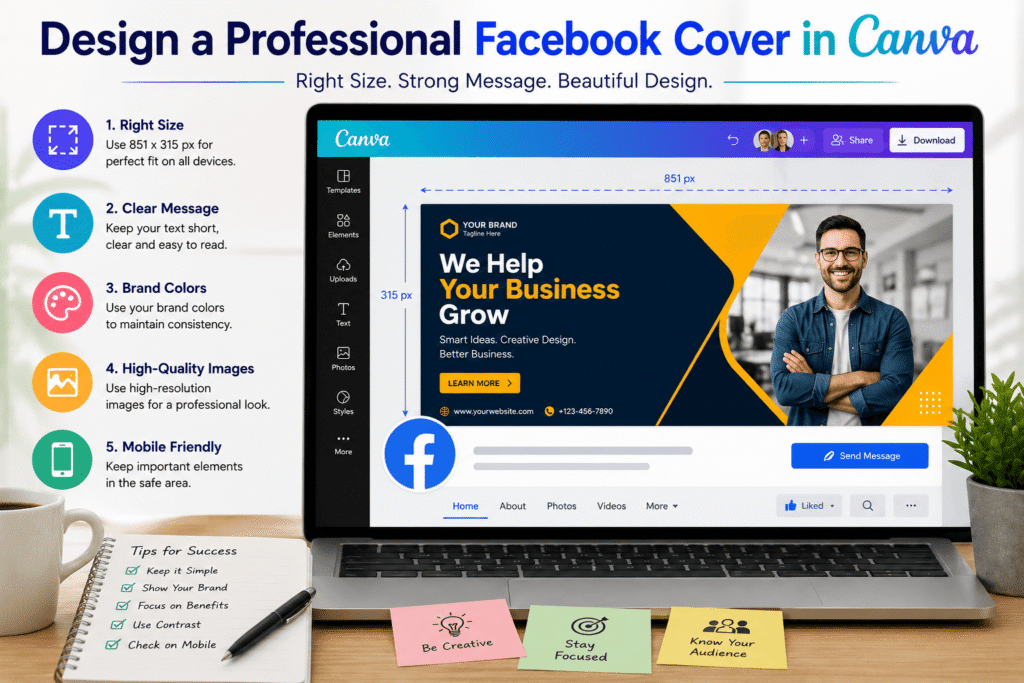
Current social-media size guides list 851 × 315 pixels as the recommended Facebook cover size, while mobile displays can show the cover differently.
What Is a Canva Facebook Cover Design?
A Canva Facebook Cover Design is a Facebook cover image created using Canva’s online design platform.
Canva provides pre-formatted Facebook cover layouts, allowing users to start with a template instead of building the entire composition from scratch. You can then replace images, edit text, change colors, and adjust other design elements.
This makes Canva particularly useful for beginners.
For example, imagine you run a local bakery in London. Instead of using a random food photograph as your cover, you could create a branded banner featuring:
- Your bakery logo
- A professional product photograph
- Your brand colors
- A short value statement
- Your website address
- A seasonal promotion
The result feels intentional rather than generic.
Canva Facebook Cover Design Size: What You Need to Know
Before starting your design, choose the correct dimensions.
Canva’s current Facebook size guide lists 1,125 × 633 pixels for a Facebook cover, while Canva’s Facebook cover maker also provides a ready-made 851 × 315 pixel template.
Meanwhile, current social-media specification guides commonly recommend 851 × 315 pixels, with Facebook displaying the cover differently on mobile.
Because platform specifications can change, using Canva’s current Facebook cover template is a practical way to start with a platform-specific canvas.
Keep Important Elements Away From Edges
Your logo, headline, contact information, and other essential elements should not sit too close to the edges.
The profile picture can overlap part of the cover, particularly on mobile devices. Therefore, leave enough visual breathing room around important information.
Use High-Quality Images
A blurry photograph can make an otherwise excellent design look unprofessional.
Use:
- High-resolution product photographs
- Clear brand graphics
- Professional portraits
- Sharp logos
- Clean illustrations
For designs containing logos or text, PNG can be a useful choice because it can preserve crisp graphic elements.
How to Create a Canva Facebook Cover Design
Creating a Facebook cover does not have to be complicated. Follow these steps.
1. Open Canva
Start by opening Canva and searching for Facebook Cover.
Canva provides Facebook-specific templates, which means you can begin with a canvas designed for the platform.
2. Choose a Template
Look through the available designs and choose one that matches your purpose.
For example:
- A restaurant can choose a food-focused layout.
- A consultant can use a clean professional design.
- A photographer can use a large image-based layout.
- A fashion brand can select an editorial style.
- A personal creator can use a colorful, personality-driven template.
Do not choose a template simply because it looks attractive. Choose one that supports your message.
3. Add Your Brand Colors
Replace template colors with your own brand palette.
A simple palette usually works better than using many unrelated colors. Ideally, your cover should visually connect with your:
- Logo
- Website
- Social media posts
- Marketing materials
- Product packaging
Consistency helps people recognize your brand more easily.
4. Select Easy-to-Read Fonts
Typography plays an important role in Facebook banner design.
Use one strong font for the headline and another complementary font for supporting information if needed.
Avoid:
- Extremely decorative fonts
- Tiny text
- Too many font styles
- Low-contrast text
- Long paragraphs
Your main message should be understandable at a glance.
5. Add Your Main Message
A Facebook cover should have a purpose.
Your headline might communicate:
“Creative Branding for Growing Businesses”
or:
“Freshly Baked. Locally Loved.”
or:
“Helping Small Businesses Look Professional Online.”
Keep the message short. Your cover is not the place for a full sales pitch.
6. Add Supporting Visuals
Choose one strong visual direction.
You might use:
- A product photograph
- A team photograph
- A lifestyle image
- An abstract background
- A brand illustration
- A subtle texture
Avoid filling every empty area with icons, shapes, and decorative elements.
White space can make your design feel more premium.
7. Preview Your Design
Before downloading, inspect the entire design.
Ask yourself:
- Is the headline easy to read?
- Is the logo visible?
- Does the design represent my brand?
- Could the profile picture cover important information?
- Does the design still make sense without zooming in?
- Is there too much text?
- Does the visual hierarchy feel balanced?
This final review can prevent common publishing mistakes.
Canva Facebook Cover Design Tips for Businesses
If you are designing a business Facebook Page, think strategically.
Make Your Value Proposition Clear
Visitors should quickly understand what your business does.
For example:
Weak:
“Welcome to Our Page”
Stronger:
“Handmade Skincare for Sensitive Skin”
The second message immediately tells visitors what the business offers.
Use Your Brand Identity
Your Facebook cover should look like it belongs to your business.
Use consistent:
- Colors
- Typography
- Photography style
- Logo placement
- Visual tone
This is especially important for businesses serving customers in competitive markets such as the USA, Canada, UK, and Europe.
Promote Seasonal Campaigns
Your cover can also support timely marketing campaigns.
For example:
- Summer collection
- Black Friday promotion
- Holiday shopping
- New product launch
- Spring sale
- Event announcement
However, remember to update the cover when the campaign ends. An outdated promotion can make a business appear inactive.
Benefits of Using Canva for Facebook Cover Design
Easy for Beginners
Canva’s template-based workflow removes much of the complexity associated with professional design software.
Faster Design Process
Instead of creating every element manually, you can customize an existing layout.
Professional Templates
Templates provide useful starting points for composition, typography, imagery, and spacing.
Easy Brand Customization
You can replace colors, photographs, text, and other elements to create something that fits your business.
Consistent Social Media Branding
Once you establish a visual style, you can apply similar principles across Facebook, Instagram, LinkedIn, and other platforms.
Team Collaboration
Canva also supports collaborative workflows, which can be useful when marketers, business owners, and designers work together
Common Facebook Cover Design Mistakes to Avoid
Even simple designs can go wrong. Watch for these common problems.
1. Using the Wrong Dimensions
An incorrectly sized image may appear cropped, stretched, or poorly positioned.
2. Putting Text Too Close to the Edges
Important information can become difficult to see on different devices.
3. Adding Too Much Text
A cover should communicate one main idea rather than explain everything about your company.
4. Using Too Many Colors
A crowded color palette can weaken visual hierarchy.
5. Ignoring Mobile Users
Desktop and mobile displays do not show the cover in exactly the same way.
6. Using Low-Quality Images
Poor photography can make a professional brand look amateur.
7. Forgetting Brand Consistency
A cover that looks completely different from your website and other social profiles can confuse visitors.
Canva Facebook Cover Design Checklist
Before publishing your design, use this quick checklist:
- Correct Facebook cover template selected
- High-quality image used
- Brand colors included
- Logo is clear
- Headline is easy to read
- Text is not too close to edges
- Profile picture overlap considered
- Mobile appearance considered
- Strong visual hierarchy
- No unnecessary elements
- Spelling checked
- Outdated promotions removed
- Final image exported in a suitable format
A few minutes of quality control can make a significant difference.
Create a Better Facebook Cover Today
A professional Facebook cover does not require expensive software or advanced design experience.
With Canva, you can start with a suitable template, establish a clear visual hierarchy, add your brand identity, and create a polished banner in a relatively short time.
If you are building a business brand, do not treat your Facebook cover as an afterthought. Use it as a strategic visual asset that communicates who you are and what you offer.
Want more practical design guidance? Explore the design resources on Design Made Simple for beginner-friendly tutorials, branding ideas, AI design tools, and creative strategies that can help you build a stronger online presence.
Frequently Asked Questions About Canva Facebook Covers
1. What is the best size for a Canva Facebook cover?
A commonly recommended Facebook cover size is 851 × 315 pixels. However, Facebook displays covers differently across devices, so using Canva’s current Facebook cover template and keeping important content within a safe central area is a practical approach.
2. Can I create a Facebook cover for free in Canva?
Yes. Canva offers Facebook cover templates and allows users to customize layouts with their own images, colors, and text. Some templates and assets may require a paid Canva plan.
3. What should I put on a business Facebook cover?
A business cover can include your logo, value proposition, product or service imagery, brand colors, and a short promotional message. Keep the information concise and visually clear.
4. Should I design my Facebook cover for mobile?
Absolutely. Mobile users may see your cover differently from desktop visitors. Keep important text and logos away from areas that could be obscured or cropped.
5. Can a Facebook cover use a video or GIF?
For current Facebook cover designs, Canva states that Facebook no longer supports videos or GIFs as cover images. A static JPG or PNG is the safer choice for a standard Facebook cover.
Conclusion: Create a Professional Canva Facebook Cover
A well-planned Canva Facebook Cover Design can instantly improve the appearance of your Facebook profile or business Page. The key is not simply choosing a beautiful template. You need the right dimensions, clear messaging, consistent branding, strong imagery, readable typography, and a layout that works across devices.
Start with Canva’s Facebook-specific templates, keep your message simple, protect important elements from cropping, and always preview your design before publishing.
With these principles, even beginners can create a professional Facebook cover that supports their brand and gives visitors a stronger first impression.