
Introduction
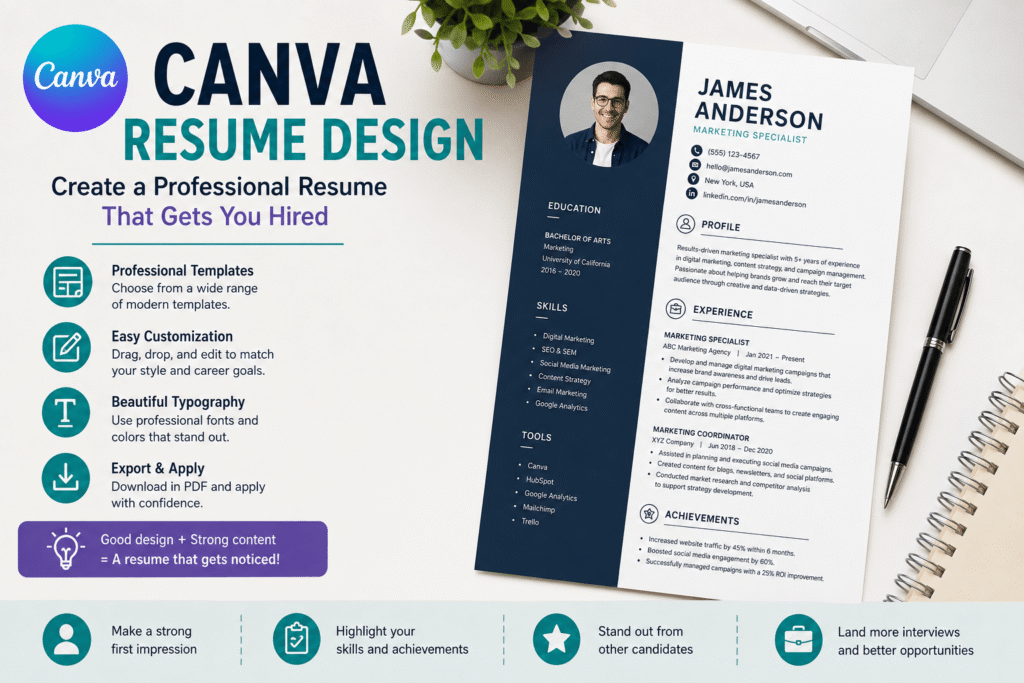
A strong resume needs more than good information—it needs clear presentation. Canva resume design makes it easier to create a polished, professional resume without advanced graphic design skills. With ready-made templates, drag-and-drop editing, fonts, layouts, and customization options, Canva can help job seekers build a resume quickly while maintaining a modern appearance.
However, an attractive resume is not automatically an effective resume. Your design should support your qualifications rather than distract from them. The best approach is to combine clean visual design with relevant achievements, readable formatting, and keywords that match the position you want.
Whether you are applying for jobs in the USA, Canada, the UK, or Europe, this guide explains how to create a Canva resume that looks professional and communicates your value clearly.
Table of Contents
- Why Canva Resume Design Matters
- What Makes a Good Canva Resume?
- How to Create a Resume in Canva
- Choosing the Right Resume Template
- How to Write Strong Resume Content
- Making Your Canva Resume ATS-Friendly
- Benefits of Canva Resume Design
- Common Resume Design Mistakes
- Canva Resume Checklist
- Internal and External Link Placement
- Frequently Asked Questions
- Create a Better Resume Today
- Conclusion
Why Canva Resume Design Matters
Your resume is often one of the first documents an employer sees during the hiring process. Therefore, it should make your qualifications easy to understand.
A well-designed resume creates a professional first impression while helping recruiters quickly find important information. Harvard career guidance recommends resumes that are specific, active, fact-based, organized, and easy to scan.
That is where Canva can be useful.
Canva provides professionally designed resume templates that can be customized without starting from a blank page. You can change fonts, colors, layouts, headings, and other visual elements using its drag-and-drop editor.
Still, design should never replace substance. A beautiful resume with vague achievements will not be as persuasive as a simple resume containing relevant and measurable results.
What Makes a Good Canva Resume?
A professional resume should balance design, readability, relevance, and accuracy.
1. Keep the Layout Simple
Avoid filling every area of the page with graphics. White space gives your content room to breathe and makes the document easier to scan.
A clean layout usually includes:
- A clear name and professional headline
- Contact information
- Professional summary
- Work experience
- Education
- Relevant skills
- Certifications or additional qualifications
Canva itself recommends clear section headings, professional fonts, appropriate spacing, and a focus on recent and relevant experience.
2. Use a Professional Font
Choose fonts that remain readable on both screens and printed documents.
Simple fonts such as Arial, Calibri, Georgia, or similar professional typefaces can work well. Keep font sizes consistent and use bold formatting to establish hierarchy.
3. Make Important Information Easy to Find
Recruiters should not have to search for your job title, experience, or skills.
Use clear headings such as:
Professional Experience
Education
Skills
Certifications
Consistent formatting makes the entire document easier to navigate.
How to Create a Resume in Canva
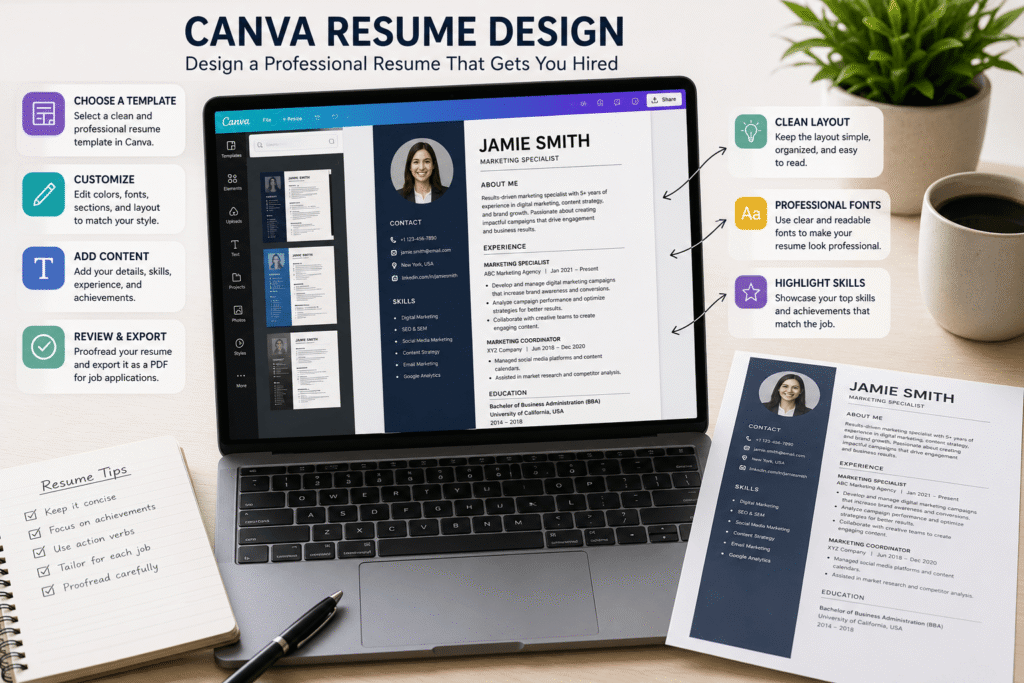
Creating a resume in Canva is straightforward, even if you have little design experience.
Step 1: Start With Your Resume Content
Before opening Canva, prepare your information.
Collect:
- Full name
- Professional email address
- Phone number
- Location
- LinkedIn profile, if relevant
- Professional summary
- Employment history
- Education
- Skills
- Certifications
- Relevant projects or achievements
Starting with the content prevents you from choosing a design that does not have enough space for your experience.
Step 2: Choose a Resume Template
Search Canva for resume templates and review several layouts before choosing one.
Canva currently offers a broad selection, including minimalist, professional, corporate, creative, academic, graphic design, and ATS-oriented designs.
Choose a template based on the job rather than simply selecting the most colorful option.
For example:
- Corporate position: Use a simple professional layout.
- Marketing role: A modern design with subtle visual personality can work.
- Graphic design job: More creative layouts may demonstrate your design ability.
- Academic or research role: Prioritize structure and detailed qualifications.
- Entry-level job: Use a clean template that gives education, projects, and transferable skills enough space.
Step 3: Replace the Placeholder Text
Never leave generic template content in your final resume.
Replace every placeholder with information specific to your career.
For example, instead of:
Responsible for social media management.
Write:
Managed social media campaigns across three platforms, increasing monthly engagement by 28%.
The second example communicates responsibility and measurable impact.
Step 4: Customize the Visual Style
Change the colors and fonts only when necessary.
A professional resume usually works best with a restrained color palette. One accent color can be enough to highlight headings or your name.
Remember, the goal is to make your qualifications stand out—not the template.
Step 5: Proofread and Export
Check spelling, grammar, dates, job titles, contact details, and alignment.
Then export the finished resume in the format requested by the employer. Canva supports several download and sharing options, including PDF.
Choosing the Right Canva Resume Template
Template selection can have a major impact on the final result.
Choose Minimalism for Traditional Industries
Finance, law, consulting, administration, healthcare, and many corporate positions generally benefit from conservative formatting.
Choose:
- Simple headings
- Limited colors
- Readable fonts
- Clear sections
- Plenty of white space
Use Creativity Strategically
Creative professionals have more flexibility.
A designer, photographer, marketer, UX professional, or content creator may use a more visually distinctive Canva resume.
However, creative does not mean complicated.
Your resume should still communicate your experience within seconds.
Consider Regional Expectations
Resume conventions can differ between countries and industries. For example, a UK employer may use the term “CV” more frequently, while employers in the USA and Canada commonly use “resume.”
Canva provides CV templates specifically aimed at UK-style applications as well.
Always check the job advertisement and local expectations before submitting your application.
How to Write Strong Resume Content
Good Canva resume design cannot compensate for weak writing.
Start With a Strong Professional Summary
Your summary should quickly explain who you are, what you do, and what value you bring.
For example:
Digital marketing specialist with five years of experience developing content strategies, managing paid campaigns, and improving online customer acquisition for growing businesses.
This is more effective than:
Hardworking and motivated person looking for a challenging opportunity.
Focus on Achievements
Whenever possible, describe results instead of simply listing responsibilities.
Use action verbs such as:
- Increased
- Developed
- Managed
- Designed
- Reduced
- Improved
- Generated
- Delivered
- Launched
- Coordinated
Add numbers when they are accurate.
For example:
Reduced customer response time by 35% by introducing a new support workflow.
That gives an employer something concrete to evaluate.
Making Your Canva Resume ATS-Friendly
An Applicant Tracking System, or ATS, may scan resumes for relevant information before a recruiter reviews them.
This means your Canva resume should be attractive and easy for software and people to interpret.
Harvard career guidance recommends considering both human readers and applicant tracking systems and using relevant keywords from the job description in context.
Follow These ATS-Friendly Practices
- Use standard section headings.
- Include relevant job-specific keywords naturally.
- Keep important information in normal text.
- Avoid excessive decorative elements.
- Use a readable font.
- Keep your work history clearly organized.
- Check that the exported PDF displays correctly.
- Follow the employer’s requested file format.
Do not copy every keyword from a job description. Instead, identify the skills and qualifications that genuinely match your experience.
For example, if a marketing job asks for “SEO,” “Google Analytics,” “content strategy,” and “email marketing,” mention those skills where they accurately describe your background.
[External Link Suggestion: Link to a trusted source about “ATS resume optimization” from Harvard Career Services.]
Benefits of Canva Resume Design
Easy for Beginners
You do not need professional graphic design experience to create a polished resume.
Saves Time
Templates provide an established structure, so you can focus more on your content instead of building the layout from scratch.
Easy to Customize
You can adjust fonts, colors, spacing, sections, and other elements to match your professional identity.
Supports Multiple Career Styles
Canva has resume templates for students, graduates, professionals, creatives, academics, and many other audiences.
Creates Consistent Personal Branding
You can use similar fonts, colors, and visual elements across your resume, cover letter, portfolio, and LinkedIn materials.
Common Canva Resume Mistakes to Avoid
Using Too Many Graphics
Icons, charts, progress bars, and decorative illustrations may make a resume harder to understand.
Use visual elements only when they add genuine value.
Choosing a Difficult Font
A stylish font may look attractive in Canva but become difficult to read in a professional application.
Prioritize clarity.
Adding a Photograph Without Checking Requirements
Resume expectations vary by country and industry. Harvard career guidance specifically advises against including a photo in many standard US-style resumes.
Therefore, research the expectations for your target country and employer before adding one.
Making the Resume Too Long
Do not include every task you have ever completed.
Prioritize recent, relevant experience and accomplishments.
Ignoring the Job Description
A generic resume is less effective than one tailored to the position.
Adjust your summary, skills, and experience bullets to highlight qualifications relevant to each application.
Using a Highly Creative Template for Every Job
A colorful design may work for a graphic designer but may not be appropriate for a conservative corporate position.
Choose the design according to your audience.
Canva Resume Design Checklist
Before submitting your resume, check the following:
- Your name and contact details are correct.
- Your professional summary is specific.
- Your experience is listed in reverse chronological order.
- Relevant achievements are quantified where possible.
- Job-specific keywords appear naturally.
- Headings are consistent.
- Fonts are readable.
- Colors are professional.
- There is enough white space.
- Spelling and grammar are correct.
- The final PDF has been reviewed.
- The file name looks professional.
- The design matches the target industry.
- You followed the employer’s application instructions.
Create a Better Resume Today
Your resume does not need to look complicated to make an impact. The right combination of clear writing, relevant achievements, professional formatting, and thoughtful Canva resume design can create a document that is easier to read and more memorable.
If you are unsure which template, layout, or visual style is right for your career, start with your target job description. Identify what the employer values, then build your resume around those requirements.
Want more practical design guidance? Explore Design Made Simple for beginner-friendly graphic design tutorials, branding ideas, Canva resources, and creative tips that can help you present your professional work with confidence.
Frequently Asked Questions About Canva Resume Design
1. Is Canva good for making a resume?
Yes. Canva provides customizable resume templates and an easy drag-and-drop editor. It can be useful for creating polished resumes quickly, particularly when you choose a simple layout appropriate for your industry.
2. Can a Canva resume be ATS-friendly?
A Canva resume can be made more ATS-friendly by using straightforward formatting, standard headings, readable fonts, and relevant keywords. However, always review the final exported file and follow the employer’s requested format.
3. What Canva resume template should I choose?
Choose a template based on your industry and target employer. Minimalist and professional templates are usually safer for traditional industries, while creative professionals can use more distinctive designs when appropriate.
4. Should I put a photo on my Canva resume?
It depends on the country, industry, and employer. In many US-style applications, career guidance recommends leaving photos off standard resumes. Always research the expectations for the specific market and position.
5. Should I use a different resume for every job?
You should usually tailor your resume to each relevant position. Adjust your professional summary, skills, and achievement descriptions so they emphasize qualifications that match the job description.
Conclusion
A successful resume is not simply a collection of information. It is a professional presentation of your skills, experience, and achievements. Canva resume design gives beginners and experienced professionals an accessible way to create that presentation without spending hours building a layout from scratch.
The key is to keep your design purposeful. Choose a readable template, use professional typography, highlight measurable achievements, include relevant keywords, and avoid unnecessary graphics. Most importantly, tailor the resume to the job and expectations of your target market.
With the right balance between visual design and useful content, your Canva resume can look polished while keeping the focus where it belongs: your qualifications and the value you can bring to an employer.