
Introduction
Starting graphic design can feel complicated when you do not know which fonts, colors, layouts, or images to choose. Fortunately, free Canva templates for beginners make the process much easier. Instead of designing everything from a blank page, you can start with a professionally structured layout and customize it for your needs.
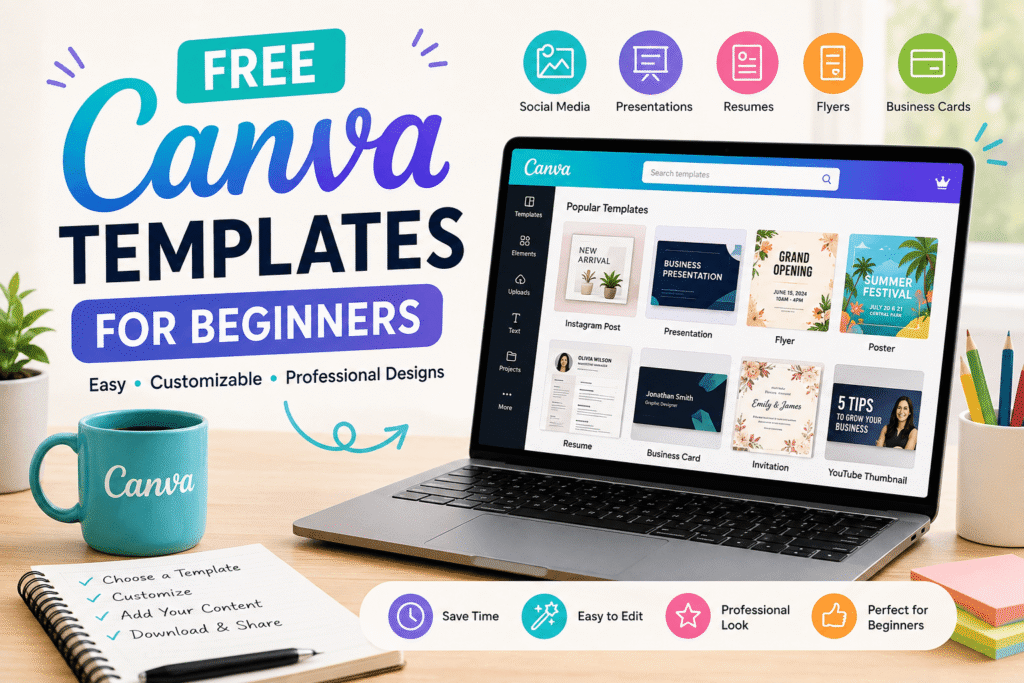
Canva offers templates for social media posts, presentations, resumes, flyers, invitations, websites, logos, business cards, and many other projects. Its template library is designed to help users create visual content without needing advanced graphic design experience.
Whether you are a student, small-business owner, marketer, job seeker, blogger, or first-time designer, the right template can save time while helping you create polished content.
Table of Contents
- Why Free Canva Templates Matter for Beginners
- What Are Free Canva Templates?
- Best Free Canva Templates for Beginners
- Benefits of Using Canva Templates
- How to Use Free Canva Templates
- How to Choose the Right Template
- Common Canva Template Mistakes
- Beginner Design Checklist
- Take Your Designs Further
- Frequently Asked Questions
- Conclusion
Why Free Canva Templates for Beginners Matter
Learning graphic design from scratch takes time. You need to understand hierarchy, spacing, typography, color combinations, image placement, and visual balance.
Templates provide a practical starting point.
Instead of wondering where to place a headline or how large an image should be, you can study an existing layout and make it your own.
This approach is particularly useful for beginners because you learn by editing. Canva itself describes templates as a way to get started and experiment with design tools without needing extensive technical knowledge.
For example, a new business owner could use a social media template to create a promotional post. A student could customize a presentation template for a class project. Meanwhile, a job seeker could start with a resume layout instead of formatting a document from scratch.
What Are Free Canva Templates?
Free Canva templates are pre-designed layouts that you can customize inside Canva. Depending on the template, you may be able to change the text, images, colors, fonts, graphics, and other design elements.
The important point is that a template is a starting point, not the finished design.
Canva currently organizes templates across many categories, including presentations, Instagram posts, flyers, websites, logos, posters, Facebook posts, resumes, invitations, calendars, business cards, and more.
You can browse the official template collection here:
Browse Canva’s Free Templates
This variety makes Canva useful for both personal projects and professional content.
Best Free Canva Templates for Beginners
Not every template is equally useful for a new designer. The best choices are simple, readable, and easy to customize.
1. Free Canva Templates for Social Media
Social media templates are an excellent starting point.
You can use them for Instagram posts, Facebook graphics, LinkedIn content, promotional announcements, quotes, educational posts, and more.
Canva’s social graphic library includes thousands of customizable designs for different platforms and purposes.
For beginners, choose a template with:
- A clear headline
- Simple typography
- Plenty of white space
- One main visual
- Consistent colors
2. Free Canva Presentation Templates
Creating a presentation from a blank slide can be intimidating.
A presentation template gives you an existing structure for titles, images, charts, and supporting information. This allows beginners to focus more on their message instead of worrying about every design decision.
For example, you could create a business proposal, school presentation, marketing report, portfolio, or training deck.
Canva’s template library includes numerous presentation formats and specialized designs for different subjects and audiences.
3. Free Canva Resume Templates for Beginners
A resume needs to be professional, organized, and easy to scan.
A Canva resume template can help beginners create a consistent structure for their name, contact information, experience, education, and skills.
Canva provides free resume templates that can be customized by changing colors, fonts, layouts, and other elements.
However, remember that design should never make your qualifications difficult to read.
4. Free Canva Flyer Templates
Flyers are useful for local businesses, events, workshops, promotions, community activities, and announcements.
A beginner can replace the sample headline, upload their own photo, add contact information, and adjust the colors to match a brand.
Keep the message focused. A flyer should communicate the essential information quickly.
5.Free Canva Business Templates
Small businesses can use Canva templates for social media graphics, presentations, invoices, business cards, promotional materials, and other visual content.
This is especially helpful when there is no dedicated designer on the team.
The key is consistency. Use similar colors, fonts, and visual styles across your marketing materials.
Benefits of Using Canva Templates for Beginners
There are several reasons beginners choose templates instead of starting from scratch.
Save Time
A template eliminates many repetitive design decisions.
You can concentrate on your content while the basic layout is already prepared.
Learn Design Faster
Templates can act as visual lessons.
Look closely at how the designer uses:
- Alignment
- Spacing
- Contrast
- Typography
- Images
- Color
- Visual hierarchy
Then apply those principles to future projects.
Create More Professional Content
A well-structured template can give beginners a stronger starting point than a completely blank canvas.
However, customization is still important. Changing the content and adapting the design to your brand makes the final result feel more authentic.
Maintain Consistency
If you regularly publish social media content, templates can help establish a repeatable visual system.
For example, you might use the same headline style, color palette, and spacing across your weekly posts.
That consistency can make your content easier for audiences to recognize.
How to Use Free Canva Templates Step by Step
Using a template does not need to be complicated.
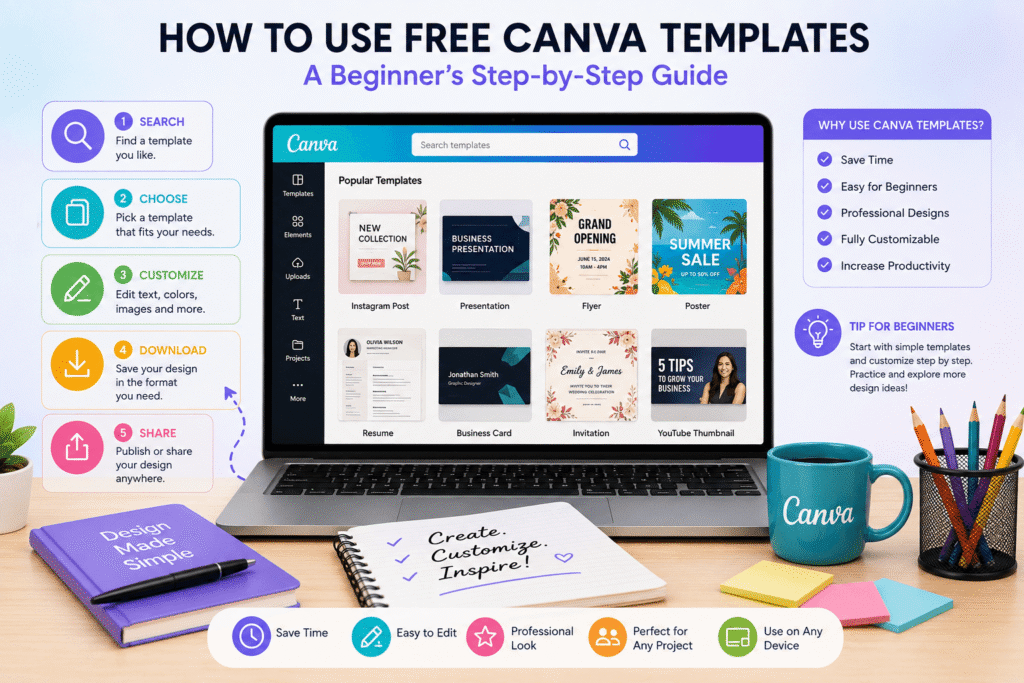
Step 1: Define Your Goal
Before opening Canva, decide what you are creating.
Ask yourself:
- Who will see this design?
- What action should they take?
- What information is essential?
- Where will the design be published?
A LinkedIn graphic and an event flyer may communicate similar information, but they require different layouts.
Step 2: Search for a Template
Open Canva and search for the type of design you need.
Try specific terms such as:
- Instagram post
- Business presentation
- Resume
- Flyer
- YouTube thumbnail
- Business card
- LinkedIn post
Specific searches usually make it easier to narrow your choices.
Step 3: Choose a Simple Layout
Beginners often choose designs because they look visually exciting.
Instead, ask whether the template communicates clearly.
A simple design with excellent spacing is usually more useful than a crowded template containing too many decorative elements.
Step 4: Replace the Content
Change the sample text to your own message.
Upload your own images when appropriate. Then adjust the headline, supporting copy, contact information, and call to action.
Step 5: Customize the Visual Style
Change colors and fonts to suit your brand or project.
Try not to use too many typefaces. Two complementary fonts are often enough for a clean design.
Likewise, choose a small color palette instead of adding a different color to every element.
Step 6: Check the Final Design
Before downloading or publishing, zoom out and look at the entire design.
Check:
- Spelling
- Alignment
- Text size
- Image quality
- Contrast
- Spacing
- Contact details
- Call-to-action
Canva also provides accessibility features that can help identify issues involving contrast, typography, and alternative text.
How to Choose the Best Canva Templates for Beginners
Choosing a template is easier when you focus on function rather than decoration.
Match the Template to Your Audience
A children’s event can use playful colors and illustrations. A financial consultancy may need a cleaner and more conservative visual style.
Prioritize Readability
If people cannot read your headline quickly, the design needs improvement.
Avoid tiny text, excessive decorative fonts, and low-contrast combinations.
Leave Enough White Space
White space is not wasted space.
It gives the content room to breathe and helps readers understand which elements are most important.
Consider Your Brand
If you are designing for a business, look for templates that can accommodate your existing brand colors, logo, and typography.
This will make your content feel more consistent.
Common Canva Template Mistakes Beginners Should Avoid
Even the best Canva templates can produce poor results if they are edited incorrectly.
Changing Everything at Once
You do not need to replace every element.
Start with the text and images. Then make small adjustments to colors, fonts, and spacing.
Using Too Many Fonts
Five different fonts can quickly make a design look unprofessional.
Keep typography simple and consistent.
Overloading the Design
Adding more icons, stickers, photos, and effects does not automatically make a design better.
Remove anything that does not support the main message.
Ignoring Mobile Viewing
A design that looks good on a large desktop screen may be difficult to read on a smartphone.
Always consider where your audience will see the content.
Forgetting Accessibility
Good design should work for as many people as possible.
Use sufficient contrast, readable typography, meaningful alternative text where appropriate, and clear visual hierarchy.
Free Canva Templates for Beginners: Practical Checklist
Before publishing your design, use this quick checklist:
- Is the main message immediately clear?
- Is the text easy to read?
- Are the colors consistent?
- Is the design appropriate for the audience?
- Did you replace all placeholder content?
- Are images high quality?
- Is important information easy to find?
- Is there enough white space?
- Did you check spelling?
- Does the design work on mobile?
- Is the call to action clear?
If you can answer “yes” to most of these questions, your design is likely ready for the next step.
Take Your Canva Designs Further
Using free Canva templates for beginners is not about avoiding creativity. Instead, templates give you a foundation from which you can develop your own design skills.
Once you become comfortable with templates, experiment with creating your own layouts.
Study what works. Remove unnecessary elements. Test different typography combinations. Build a small collection of reusable designs for your personal projects or business.
You can also explore Canva’s beginner learning resources to understand the editor and its design features in greater depth.
Ready to Create Better Canva Designs?
You do not need years of graphic design experience to start creating professional-looking visual content.
Begin with one simple template. Customize it carefully, follow basic design principles, and learn from every project you complete.
Want more practical design guidance? Explore Design Made Simple for beginner-friendly Canva tutorials, graphic design tips, AI design resources, and creative ideas.
Frequently Asked Questions About Free Canva Templates
1. Are Canva templates free for beginners?
Yes. Canva provides a large collection of free templates across categories such as presentations, social media graphics, resumes, flyers, business cards, and more. Some templates and elements may require a paid Canva plan, so check the template or element before using it.
2. What are the easiest Canva templates for beginners?
Social media posts, simple presentations, flyers, invitations, and basic resumes are good starting points. Choose templates with clean layouts and limited design elements.
3. Can I customize free Canva templates?
Yes. Depending on the template and the elements used, you can customize text, images, colors, fonts, and layouts. Canva’s editor is designed to make these changes accessible to beginners.
4. Can I use Canva templates for business?
Yes. Businesses can use Canva to create many types of marketing and communication materials, including social media graphics, presentations, flyers, resumes, and other visual content. Always review the applicable Canva content and licensing terms for your particular use.
5. How can beginners make Canva designs look professional?
Start with a simple template, use readable typography, maintain consistent colors, leave enough white space, use high-quality images, and avoid overcrowding the layout. Most importantly, make the design serve the message rather than adding decoration for its own sake.
Conclusion: Start With Free Canva Templates for Beginners
Free Canva templates for beginners provide an easy way to start creating polished visual content without designing everything from scratch. From social media graphics and presentations to resumes, flyers, and business materials, templates can save time while helping new designers learn practical design principles.
The best approach is to use templates as a foundation. Customize them thoughtfully, maintain visual consistency, prioritize readability, and gradually develop your own design style.
Whether you are building a personal brand, promoting a small business, preparing a resume, or learning graphic design, Canva gives you a practical place to begin. Start with one template today, make it your own, and use each project as an opportunity to improve.