
Introduction
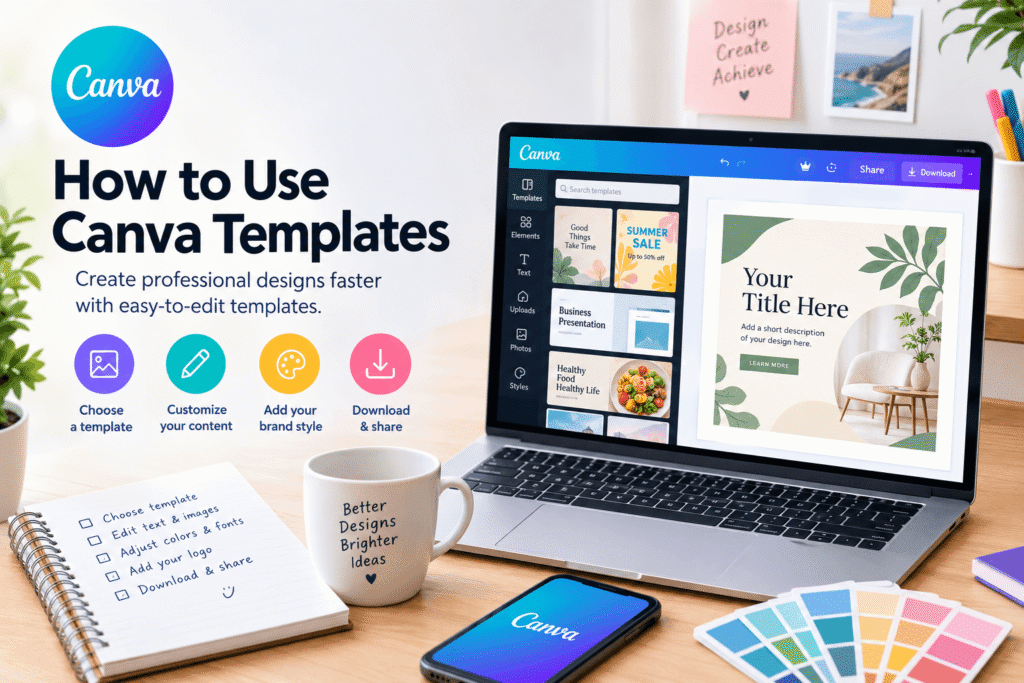
Learning how to use Canva templates can save hours of design work while helping you create professional-looking graphics without advanced design skills. Instead of starting with a blank canvas, you can choose a ready-made layout, replace the content, adjust the style, and create a design that fits your needs.
Canva offers templates for presentations, social media posts, resumes, flyers, invitations, videos, websites, documents, and many other projects. Its official template library currently provides thousands of designs across different categories.
Whether you are a beginner, small business owner, marketer, student, freelancer, or content creator, templates can give you a reliable starting point.
The key, however, is not simply choosing a template. You need to know how to customize Canva templates effectively while keeping your design clear, consistent, and original.
Table of Contents
- Why Canva Templates Matter
- What Are Canva Templates?
- How to Use Canva Templates
- How to Customize a Canva Template
- Best Practices for Professional Designs
- Benefits of Using Canva Templates
- Common Canva Template Mistakes
- Practical Canva Template Checklist
- CTA
- Frequently Asked Questions
- Conclusion
Why Use Canva Templates?
Creating a design from scratch can be intimidating, especially when you are unfamiliar with typography, spacing, composition, or color theory.
Canva templates solve part of that problem by giving you a professionally structured starting point.
For example, instead of designing an Instagram post from a blank page, you can select an Instagram template and replace its headline, images, colors, and branding.
This approach is useful for:
- Small businesses creating marketing graphics
- Bloggers designing featured images
- Social media managers preparing weekly content
- Students creating presentations
- Freelancers producing client materials
- Job seekers designing resumes
- Entrepreneurs creating promotional materials
Templates can also improve consistency. Canva explains that editable templates can help teams create content that stays aligned with a brand’s visual identity.
The important lesson: use a template as a foundation, not as the finished product.
What Are Canva Templates?
Canva templates are pre-designed layouts that you can customize inside Canva’s editor.
They may contain:
- Text boxes
- Images
- Illustrations
- Icons
- Backgrounds
- Shapes
- Color combinations
- Page layouts
- Typography styles
Canva provides templates for many design categories, including Instagram posts, presentations, resumes, posters, websites, invitations, videos, and more.
Some templates are free, while others are available through paid Canva plans or contain premium elements.
The advantage is simple: you do not have to solve every design problem from zero.
How to Use Canva Templates
If you are wondering how to use Canva templates, the process is straightforward.
1. Choose the Right Design Type
First, decide what you want to create.
For example:
- Instagram post
- Facebook cover
- YouTube thumbnail
- Presentation
- Resume
- Flyer
- Business card
- Pinterest graphic
Then search for that design type in Canva.
Canva’s current help documentation explains that you can search for templates from the homepage or browse templates directly within the editor.
2. Search for a Suitable Template
Use specific search terms rather than broad ones.
Instead of searching for:
“Social media”
try:
“Minimalist Instagram business post”
or:
“Modern fashion Instagram promotion.”
Specific searches help you find designs that are closer to your intended style.
Canva also allows users to browse templates by category and preview a design before opening it in the editor.
3. Open the Template
Once you find a design you like, preview it carefully.
Ask yourself:
- Does the layout fit my content?
- Is there enough room for my text?
- Does the visual style suit my audience?
- Can I easily replace the images?
- Does the template match my brand?
When you are ready, choose the option to customize the template.
The template will then open inside Canva’s editor.
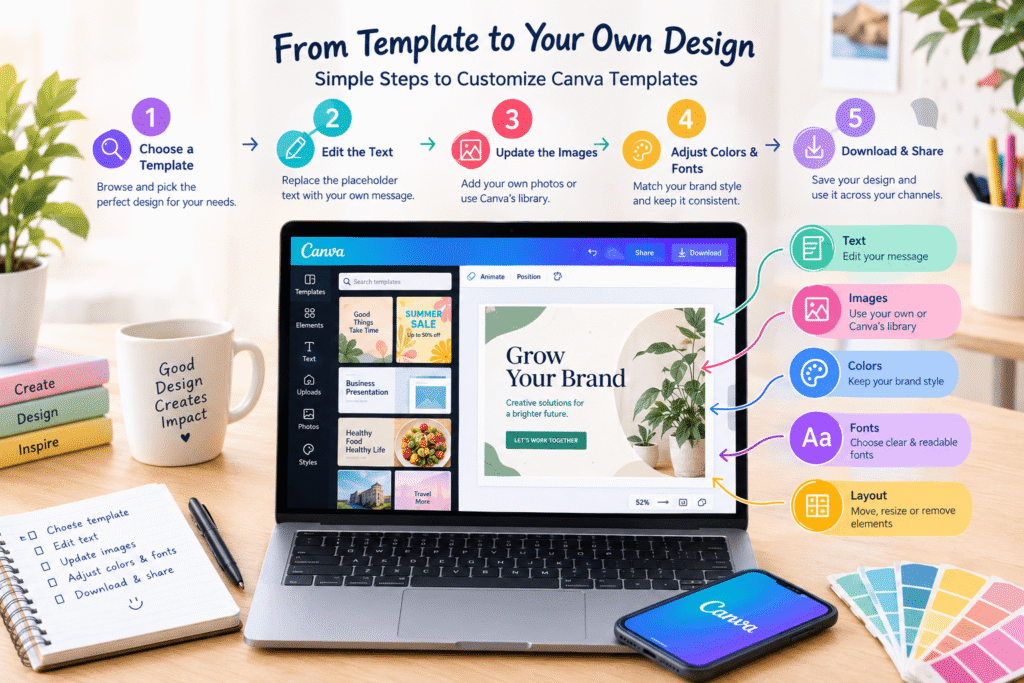
4. Replace the Text
Start by changing the existing text.
Replace:
- Headlines
- Subheadings
- Product names
- Descriptions
- Calls to action
- Contact information
Keep your wording short.
A common mistake is trying to fit an entire paragraph into a small template. Instead, simplify your message and let the design breathe.
5. Replace the Images
Next, update the template’s images.
You can upload your own photographs or select suitable visuals from Canva’s available library.
Choose images that support your message rather than simply filling empty space.
For example, if you are creating a coffee shop promotion, use a strong product photograph rather than a generic decorative image.
Canva’s own guidance demonstrates that template elements such as images, fonts, and backgrounds can be customized to suit the project.
How to Customize Canva Templates
Knowing how to use Canva templates is only the beginning. The quality of your final design depends on how you customize it.
Change the Color Palette
Replace template colors with colors that fit your brand.
For a business, consider using:
- Primary brand color
- Secondary color
- Neutral background
- Accent color
Avoid adding too many colors.
Two or three main colors are often enough for a clean design.
Choose Consistent Fonts
Typography affects how professional a design feels.
Use a maximum of two or three complementary fonts unless the design specifically requires more.
For example:
Heading: Bold sans serif
Body: Simple sans serif
Keep font sizes large enough to read comfortably on mobile devices.
Add Your Branding
If you are creating content for a business, add your:
- Logo
- Brand colors
- Website
- Social media handle
- Brand typography
Canva’s Brand Kit is designed to store brand assets such as logos, colors, fonts, imagery, templates, and guidelines for more consistent design work.
Adjust the Layout
Do not be afraid to move elements.
A template may look attractive with its original content but become crowded after you add your own text.
You can:
- Move text boxes
- Resize images
- Change spacing
- Remove unnecessary elements
- Align objects
- Simplify the composition
Remember, the goal is communication, not decoration.
Best Practices for Using Canva Templates
Start With the Message
Before editing the template, decide what you want people to understand.
For example:
Weak approach:
Choose a beautiful template first and figure out the message later.
Better approach:
Decide the message first, then select a template that supports it.
This makes the design process much easier.
Keep Visual Hierarchy Clear
Your most important information should stand out first.
A typical hierarchy might be:
- Main headline
- Supporting message
- Image or visual
- Call to action
- Additional details
This helps viewers understand your content quickly.
Keep Your Brand Consistent
If you regularly publish content, avoid changing your visual identity for every post.
Use consistent:
- Colors
- Fonts
- Logo placement
- Image style
- Tone
- Layout patterns
Consistent branding helps audiences recognize your content across different channels. Canva’s recent brand consistency guidance specifically recommends templates and brand assets as part of a consistent visual system.
Design for Accessibility
Good design should be usable by as many people as possible.
Pay attention to:
- Color contrast
- Readable typography
- Text size
- Alternative text where appropriate
- Captions for video content
Canva provides accessibility tools that can identify issues involving contrast, typography, and alternative text.
Benefits of Using Canva Templates
Using templates provides several practical advantages.
Save Time
You can start with an established layout instead of building every element yourself.
Improve Design Quality
Templates demonstrate practical principles involving spacing, alignment, typography, and visual hierarchy.
Create Consistent Content
Using a small collection of templates can make your social media feed or marketing materials feel more unified.
Help Beginners Design Faster
You do not need extensive graphic design experience to create a polished starting point.
Support Content Marketing
Businesses can prepare multiple graphics using similar layouts while changing the message and visuals.
Canva’s social graphic templates are specifically designed to help users create customized social content without starting each post from scratch.
Common Canva Template Mistakes
1. Using the Template Without Customization
Simply changing the headline may not be enough.
Add your own visuals, colors, wording, and branding.
2. Overloading the Design
Too much text can destroy a clean layout.
Remove anything that does not contribute to your message.
3. Using Too Many Fonts
Multiple decorative fonts can make a design look confusing.
Keep typography simple.
4. Ignoring Image Quality
Low-resolution images can make an otherwise professional design look poor.
Use sharp, appropriately sized visuals.
5. Forgetting the Target Platform
A design made for Instagram may not work well as a LinkedIn graphic or printed flyer.
Always consider the platform, dimensions, and audience.
6. Ignoring Accessibility
Small text and poor contrast can make content difficult to read.
Check your design before publishing.
7. Changing Everything
Ironically, another mistake is over-customizing.
If you move every element, change every color, and replace the entire structure, it may be faster to create a new design from scratch.
Canva Template Checklist
Before publishing your design, check the following:
- The template matches the purpose
- The headline is clear
- All placeholder text has been replaced
- Images are relevant and high quality
- Brand colors are consistent
- Fonts are easy to read
- Important information is easy to find
- There is enough white space
- The design fits the target platform
- Links and contact details are correct
- Spelling and grammar have been checked
- Accessibility has been considered
- The final design has been previewed before publishing
For print projects, Canva recommends considering CMYK because colors can appear differently on screens and printed materials.
How to Create Better Designs With Canva Templates
Templates are most useful when they remove repetitive work while still leaving room for creativity.
If you regularly create social media graphics, presentations, promotional materials, or business documents, build a small library of preferred templates.
Then customize them with your own content and brand style.
For advanced workflows, Canva also offers AI-assisted template generation through Canva AI and Magic Design, allowing users to describe the type of design they want and explore generated options.
That means templates are becoming more than static layouts. They can become part of a repeatable content creation system.
Frequently Asked Questions About Canva Templates
1. How do I use Canva templates?
Search for a design category in Canva, choose a suitable template, open it in the editor, and replace the existing text, images, colors, and other elements with your own content.
2. Can I customize Canva templates?
Yes. Canva templates can generally be customized by editing text, images, colors, backgrounds, layouts, and other available elements. Canva’s template system is designed to provide a starting point that users can adapt to their needs.
3. Are Canva templates free?
Canva offers many free templates, although some templates and individual design elements require a paid plan. Check the template and its elements before finalizing your design.
4. How can I make a Canva template look original?
Replace the template’s default text and imagery, apply your own brand colors and fonts, adjust the layout, and use original messaging. The more thoughtfully you customize the design, the more distinctive the final result will feel.
5. Can beginners use Canva templates?
Absolutely. Canva templates are particularly useful for beginners because they provide a ready-made visual structure. You can learn design principles while gradually becoming more comfortable with typography, spacing, colors, and composition.
Conclusion: How to Use Canva Templates Effectively
Learning how to use Canva templates is one of the easiest ways to create polished visual content without designing everything from scratch.
The best results come from treating templates as a starting point rather than a finished design. Choose an appropriate layout, replace the content, apply your brand identity, simplify unnecessary elements, and check the final design before publishing.
Whether you are creating social media graphics, presentations, resumes, marketing materials, or business content, Canva templates can help you work faster while maintaining a professional appearance.
Start with one template today, customize it thoughtfully, and use what you learn to develop a repeatable design workflow.