
Introduction
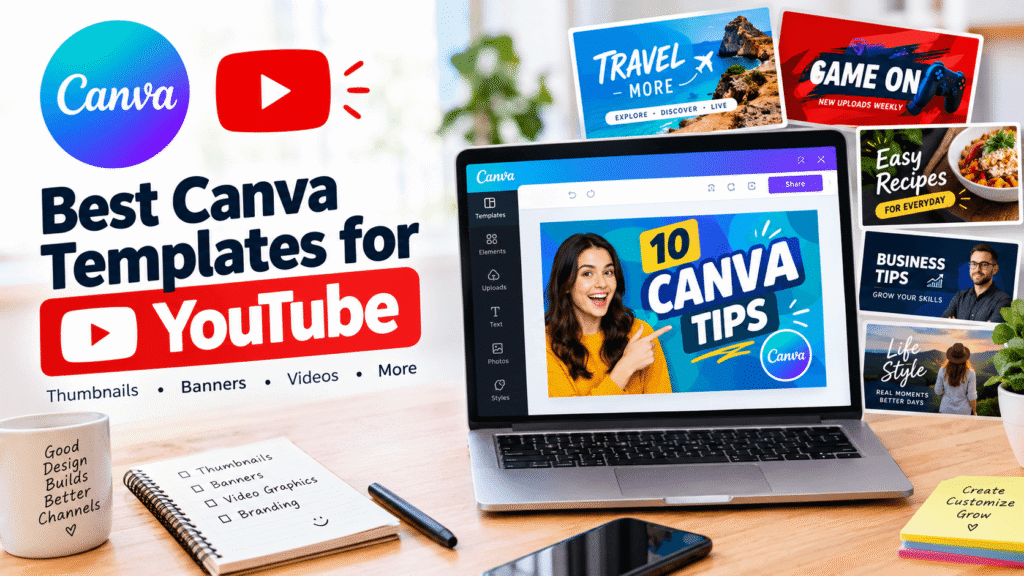
Creating professional YouTube content becomes much easier when you use the Best Canva Templates for YouTube. Instead of designing every thumbnail, banner, or video graphic from scratch, Canva gives creators ready-made layouts that can be customized with their own images, text, colors, and branding. These templates save time while helping your channel maintain a consistent and professional look.
Whether you are a beginner, business owner, or content creator, the right Canva template can make your YouTube designs more attractive and easier to create. In this guide, you will discover useful Canva YouTube templates for thumbnails, banners, videos, and channel branding, plus simple tips for customizing them effectively.
Table of Contents
- Why Canva Templates Matter for YouTube
- Best Canva Templates for YouTube Creators
- YouTube Thumbnail Templates
- YouTube Banner Templates
- YouTube Video and Content Templates
- Benefits of Using Canva Templates
- How to Customize a YouTube Canva Template
- Common Design Mistakes to Avoid
- YouTube Design Checklist
- FAQ
- Conclusion
Why Canva Templates Matter for YouTube
YouTube is highly visual. Before someone watches a video, they may first notice the thumbnail and title.
YouTube itself recommends creating thumbnails that are clear, representative of the content, easy to understand, and visually distinctive. It also recommends testing different approaches and using analytics to understand how viewers respond.
That makes design an important part of your content strategy.
A consistent visual identity can help your audience recognize your videos when they appear in search results, recommendations, or the Home feed.
For example, a business channel might use:
- A consistent brand color palette
- The same two or three fonts
- A recognizable logo position
- Similar thumbnail layouts
- High-quality product photography
A lifestyle creator might use brighter photography, expressive faces, large headlines, and a more personal style.
The goal is not to make every thumbnail identical. Instead, your designs should feel like they belong to the same channel.
Best Canva Templates for YouTube Creators
There is no single template that works for every channel. The best choice depends on your niche, audience, video format, and branding.
Here are some useful template categories to consider.
1. YouTube Thumbnail Templates
YouTube thumbnail templates are among the most useful Canva designs for creators.
A strong thumbnail should communicate the video’s main idea quickly. It should also remain readable when displayed on a smaller screen.
Canva’s current YouTube thumbnail templates include styles for tutorials, gaming, travel, podcasts, lifestyle content, music, education, and many other categories.
YouTube recommends using readable text, strong composition, and images that accurately represent the video.
Good thumbnail template elements include:
- One clear focal image
- Short, readable text
- Strong visual contrast
- Consistent branding
- Plenty of visual space
- A clear connection to the video topic
2. YouTube Banner Templates
Your channel banner gives visitors an immediate impression of your brand.
A good banner can communicate what your channel is about, who it serves, and what type of content viewers can expect.
Canva provides YouTube banner templates designed around the platform’s recommended dimensions. Canva currently lists 2560 × 1440 pixels as the recommended banner size.
However, simply using the correct dimensions is not enough.
Keep important information within the safe area so that text and logos remain visible across different devices.
Your banner might include:
- Channel name
- Short tagline
- Upload schedule
- Brand colors
- Logo
- Social media information
Avoid filling the entire banner with text. A clean design usually communicates the message more effectively.
YouTube Video and Content Templates
YouTube creators often need more than thumbnails and channel banners.
A complete content workflow may include several different visual assets.
Intro and Outro Graphics
A branded intro can help establish your channel identity, while an outro can direct viewers toward another video, playlist, website, or subscription.
Keep intros short and relevant. Your main priority should remain the content itself.
Video Announcement Graphics
You can create Canva graphics to promote new videos on social media.
For example, after publishing a YouTube tutorial, create an Instagram post, Facebook graphic, LinkedIn image, or story that directs your audience toward the video.
Quote and Educational Graphics
Educational and business channels can turn useful video points into visual quote cards or informational graphics.
These assets can also be reused outside YouTube, helping you create a more efficient content system.
Podcast and Interview Templates
Podcast creators can use templates featuring guest photographs, episode numbers, titles, and branding.
The same visual system can then be adapted for each episode.
Benefits of Using Canva Templates for YouTube
Using templates does not mean your content will look generic. The result depends heavily on how you customize the design.
Save Design Time
Starting with a template eliminates much of the initial layout work.
Instead of deciding where every element should go, you can focus on your message, images, colors, and branding.
Maintain Brand Consistency
Consistent colors, fonts, and layouts make your channel easier to recognize.
This is especially useful for businesses and creators publishing several videos every month.
Help Beginners Design Faster
You do not need advanced graphic design experience to customize a Canva template.
You can replace the sample images, edit the text, adjust colors, and upload your own branding.
Create Multiple Versions
One template can become a reusable design system.
For example, you might create three thumbnail styles:
- Tutorial thumbnail
- List-style thumbnail
- Review thumbnail
Each can follow the same brand identity while serving a different type of video.
Support Multi-Platform Content
A YouTube design can become the starting point for promotional content on other platforms.
That can reduce the time required to create marketing graphics for every new video.
How to Customize a Canva Template for YouTube
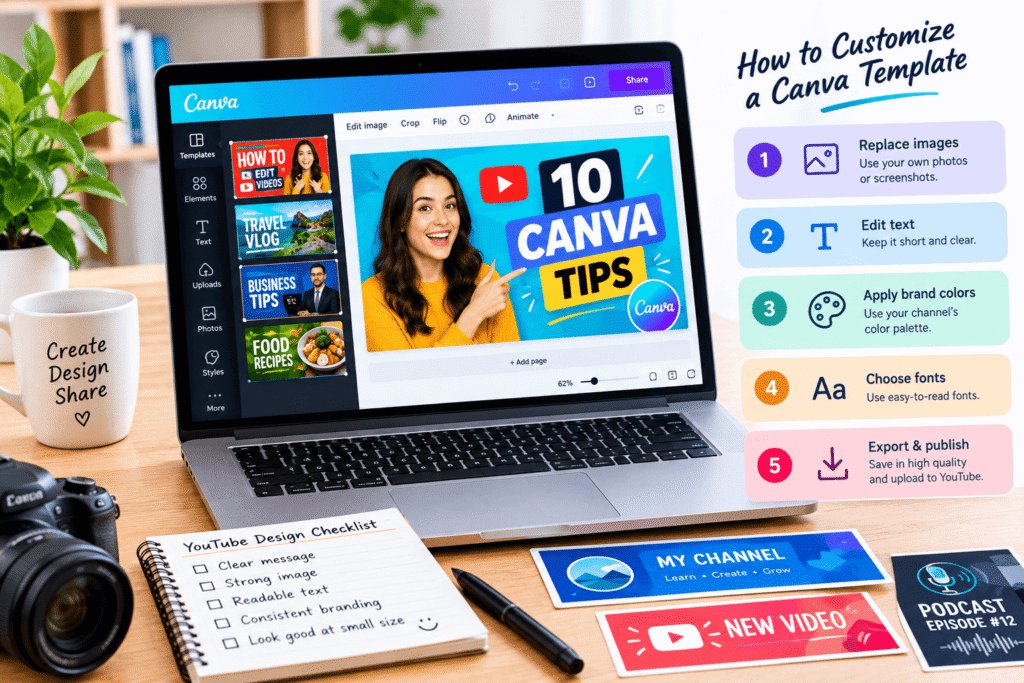
Choosing a template is only the first step. To make your YouTube graphics look professional and match your channel, you need to customize the template with your own content, branding, and visual style.
Step 1: Choose a Template That Fits Your Video
Start by selecting a Canva template that matches your YouTube niche and the type of video you are creating.
For example, a gaming channel may need bold colors and energetic layouts, while a business channel may benefit from a clean and professional design.
Look for a template with:
- A clear visual hierarchy
- Easy-to-edit text
- Space for your main image
- Readable typography
- A layout that fits your content
- A style that matches your brand
Do not choose a template simply because it looks attractive. Make sure its structure supports your video’s main message.
Step 2: Replace the Sample Images
Upload your own photos, screenshots, product images, or other relevant visuals.
Click the existing image in Canva and replace it with your chosen image. You can then crop, resize, or reposition it to fit the layout.
For thumbnails, choose an image that immediately communicates what the video is about.
For example, if your video explains Canva features, a clear screenshot of the Canva interface may work better than a generic stock image.
Step 3: Change the Text
Replace the template’s sample text with a short message related to your video.
Avoid copying the entire video title onto the thumbnail. Instead, use a few words that communicate the main benefit or idea.
Example:
Video title:
“10 Canva Design Tips Every Beginner Should Know”
Thumbnail text:
“10 CANVA TIPS”
This approach keeps the thumbnail easy to scan while allowing the full title to provide additional context.
Step 4: Add Your Brand Colors
Use your brand colors throughout the template.
If your YouTube channel already has established colors, apply them to backgrounds, headings, shapes, buttons, or other visual elements.
For example, a business channel might use one primary brand color with a neutral background and one contrasting accent color.
Try to avoid using too many colors. A simple palette usually creates a cleaner and more recognizable result.
Step 5: Choose Consistent Fonts
Typography plays an important role in YouTube thumbnail design.
Select fonts that are easy to read, especially when the thumbnail appears at a small size.
A practical approach is to use:
- One font for major headlines
- One supporting font for smaller text
- Bold or semibold weights for important words
Avoid using several decorative fonts in one design. Too many font styles can make the thumbnail look confusing.
Step 6: Add Your Logo Carefully
If your channel uses a logo, add it to the template where it supports your branding without distracting from the main message.
A small logo in a consistent position can help viewers recognize your content.
However, the logo should not become the most noticeable element of the thumbnail. The video’s subject should remain the primary focus.
Step 7: Adjust the Layout
After replacing the content, review the entire composition.
Move elements if they overlap or create unnecessary empty space.
Make sure the most important information receives the most visual attention.
You can use Canva’s alignment tools and guides to keep elements organized.
A useful visual hierarchy is:
Main subject → Short headline → Supporting details → Branding
This makes the design easier to understand at a glance.
Step 8: Check the Thumbnail at a Small Size
One of the most important steps is checking how your design looks when it is small.
Zoom out in Canva or preview the image at a reduced size.
Ask yourself:
- Can I understand the topic quickly?
- Is the headline readable?
- Is the main image easy to recognize?
- Does anything look crowded?
- Does the design match my other thumbnails?
If the answer is yes, your template is likely ready for export.
Step 9: Export the Finished Design
Once you are satisfied with the design, select Share → Download in Canva.
For a YouTube thumbnail, export a high-quality image in a suitable format and check the current YouTube requirements before uploading.
Save an editable version of your Canva design as well. This allows you to reuse the layout for future videos.
Step 10: Turn One Template Into a Reusable System
Instead of creating a completely new design for every video, create a small collection of customized templates.
For example, you could have:
- Tutorial template
- Review template
- Listicle template
- Announcement template
- Interview template
Keep the same core branding while changing the image, headline, and supporting elements.
This approach can significantly speed up your workflow and give your YouTube channel a more consistent visual identity.
Pro Tip: Design for the Viewer First
The purpose of a YouTube template is not simply to make a graphic look attractive. It should help viewers understand what your video offers.
Before publishing, ask one simple question:
“Would someone understand what this video is about within a few seconds?”
If the answer is unclear, simplify the design. Remove unnecessary elements, shorten the text, or make the main subject more prominent.
A clean, relevant, and recognizable design is often more useful than a complicated thumbnail filled with effects.
Common Canva YouTube Design Mistakes to Avoid
Templates make design easier, but they do not automatically create effective visuals.
Using Too Much Text
Large paragraphs do not belong on a thumbnail.
Keep the message short and visual.
Copying the Template Exactly
A template should be a starting point.
Change the colors, images, typography, layout, and other elements so the finished design represents your channel.
Using Low-Quality Images
Blurry images can make even a well-designed template look unprofessional.
Use clear, high-resolution images whenever possible.
Making Every Thumbnail Completely Different
Experimentation is useful, but extreme inconsistency can weaken your visual identity.
Develop recognizable patterns instead.
Using Misleading Designs
Your thumbnail should accurately represent the video.
YouTube specifically advises creators to avoid misleading or deceptive titles and thumbnails.
A dramatic design is fine. A misleading promise is not.
Practical YouTube Design Checklist
Before publishing your next video, review this checklist:
- Thumbnail clearly represents the video
- Thumbnail uses a strong focal image
- Text is short and readable
- Brand colors are consistent
- Fonts are easy to read
- Thumbnail is high resolution
- Banner information stays within the safe area
- Channel branding is recognizable
- Design is not overcrowded
- Title and thumbnail work together
- Visuals match the video’s actual content
- Final design has been checked on a smaller screen
For video thumbnails, Canva lists 1280 × 720 pixels as a common recommended size, while YouTube’s current Help documentation recommends uploading thumbnails at the highest practical resolution and maintaining a 16:9 ratio for videos.
Because platform specifications can change, always check the latest YouTube requirements before publishing.
Create Better YouTube Designs With Canva
A professional YouTube channel does not require complicated design software.
With the right template, a clear content strategy, and consistent branding, you can create thumbnails and channel graphics that look polished without designing everything from scratch.
At Design Made Simple, we help beginners, creators, marketers, and business owners understand practical design tools and strategies.
Want to improve your visual content strategy? Explore more Canva design guides on Design Made Simple or contact us for help creating a consistent visual identity for your online brand.
FAQ: Best Canva Templates for YouTube
1. What are the best Canva templates for YouTube?
The best Canva templates for YouTube depend on your content. Popular options include thumbnail templates, YouTube banner templates, podcast graphics, video announcements, educational graphics, and branded channel designs.
2. Can I use Canva templates for YouTube thumbnails?
Yes. Canva offers customizable YouTube thumbnail templates that can be adapted with your own images, text, colors, fonts, and branding.
3. What size should a YouTube thumbnail be?
YouTube thumbnails use a 16:9 aspect ratio. Canva lists 1280 × 720 pixels as a standard YouTube thumbnail size, while YouTube currently recommends using the highest practical resolution for custom thumbnails.
4. How can I make Canva YouTube templates look professional?
Use clear images, readable typography, strong contrast, consistent branding, and simple layouts. Avoid excessive text and unnecessary design elements. Most importantly, make sure the thumbnail accurately represents your video.
5. Can I create a complete YouTube brand in Canva?
Yes. You can use Canva to create thumbnails, channel banners, promotional graphics, social media designs, and other visual assets. Using the same colors, fonts, imagery, and branding across these assets can create a more consistent channel identity.
Conclusion
The best Canva templates for YouTube are not necessarily the most complicated or colorful designs. They are templates that help you communicate your video’s value quickly while supporting a consistent visual identity.
Start with a layout that fits your niche. Then customize the imagery, text, colors, typography, and branding. Keep your designs simple, readable, and relevant to the actual video.
Most importantly, treat your thumbnail and title as a package. YouTube recommends evaluating how viewers respond to these elements through analytics, and eligible creators can also use YouTube’s title and thumbnail testing tools.
With a small library of reusable Canva templates, you can build a faster workflow and create a more recognizable YouTube presence without starting from scratch every time.