
Introduction
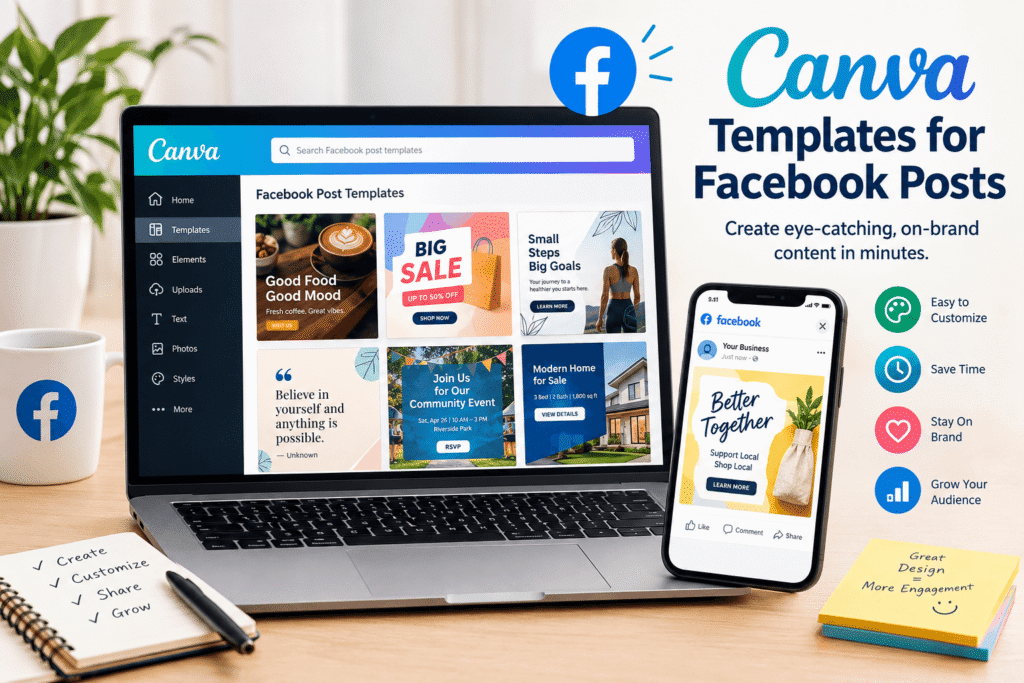
Creating professional social media graphics does not have to take hours. Canva Templates for Facebook Posts give beginners, marketers, creators, and business owners a practical way to create polished Facebook content without designing every post from scratch.
A good template can provide the basic layout, typography, spacing, and visual structure. You can then replace the text, images, colours, and branding elements to make the design your own. Canva currently offers a large collection of customizable Facebook post templates covering business promotions, announcements, events, quotes, sales, real estate, travel, and many other content types.
The key, however, is not simply choosing a beautiful template. You need to select a design that supports your message and then customize it consistently.
This guide explains how to use Canva templates for Facebook posts effectively, what makes a strong design, common mistakes to avoid, and how businesses can build a more consistent Facebook presence.
Table of Contents
- Why Canva Templates for Facebook Posts Matter
- What Are Canva Facebook Post Templates?
- Benefits of Using Facebook Templates
- How to Choose the Right Canva Template
- How to Customize a Facebook Post Template
- Facebook Post Design Best Practices
- Common Mistakes to Avoid
- Practical Facebook Design Checklist
- Internal and External Link Placement
- CTA
- Frequently Asked Questions
- Conclusion
Why Canva Templates for Facebook Posts Matter
Facebook remains an important platform for businesses, creators, organizations, and communities.
However, simply publishing content is not enough. Your visual presentation can influence whether someone notices your post while scrolling.
This is where Canva Templates for Facebook Posts can help.
Instead of opening a blank canvas every time, you can start with an existing layout and adapt it to your brand.
For example, a small coffee shop could create templates for:
- New menu announcements
- Weekend promotions
- Seasonal drinks
- Customer testimonials
- Opening-hour updates
- Special events
- Product photography
- Behind-the-scenes content
A marketing agency might create templates for:
- Educational tips
- Industry statistics
- Client results
- Service promotions
- Blog announcements
- Team introductions
- Company news
The result is a faster and more consistent content workflow.
What Are Canva Templates for Facebook Posts?
Canva Facebook post templates are pre-designed layouts that can be edited for Facebook content.
Instead of designing every visual element yourself, you start with a prepared composition. You can then modify the design to suit your message.
Canva’s current Facebook template library includes designs for many different purposes, including promotional posts, announcements, quotes, real estate, events, greetings, and business content.
A typical template may include:
- Headline text
- Supporting copy
- Images or placeholders
- Background graphics
- Decorative elements
- Colour combinations
- Typography
- Call-to-action areas
You do not need to keep every element. A good customization process means removing anything that does not support your message.
Choosing the Right Facebook Post Size
Design dimensions matter because poorly sized graphics can look awkward or lose visual quality.
Canva’s current size guide lists 1,200 × 630 pixels for a Facebook image post and shared-link image.
Before publishing, check the current requirements for the specific Facebook format you are creating because platform specifications can change.
Benefits of Using Canva Templates for Facebook Posts
1. Save Time With Facebook Post Templates
Starting from a template is generally faster than creating a complete layout from a blank page.
You can focus more attention on your message, photography, offer, and audience.
2. Maintain Consistent Facebook Branding
Templates can help your audience recognize your content.
Use consistent:
- Brand colours
- Fonts
- Logo placement
- Image treatments
- Heading styles
- Button or CTA styles
For example, a fitness business might use the same typography and colour system across its weekly tips, promotions, and client stories.
3. Create Professional Social Media Graphics
A template library can reduce the pressure of deciding how every post should look.
Once you develop several reusable layouts, you can create content more systematically.
4. Support Different Content Types
Canva provides templates for a wide range of Facebook content. Its library includes promotional designs, greetings, announcements, real estate posts, business graphics, quotes, and other categories.
This makes templates useful for both personal creators and professional marketing teams.
5. Help Beginners Design More Confidently
You do not need advanced graphic design experience to get started.
A template provides a visual framework that can teach beginners about hierarchy, spacing, typography, and composition.
How to Choose Canva Templates for Facebook Posts
Choosing a template should start with your content goal, not simply its appearance.
Match the Template to Your Message
Ask:
What should the viewer understand first?
If you’re announcing a sale, the discount or offer may be the primary message.
If you’re promoting a blog post, the headline and supporting image may deserve more attention.
If you’re sharing a customer testimonial, the testimonial should remain easy to read.
Consider Your Audience
A professional financial service may need a clean and trustworthy design.
A children’s activity business could use brighter colours and playful illustrations.
A luxury brand may benefit from generous spacing, refined typography, and high-quality photography.
The template should feel appropriate for the audience.
Look for Strong Visual Hierarchy
A good design should guide the viewer.
Usually, the visual hierarchy should move from:
Main message → Supporting information → Brand → Action
Avoid making every element equally large or bold.
How to Customize Canva Facebook Post Templates
Once you have selected a suitable design, customize it carefully.
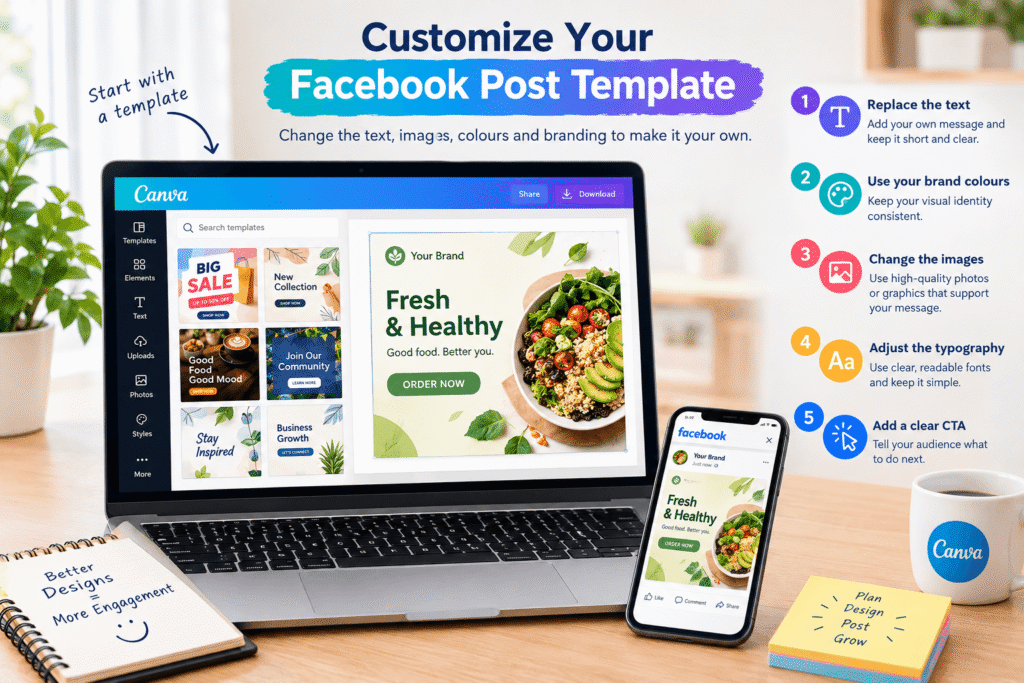
Step 1: Replace the Template Text
Write your own headline instead of simply changing a few words from the original template.
Keep the main message short.
For example:
Weak:
“We are pleased to announce that our store will be having a special promotion this weekend.”
Better:
Weekend Sale — Save 25%
The second version is easier to scan.
Step 2: Add Your Brand Colours
Use your existing brand palette where possible.
If your website uses navy, white, and warm orange, your Facebook graphics should reflect the same visual identity.
Step 3: Replace Images and Graphics
Use relevant, high-quality photographs or graphics.
The image should support the message rather than simply fill empty space.
Step 4: Adjust Typography
Try to keep the number of fonts limited.
Two complementary typefaces are often enough for a clean business design.
Make sure the headline is readable on both desktop and mobile screens.
Step 5: Add a Clear Facebook Post CTA
Depending on the goal, your CTA could say:
- Shop Now
- Learn More
- Read the Guide
- Book a Consultation
- Get a Quote
- Visit Our Website
- Send Us a Message
A CTA should tell people what to do next.
Facebook Post Design Best Practices
Keep Your Facebook Post Message Simple
People scrolling through social media may only glance at your graphic.
Avoid putting an entire paragraph on the image.
Instead, use the graphic to communicate the key idea and provide additional details in the Facebook caption.
Use High-Quality Images
Blurry or poorly cropped photography can make an otherwise professional design look unfinished.
Choose images that match your brand and message.
Create a Consistent Template Series
Instead of using completely different designs every day, develop a small template system.
For example:
Template A: Educational tips
Template B: Promotions
Template C: Testimonials
Template D: Blog posts
Template E: Company announcements
This creates variety without sacrificing consistency.
Leave Enough White Space
White space does not mean your design needs to be completely white.
It means allowing enough breathing room around text and visual elements.
Crowded graphics are harder to understand.
Check Your Facebook Design Before Publishing
Look at your graphic on both a large screen and a mobile device.
Ask:
- Is the headline readable?
- Is the logo visible?
- Is anything too close to the edge?
- Can I understand the message quickly?
- Does the design look like my brand?
Canva itself emphasizes correctly sized and professional social media graphics as an important part of creating effective visual content.
Common Canva Facebook Post Design Mistakes
Even a professionally designed template can become ineffective after poor customization.
Mistake 1: Changing Too Many Template Elements
Do not modify every colour, font, shape, and graphic simply because you can.
Make purposeful changes.
Mistake 2: Adding Too Much Text
Your Facebook graphic should not look like a full blog article.
Keep the visual message focused.
Mistake 3: Ignoring Your Brand Identity
Using a different visual style for every post can make your page look inconsistent.
Develop a recognizable design system.
Mistake 4: Using Poor Colour Contrast
Dark text on a dark image or light text on a bright background can become difficult to read.
Always check contrast.
Mistake 5: Choosing Style Over Purpose
A visually impressive template is not automatically the right template.
Your design should help communicate the intended message.
Mistake 6: Forgetting the Caption
The graphic and caption should work together.
Use the image to attract attention and the caption to provide context, details, or a next step.
Practical Canva Facebook Post Checklist
Before publishing, use this quick checklist:
- Is the design appropriate for Facebook?
- Is the main message immediately clear?
- Is the image high quality?
- Are fonts easy to read?
- Are colours consistent with the brand?
- Is there enough white space?
- Is the logo correctly positioned?
- Is the CTA clear?
- Have spelling and grammar been checked?
- Does the caption support the graphic?
- Has the design been checked on mobile?
- Is the final file suitable for the intended Facebook format?
This simple process can prevent many common design problems.
Create Better Facebook Posts With Canva Templates
If you manage a business page, don’t think of templates as one-off designs.
Think of them as part of your content system.
Create several reusable designs around your most common content categories. Then update the text and imagery as needed.
For example, a local service business could prepare:
Monday: Educational tip
Wednesday: Customer story
Friday: Promotional offer
Weekend: Community or behind-the-scenes content
This approach makes content production more organized and reduces the time required to design each post.
Canva also provides social graphic templates designed to be customized and reused, which can help users build a more consistent content workflow.
CTA: Need Better Social Media Designs?
Professional-looking Facebook content starts with a clear message and a consistent visual identity.
Whether you’re promoting a small business, launching a product, sharing educational content, or building a personal brand, the right template can give your content a strong foundation.
Want to improve your social media design strategy? Explore more practical Canva and graphic design guides on Design Made Simple, and use these ideas to create Facebook content that looks professional, communicates clearly, and supports your business goals.
Frequently Asked Questions About Canva Facebook Post Templates
1. What are Canva Templates for Facebook Posts?
Canva Templates for Facebook Posts are pre-designed layouts that can be customized with your own text, images, colours, fonts, and branding. They help users create Facebook graphics without starting every design from scratch.
2. Are Canva Facebook post templates free?
Canva offers both free and paid templates. The available options can vary, so check the template and its included elements before using it for your project. Canva’s template library includes a dedicated collection of free templates.
3. What size should a Facebook post be?
Canva’s current size guide lists 1,200 × 630 pixels for a Facebook image post and shared-link image. Always check the latest platform requirements for the specific Facebook format you are creating.
4. Can I customize Canva Facebook post templates?
Yes. You can customize elements such as text, colours, fonts, images, backgrounds, and other design components depending on the template and available features. Canva describes its Facebook templates as customizable designs.
5. How can I make Facebook templates look more professional?
Use consistent brand colours, readable typography, high-quality images, clear hierarchy, adequate white space, and concise messaging. Most importantly, choose a template that fits your content goal rather than selecting one only because it looks attractive.
Conclusion: Get More From Canva Templates for Facebook Posts
Canva Templates for Facebook Posts can make social media design faster, more consistent, and easier to manage.
The biggest benefit is not simply saving design time. A well-customized template can help establish a recognizable visual identity across your Facebook content.
Start by identifying your audience and content goal. Then choose a suitable template, simplify the message, apply your branding, use strong imagery, and finish with a clear CTA.
Remember that a template is a starting point—not the final design. The strongest results come from thoughtful customization and a clear understanding of what your audience needs to see.
With a small collection of reusable layouts and a consistent visual strategy, you can create Facebook content more efficiently while keeping your brand professional and recognizable.