
Introduction
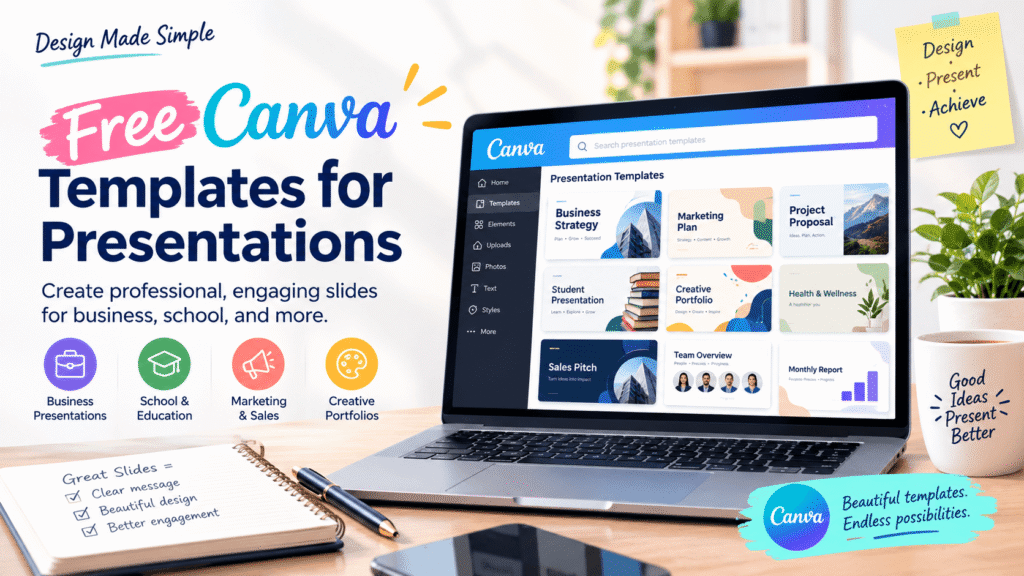
Creating a professional presentation does not have to mean starting with a blank slide. Free Canva templates for presentations give students, marketers, entrepreneurs, teachers, and business professionals a practical starting point for building polished slides quickly.
Instead of spending hours choosing fonts, colours, layouts, and visual elements, you can start with a structured design and customize it around your message. The result can be a presentation that looks organized while still reflecting your brand, personality, or project.
Whether you are preparing a business pitch, school project, sales presentation, workshop, portfolio, or online webinar, the right template can save time and improve your workflow.
Table of Contents
- Why Free Canva Presentation Templates Matter
- What Are Canva Presentation Templates?
- Best Types of Free Canva Templates for Presentations
- Benefits of Using Free Presentation Templates
- How to Choose the Right Canva Presentation Template
- How to Customize a Canva Presentation
- Presentation Design Best Practices
- Common Mistakes to Avoid
- Presentation Checklist
- Create Better Presentations With Design Made Simple
- Frequently Asked Questions
- Conclusion
Why Free Canva Templates for Presentations Matter
A presentation is more than a collection of slides. It is a visual way to communicate an idea.
However, many people struggle with presentation design because they are unsure how to organize information visually. A slide may contain too much text, inconsistent fonts, unrelated colours, or distracting graphics.
This is where templates can help.
Free Canva templates for presentations provide pre-designed layouts that help you create a consistent visual structure. You can replace the sample text, adjust colours, add your own images, and reorganize slides based on your needs.
For a small business owner, this can mean preparing a client proposal without hiring a designer for every presentation. For a student, it can mean spending more time researching the subject instead of worrying about slide layouts.
What Are Canva Presentation Templates?
Canva presentation templates are ready-made slide designs that can be customized for different purposes.
A typical template may include:
- Title slides
- Section divider slides
- Text and image layouts
- Charts and infographic layouts
- Comparison slides
- Timeline designs
- Quote slides
- Team introduction slides
- Closing or call-to-action slides
The main advantage is flexibility. You do not need to use every slide exactly as provided.
For example, imagine you are creating a presentation for a digital marketing agency. You might select a modern business template, replace the placeholder content with your services, add your brand colours, and include case-study images.
The template handles much of the visual structure while you focus on the message.
Best Free Canva Templates for Presentations
Not every presentation needs the same visual style. Choosing a template based on your purpose makes customization much easier.
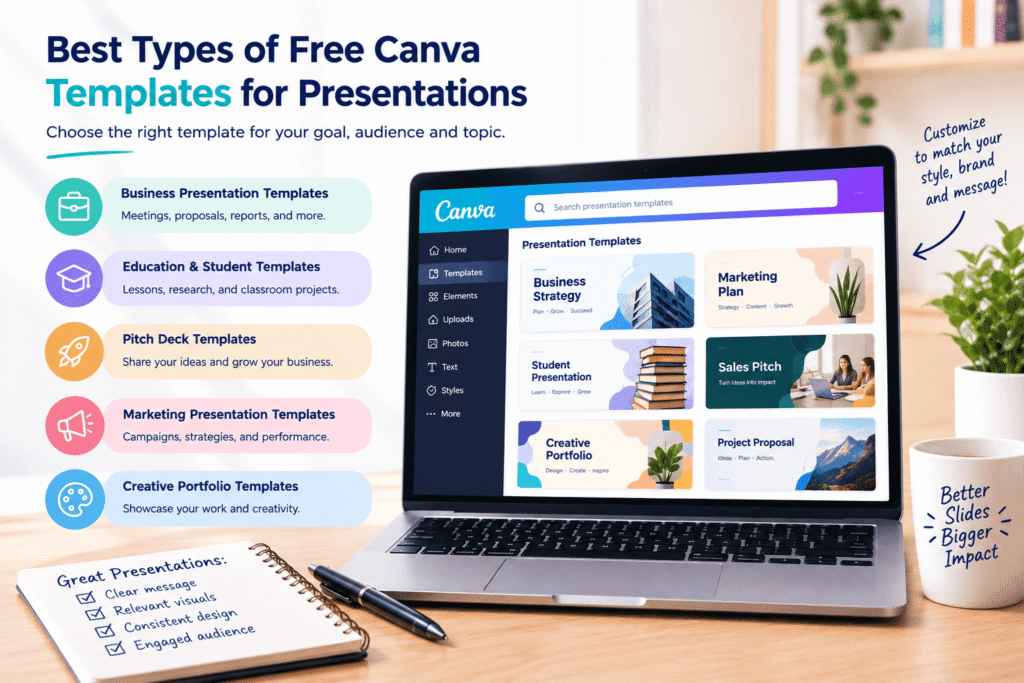
1. Free Business Presentation Templates
Business presentations should usually look professional, focused, and easy to understand.
They work well for:
- Company meetings
- Client proposals
- Business plans
- Marketing reports
- Sales presentations
- Strategy meetings
Choose layouts with clear headings, enough white space, and organized content areas.
2. Free Education and Student Templates
Students and teachers can use presentation templates for lessons, research projects, classroom presentations, and academic topics.
A simple visual style can make complicated information easier to follow.
Use diagrams, short bullet points, timelines, and relevant images rather than filling every slide with paragraphs.
3. Free Pitch Deck Templates
Startup founders and entrepreneurs often need presentations that explain a business idea quickly.
A pitch deck may include:
- Business problem
- Proposed solution
- Target market
- Product or service
- Competitive advantage
- Business model
- Growth strategy
- Team
- Financial information
- Closing message
A suitable template can help organize these sections into a logical visual story.
4. Free Marketing Presentation Templates
Marketing teams can use presentation designs for campaign reports, content strategies, social media plans, customer research, and performance updates.
Charts, statistics, screenshots, and product images can make these presentations more engaging.
5. Free Creative Portfolio Templates
Designers, photographers, writers, and other creative professionals can use presentation templates to showcase selected work.
In this situation, images should receive more attention than decorative elements. Your portfolio should make the work the main attraction.
Benefits of Free Canva Templates for Presentations
Using a free template does more than save money. It can also simplify the entire design process.
Save Time With Canva Presentation Templates
Starting from a blank slide requires decisions about almost everything.
A template gives you an initial layout, allowing you to move directly into editing.
Maintain Visual Consistency
Professional presentations usually have a consistent visual language.
A template can help maintain similar fonts, colours, spacing, and layouts throughout the presentation.
Improve Organization
Templates often provide different layouts for different types of information.
For example, one slide might be designed for statistics while another works better for a large image and short explanation.
This prevents every slide from looking identical.
Create Consistent Presentation Designs
You can adjust the template according to your audience.
A corporate presentation may require a restrained design, while a creative workshop might benefit from brighter visuals and more expressive layouts.
Build Professional Slides on a Budget
Free templates can be particularly useful for startups, freelancers, students, nonprofits, and small businesses with limited design budgets.
The goal is not simply to make a presentation look attractive. The goal is to communicate effectively without unnecessary design costs.
How to Choose Free Canva Templates for Presentations
Choosing a template based only on its appearance can lead to problems later.
Instead, consider these five factors.
1. Choose a Template for Your Audience
Ask who will view the presentation.
A presentation for investors should have a different visual approach from a classroom project or creative portfolio.
2. Match Your Presentation Template to Your Topic
Your design should support the subject.
A technology presentation might benefit from a clean modern style. A history presentation could use editorial or documentary-inspired layouts.
3. Check the Available Slide Layouts
Before committing to a template, look at the available layouts.
Make sure there are enough options for:
- Headings
- Images
- Data
- Comparisons
- Lists
- Quotes
- Conclusions
4. Look for Readable Presentation Designs
A beautiful design is not useful if people cannot read it.
Choose clear fonts and sufficient contrast. Microsoft also recommends keeping presentation text simple and using readable font sizes, particularly when slides will be viewed from a distance.
5. Think About Branding
If the presentation represents a business, the template should work with the company’s existing identity.
Look for designs that allow you to adjust colours, typography, logos, and imagery.
How to Customize Free Canva Templates for Presentations
Once you select a suitable design, customization should be intentional rather than random.
Step 1: Define Your Main Message
Before editing slides, write down the one main idea your audience should remember.
This helps prevent unnecessary information from entering the presentation.
Step 2: Replace the Template Content
Remove sample text and replace it with information that directly supports your topic.
Keep headings short and make the most important information easy to identify.
Step 3: Apply Your Brand Style
If you are creating a business presentation, use your brand colours and fonts where appropriate.
Do not add every brand colour to every slide. A small, consistent colour palette often creates a cleaner result.
Step 4: Add Relevant Visuals
Use photographs, icons, diagrams, charts, or illustrations when they help explain the message.
Avoid adding graphics simply because an empty space looks uncomfortable.
Step 5: Review Every Slide
After editing, look at the entire presentation as one visual system.
Check whether the slides feel connected and whether the design changes unexpectedly from one section to another.
Presentation Design Best Practices
Good templates are only the starting point. Your content and editing choices still determine the final quality.
Keep Your Canva Presentation Slides Simple
If a slide tries to explain five different ideas, the audience may struggle to understand any of them.
Break complex information into smaller sections.
Create a Clear Visual Hierarchy
Make the most important information visually prominent.
For example:
Large heading → supporting statement → evidence or visual
This gives the audience a natural reading path.
Limit Text
Avoid copying an entire report into your slides.
Use short phrases, key statistics, and concise explanations. The presenter should provide additional context verbally when appropriate.
Use Consistent Typography
Try to limit the number of fonts used in one presentation.
A strong heading font paired with a readable body font is often enough.
Improve Presentation Accessibility
Presentation design should work for as many people as possible.
Use sufficient colour contrast, meaningful titles, readable typography, and alternative text for important visuals. Microsoft recommends checking presentations for accessibility issues and ensuring visual information is understandable to people using assistive technologies.
Common Mistakes With Canva Presentation Templates
Even a professionally designed template can look poor after customization.
Avoid these common mistakes.
Using Too Much Text
Large blocks of text make slides difficult to scan.
Instead, identify the essential message and remove unnecessary sentences.
Changing Every Design Element
You do not need to redesign the template completely.
If you change every font, colour, layout, and graphic, you may lose the consistency that made the template useful.
Using Low-Quality Images
Blurry images can make an otherwise professional presentation look unfinished.
Choose clear, relevant visuals that support your message.
Using Too Many Colors and Fonts
Light text on a light background can be difficult to read.
Always check your slides from the perspective of the audience rather than only looking at them while editing.
Adding Unnecessary Animations
Animations can attract attention, but excessive movement can become distracting.
Use effects when they support the presentation rather than compete with it.
Free Canva Templates for Presentations Checklist
Before presenting, use this quick checklist:
- Is the main message clear?
- Does every slide have a purpose?
- Are headings easy to scan?
- Is the text concise?
- Are fonts readable?
- Is colour contrast strong enough?
- Are images relevant and high quality?
- Are charts easy to understand?
- Is the branding consistent?
- Have unnecessary elements been removed?
- Does the presentation work on the intended screen?
- Have accessibility issues been checked?
- Does the final slide provide a clear next step?
Microsoft recommends giving slides descriptive titles, checking reading order, providing alternative text for visuals, and avoiding colour as the only way to communicate information.
Create Better Presentations With Design Made Simple
A good presentation should make your message easier to understand, not make the audience work harder.
If you are unsure which layout, visual style, or presentation structure is right for your project, Design Made Simple can help you make smarter design decisions.
Explore our design resources, learn practical Canva techniques, and build presentations that look polished without unnecessary complexity.
Ready to improve your next presentation? Explore Design Made Simple for more practical design guides, Canva tutorials, and creative resources.
Frequently Asked Questions About Free Canva Templates for Presentations
What Are Free Canva Templates for Presentations?
Free Canva templates for presentations are pre-designed slide layouts that can be customized with your own text, images, colours, graphics, and branding. They provide a starting point for creating professional-looking presentations.
Are Canva Presentation Templates Free to Use?
Canva offers both free and premium templates. When choosing a design, check whether its elements are available under your account’s current plan before using it for your project.
Can I Customize Free Canva Templates for Presentations?
Yes. You can customize many presentation templates by changing text, colours, images, fonts, layouts, and other design elements. The level of customization depends on the template and elements used.
Can I Use Canva Presentation Templates for Business?
Yes. Canva presentations can be useful for business proposals, sales meetings, marketing reports, training sessions, pitches, and internal presentations. Businesses should review the licensing terms for any specific assets they use.
How Can I Make a Canva Presentation Look Professional?
Start with a template that fits your audience, keep the content concise, use consistent typography and colours, choose high-quality visuals, maintain strong contrast, and remove unnecessary design elements. Most importantly, make sure every slide supports the presentation’s main message.
Conclusion: Free Canva Templates for Presentations
Free Canva templates for presentations can make the design process faster, more accessible, and easier to manage. Instead of beginning with a blank canvas, you can start with an organized structure and customize it around your audience and message.
The best results come from choosing a template based on purpose rather than appearance alone. Keep your text concise, use visuals strategically, maintain consistent branding, and always check readability and accessibility.
Whether you are preparing a business pitch, marketing report, school project, webinar, or portfolio, the right Canva presentation template can give you a strong foundation.
Use the template as a starting point—not a substitute for good communication. When thoughtful content and effective design work together, your presentation becomes clearer, more memorable, and more professional.