
Introduction
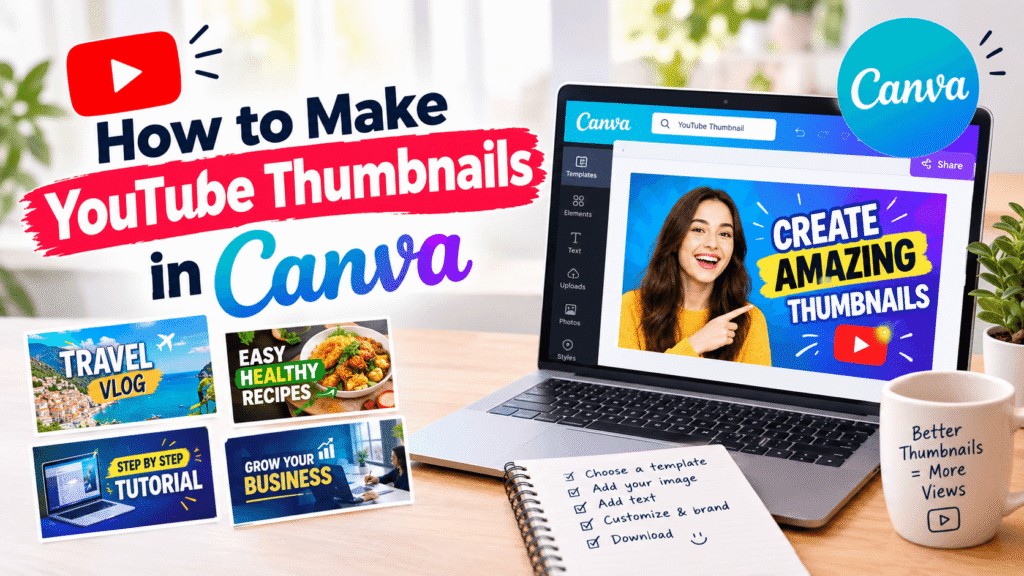
A great video deserves a thumbnail that makes people want to click. If you’re wondering how to make YouTube thumbnails in Canva, you don’t need advanced graphic design skills or expensive software. Canva provides an easy way to create professional-looking thumbnails using templates, images, typography, shapes, and branding elements.
Whether you run a business channel, create tutorials, publish educational videos, or make entertainment content, the right thumbnail can help communicate your video’s value before someone watches it. In this guide, you’ll learn how to create an effective YouTube thumbnail in Canva from start to finish.
Table of Contents
- Why YouTube Thumbnails Matter
- What Makes a Good YouTube Thumbnail?
- How to Make YouTube Thumbnails in Canva
- How to Choose Images and Text
- YouTube Thumbnail Design Tips
- Common Thumbnail Mistakes to Avoid
- YouTube Thumbnail Checklist
- CTA for Better YouTube Design
- Frequently Asked Questions
- Conclusion
Why YouTube Thumbnails Matter
Your YouTube thumbnail is one of the first things viewers see when browsing videos. Along with the title, it helps people quickly understand what your content is about and decide whether it looks relevant to them.
YouTube describes thumbnails and titles as important parts of how viewers understand a video’s topic and decide what to watch. The platform also recommends keeping thumbnail designs clear, readable, and appropriate for the intended audience.
A thumbnail does not guarantee more views, but it plays an important role in how your video is presented. Your design should therefore communicate the video’s main idea quickly without misleading the viewer.
For example, a business tutorial could use a clear product image, a short benefit-focused phrase, and consistent brand colours. A cooking channel might feature the finished dish with a few large words describing the recipe.
The goal is simple: make the subject obvious and give viewers a reason to learn more.
What Makes a Good Canva YouTube Thumbnail?
Before learning how to make YouTube thumbnails in Canva, it helps to understand the basic principles behind effective thumbnail design.
Keep Your YouTube Thumbnail Design Clear
A viewer should understand the general topic within seconds.
Instead of filling the design with several messages, focus on one main idea.
For example:
Weak:
“10 Amazing Things You Should Know Before Starting Your YouTube Channel”
Stronger:
“START YOUR CHANNEL”
The second version is easier to read at a small size.
Use Strong Visual Hierarchy
Visual hierarchy tells the viewer where to look first.
Your main subject should usually be the most noticeable element. After that, the supporting text and smaller branding elements can guide the eye.
Use size, spacing, contrast, and positioning to create this hierarchy.
Make Thumbnail Text Easy to Read
Avoid decorative fonts that become difficult to read when the thumbnail appears small.
Use a bold, simple typeface and keep the number of words limited. You can also add a subtle outline, shadow, or contrasting background shape when necessary.
Keep Your Canva Thumbnails Consistent
If you publish videos regularly, create a recognisable visual style.
You could consistently use:
- The same font family
- A small logo
- Similar colours
- Consistent image treatment
- A recurring layout
- Similar text positioning
Consistency can make your videos easier for returning viewers to recognise.
How to Make YouTube Thumbnails in Canva
Now let’s look at the practical process.
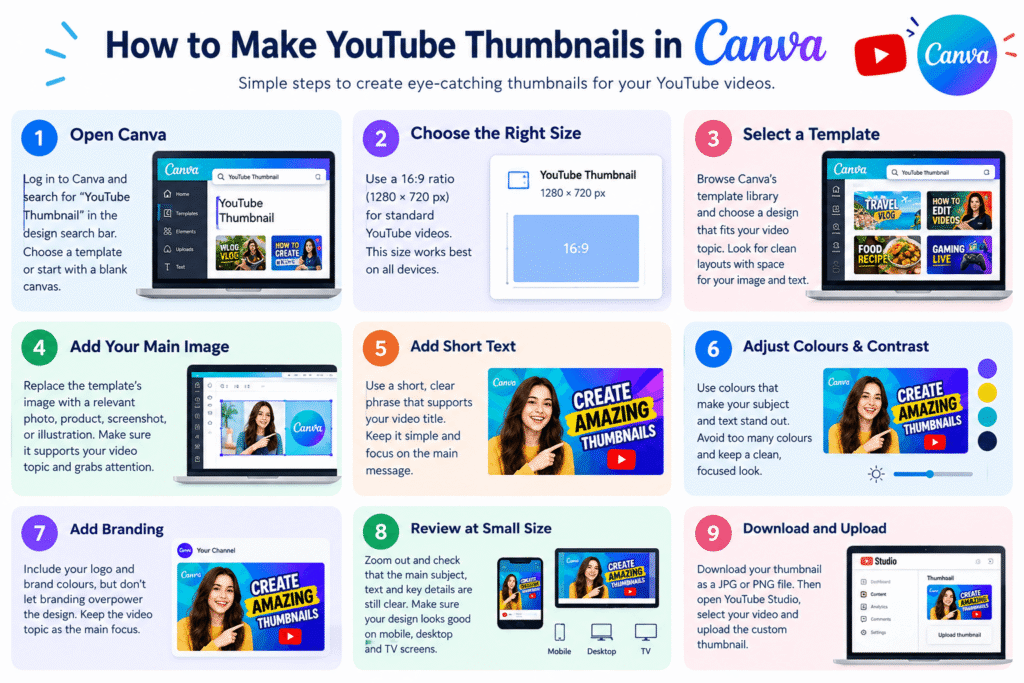
Step 1: Open Canva
Start by opening Canva and signing into your account.
Search for YouTube Thumbnail in the design search area. Canva provides ready-made designs that can help you start quickly.
You can either select a template or begin with a blank design.
If you’re new to design, templates are useful because they provide a starting layout. However, customize the design instead of simply replacing one image and publishing it unchanged.
Step 2: Choose the Right YouTube Thumbnail Size
For standard YouTube videos, a 16:9 layout is the appropriate format. Canva’s YouTube size guide commonly lists 1280 × 720 pixels, while YouTube’s current help documentation recommends uploading video thumbnails at a large resolution, with 16:9 as the recommended aspect ratio.
For Shorts, the thumbnail requirements and presentation differ, so don’t automatically use a standard landscape thumbnail for every type of YouTube content.
Step 3: Select a Canva YouTube Thumbnail Template
Search Canva’s template library for styles related to your video topic.
For example, you could search for:
- YouTube tutorial
- YouTube business
- YouTube gaming
- YouTube education
- YouTube vlog
- YouTube technology
- YouTube cooking
Choose a template based on its structure rather than its exact wording or imagery.
Look for layouts with enough space for your main image and a short headline.
Step 4: Add Your Main Image
Replace the template’s image with a relevant photo, product image, screenshot, illustration, or video frame.
Choose an image that supports the actual video topic.
For example, if your video teaches Canva design, a screenshot of a Canva project can work better than an unrelated stock photograph.
If you’re appearing in the video, a clear facial expression can also help establish the subject quickly.
Step 5: Add Short Text to Your YouTube Thumbnail
Add a short phrase that complements the video title.
Your thumbnail and title should work together rather than repeat exactly the same sentence.
For example:
Video title:
How to Design Professional YouTube Thumbnails in Canva
Thumbnail text:
“LOOK PROFESSIONAL”
The title explains the topic, while the thumbnail highlights a benefit.
Step 6: Adjust Colours and Contrast
Choose colours that make your subject and text stand out from the background.
If your photograph has a busy background, add a transparent overlay or place the text inside a contrasting shape.
However, avoid adding too many colours simply because they are available.
A limited palette usually creates a cleaner and more professional result.
Step 7: Add Your Channel Branding
If you operate a business or established YouTube channel, add your brand elements carefully.
Your logo can appear in a corner, while your normal brand colours can be incorporated into text, borders, or graphic elements.
Don’t allow branding to dominate the thumbnail. The video topic should remain the main focus.
Step 8: Review Your Canva Thumbnail at Small Size
This is an important step.
Zoom out or preview the design at a smaller size.
Ask yourself:
- Can I understand the topic quickly?
- Is the main subject obvious?
- Can I read the text?
- Does anything feel unnecessary?
- Does the thumbnail match the video?
- Does the design look consistent with my channel?
If the answer is no, simplify the design.
Step 9: Download and Upload Your YouTube Thumbnail
When the design is ready, download it in an appropriate image format supported by YouTube, such as JPG or PNG.
Check the file size and dimensions before uploading.
Then open YouTube Studio, select the relevant video, and upload the custom thumbnail.
YouTube Thumbnail Design Tips for Canva
Use One Strong Focal Point
Don’t make every element equally prominent.
A single face, product, object, or visual detail can create a stronger focal point than a crowded composition.
Use Curiosity Carefully
A thumbnail can create curiosity, but it should accurately represent the video.
Avoid misleading imagery or exaggerated promises simply to generate clicks. YouTube recommends avoiding clickbait approaches, and performance should be considered alongside audience response and viewing behaviour.
Design for Different Devices
Your thumbnail may be seen on a smartphone, computer, television, or other screen.
Therefore, small details may disappear.
Large text, clear imagery, and strong contrast are generally safer choices.
Test Different Designs
If your channel has access to YouTube’s testing features, you can compare different thumbnail and title combinations.
YouTube currently provides an A/B testing feature that can compare up to three title and thumbnail combinations for eligible content.
Don’t judge a thumbnail only by personal preference. Use your analytics to understand how different packaging performs with your audience.
Common Thumbnail Mistakes to Avoid
Too Much Text
Long sentences are difficult to read quickly.
Keep the thumbnail message short and let the video title provide additional context.
Low-Quality Images
Blurry or poorly cropped images can make even a well-designed thumbnail look unprofessional.
Use sharp, relevant visuals whenever possible.
Too Many Design Elements
Adding more stickers, shapes, icons, colours, and text does not automatically make a thumbnail better.
Remove anything that does not support the main idea.
Poor Contrast
Dark text on a dark photograph can disappear.
Always check whether your headline remains readable against its background.
Misleading Design
The thumbnail should represent what viewers will actually find in the video.
A strong thumbnail creates interest while maintaining an accurate expectation.
YouTube notes that the relationship between a thumbnail, title, and the opening content can affect whether viewers continue watching. Your thumbnail should therefore make a promise your video can deliver.
YouTube Thumbnail Checklist
Before publishing, use this quick checklist:
- Correct YouTube thumbnail format
- Main subject is immediately clear
- Text is short and readable
- Image quality is high
- Strong contrast is used
- Thumbnail matches the video
- Branding is consistent
- Design is not overcrowded
- Thumbnail looks good at small size
- File size meets YouTube requirements
- No misleading imagery
- Design follows YouTube policies
Create Better YouTube Thumbnails With Design Made Simple
A good thumbnail doesn’t need to be complicated. What matters most is clear communication, strong visual hierarchy, relevant imagery, and consistency.
If you are building a YouTube channel for your business, personal brand, or creative project, Design Made Simple can help you develop practical design skills and create content that looks polished and professional.
Explore more design tutorials, Canva resources, and practical creative tips on Design Made Simple.
Start improving your visual content today and turn your next YouTube video into a stronger, more professional-looking piece of content.
Frequently Asked Questions About Canva YouTube Thumbnails
1. How do I make YouTube thumbnails in Canva?
To make YouTube thumbnails in Canva, open Canva, search for a YouTube Thumbnail design, select a template or blank layout, add your image and text, customize the colours and branding, then download the finished design for YouTube.
2. What size should a YouTube thumbnail be?
YouTube recommends a 16:9 aspect ratio for standard video thumbnails. YouTube’s current documentation recommends large-resolution thumbnails and specifies a minimum width of 640 pixels for standard video thumbnails. Always check YouTube’s current upload requirements before publishing.
3. Can I make YouTube thumbnails in Canva for free?
Yes. Canva offers tools and templates that can be used to create YouTube thumbnails. Some images, design elements, and templates may require a paid Canva plan, so check the licensing and availability of individual assets before using them commercially.
4. What should I put on a YouTube thumbnail?
Use a strong, relevant image and a short text phrase that supports the video’s main idea. Avoid overcrowding the design. The thumbnail should complement the video title rather than simply duplicate it.
5. How can I make my Canva YouTube thumbnails more professional?
Use high-quality images, strong contrast, readable typography, consistent branding, and a simple visual hierarchy. Most importantly, make sure the thumbnail accurately represents the video and remains easy to understand when viewed at a small size.
Conclusion: How to Make YouTube Thumbnails in Canva
Learning how to make YouTube thumbnails in Canva is a practical skill for creators, marketers, businesses, and beginners. With the right dimensions, relevant imagery, readable typography, strong contrast, and consistent branding, you can create thumbnails that communicate your video’s value clearly.
Remember that a thumbnail is part of your video’s overall packaging. Your title, thumbnail, and actual content should work together and set accurate expectations for viewers.
Start with one simple Canva design, review it at a small size, remove unnecessary elements, and keep improving based on your audience and YouTube Analytics. With practice, you can build a recognisable thumbnail style that makes your channel look more consistent and professional.