
Introduction
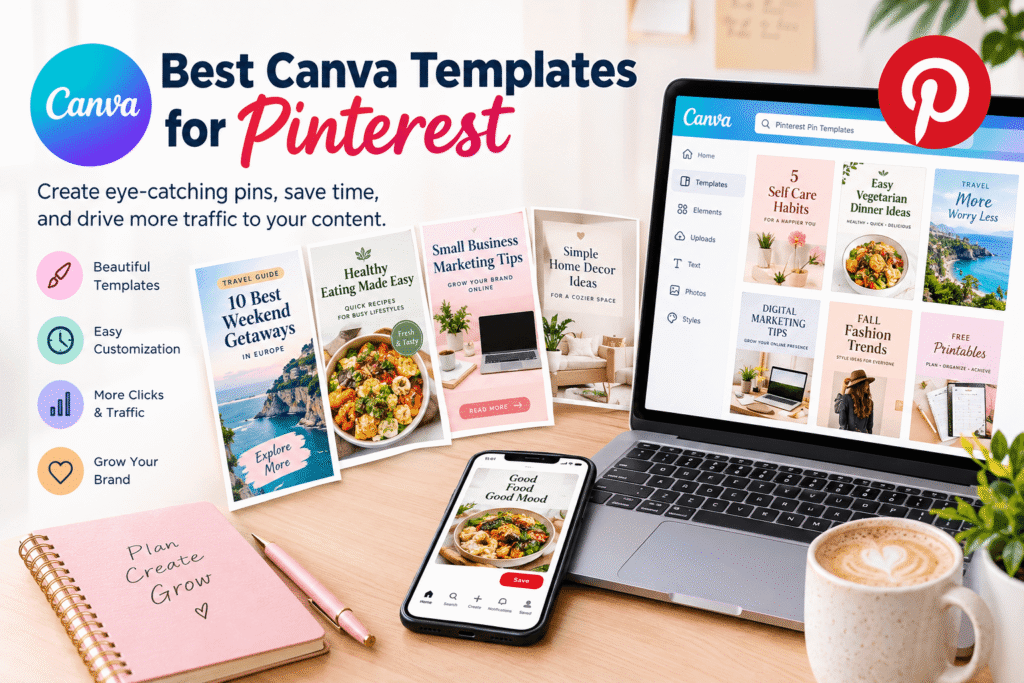
Pinterest is a powerful visual discovery platform for bloggers, creators, online stores, and small businesses. The best Canva templates for Pinterest help you create attractive, professional-looking pins without needing advanced graphic design skills. With the right layout, readable text, and relevant images, you can turn your blog posts, products, recipes, and ideas into engaging visual content.
Whether you are promoting a lifestyle blog in the USA, selling handmade products in the UK, or building a digital business in Canada or Europe, Canva makes it easier to maintain a consistent Pinterest presence. This guide explains which templates to choose, how to customize them, and how to create pins that support your marketing goals.
Table of Contents
- Why Pinterest Templates Matter
- Best Canva Templates for Pinterest
- Benefits of Using Canva Pinterest Templates
- How to Create Pinterest Pins in Canva
- Pinterest Design Best Practices
- Common Pinterest Design Mistakes
- Pinterest Template Checklist
- Take Your Pinterest Designs Further
- Frequently Asked Questions
- Conclusion
Why Pinterest Templates Matter
Pinterest works differently from many traditional social networks. People often use it to discover inspiration, compare ideas, plan projects, and find useful resources. A well-designed pin can introduce your content to someone who has never visited your website.
However, creating fresh graphics for every blog post or product can consume valuable time. Templates solve this problem by providing ready-made layouts that you can adapt to different topics.
For example, a food blogger can use one template structure for breakfast recipes, lunch ideas, and healthy snacks. A marketing consultant can adapt a similar design system for branding tips, social media advice, and business guides.
Templates also make it easier to maintain consistent colors, fonts, and branding. That consistency helps your content look recognizable across multiple Pinterest boards.
Best Canva Templates for Pinterest
The best template depends on your content, audience, and marketing objective. Canva offers editable Pinterest pin layouts for different industries, making it easier to start with a design that fits your needs.
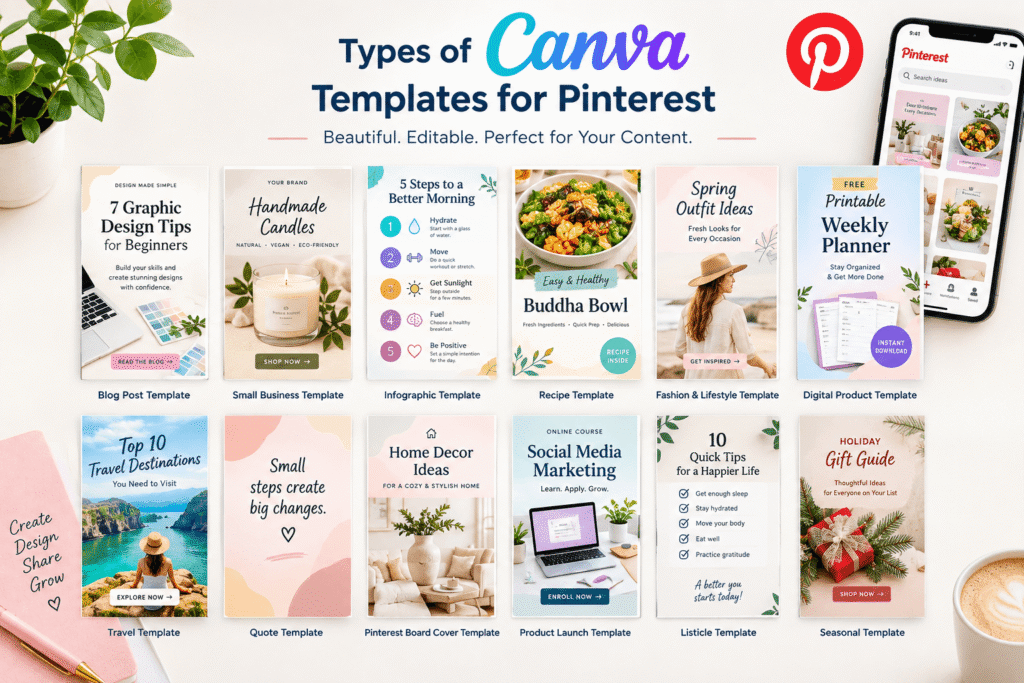
2.1 Blog Post Pinterest Pin Templates
Blog post templates are ideal for sending Pinterest users to informative website articles.
Choose layouts with a strong headline, a relevant image, and enough empty space to keep the design easy to scan.
Example: A design blog could create a pin titled “7 Graphic Design Tips for Beginners” with a bold headline, a simple background, and a small brand logo.
These templates work well for tutorials, listicles, product comparisons, and educational guides.
2.2 Pinterest Templates for Small Businesses
Small businesses need designs that showcase products and communicate value quickly.
Look for templates featuring:
- Clear product photography
- Short promotional headlines
- Consistent brand colors
- Space for a logo or business name
- A clear visual hierarchy
For instance, a handmade candle shop could create pins showing product benefits, gift ideas, seasonal collections, and room styling inspiration.
Choose layouts that complement your product rather than competing with it.
2.3 Pinterest Infographic Templates
Infographic templates present information in a structured visual format. They are useful for checklists, step-by-step tutorials, comparisons, and quick reference guides.
A digital marketing consultant might create a pin explaining the stages of a content strategy. Meanwhile, a travel blogger could use an infographic to share a weekend itinerary.
Keep each section short and readable. If the design contains too much information, divide the topic into multiple pins or link to a detailed article.
2.4 Pinterest Templates for Recipes and Food Blogs
Food-related pins benefit from attractive photography and clear titles.
Choose templates that give the finished dish plenty of space. Add a specific headline, such as “Easy Vegetarian Dinner Ideas” or “Quick Breakfast Recipes for Busy Mornings.”
Avoid placing decorative elements over the food. The image should make the recipe appealing before the viewer reads the headline.
2.5 Pinterest Templates for Fashion, Beauty, and Lifestyle
Lifestyle templates often use editorial photography, simple typography, and carefully selected color palettes.
These designs are suitable for outfit inspiration, skincare routines, home decor, wellness tips, and seasonal recommendations.
For example, a fashion creator could use a consistent layout for capsule wardrobe ideas, work outfits, and autumn styling guides. Each pin would look related while presenting a different subject.
2.6 Pinterest Templates for Digital Products and Affiliate Content
Creators who promote digital downloads, online courses, planners, or affiliate products can use templates to explain what an offer does and who it helps.
A useful design might combine a product mockup with a benefit-focused headline. Keep claims accurate, disclose affiliate relationships where required, and ensure the destination page matches the promise made by the pin.
Explore templates: Canva Pinterest Pin Templates.
Benefits of Using Canva Pinterest Templates
Save Time on Graphic Design
Starting with a ready-made layout is faster than building every pin from scratch. You can replace images, update text, and adjust colors while keeping the overall structure.
This is particularly useful for bloggers publishing multiple articles each week.
Maintain Consistent Branding
Reusable templates help establish a recognizable visual identity. Select two or three brand colors, one or two readable font families, and a consistent logo placement.
You do not need identical pins. Instead, use a shared design system that allows enough variation to keep your content fresh.
Create Professional Designs as a Beginner
Canva provides accessible editing tools for users with limited design experience. You can move elements, change typography, upload your own images, and adjust layouts without specialist software.
If you are new to the platform, read our guide to [How to Use Canva Templates].
Test Different Creative Approaches
Templates make it easier to compare headline styles, image choices, color combinations, and layouts.
For example, you could create two versions of a pin for the same article: one emphasizing a practical benefit and another highlighting a numbered list. Track results over time instead of assuming that one style will always perform best.
Remember that a template alone cannot guarantee clicks, saves, or website traffic. Results depend on the usefulness of your content, audience relevance, presentation, and destination page.
How to Create Pinterest Pins in Canva
Follow these steps to build an effective Pinterest pin from a template.
Step 1: Define Your Goal
Before opening Canva, decide what you want the pin to accomplish.
Your objective might be to:
- Drive visitors to a blog article
- Promote a product or service
- Share a tutorial
- Introduce a free resource
- Increase awareness of your brand
A clear goal helps you choose the right layout and headline.
Step 2: Choose a Suitable Template
Search Canva for Pinterest pin templates related to your subject. Compare layouts based on image space, typography, readability, and brand suitability.
Avoid choosing a template solely because it looks attractive. A design that works for a wedding invitation may not work for a detailed business tutorial.
Step 3: Set the Correct Dimensions
For standard Pinterest image pins, a vertical 2:3 aspect ratio, commonly 1000 × 1500 pixels, is a useful starting point. Pinterest recommends this format for standard image ads and discusses vertical creative in its official guidance. Always check the current specifications for your particular pin format.
Step 4: Write a Clear Headline
Your headline should communicate the main idea quickly.
Compare these examples:
- General: “Pinterest Ideas”
- Specific: “10 Pinterest Ideas for Small Businesses”
The second headline gives readers a clearer reason to explore the content.
Use natural language and avoid promising results your article cannot deliver.
Step 5: Customize Images, Colors, and Fonts
Replace stock imagery when your own photographs or illustrations would make the pin more relevant. Use strong contrast between the text and background.
Limit decorative fonts and unnecessary effects. Your headline should remain readable on a phone screen.
If you need more design inspiration, explore our guide to [Best Free Canva Templates].
Step 6: Add Your Branding
Place your logo or website name where it is visible without dominating the design.
Branding is especially helpful when you publish pins across multiple boards or content categories. However, it should not distract from the primary message.
Step 7: Export and Publish
Download your finished pin in an appropriate image format, such as PNG or JPEG, and review it before publishing.
Add a descriptive title, a relevant description, an appropriate board, and the correct destination URL. Make sure the linked page delivers the information or offer promised by the graphic.
Pinterest Design Best Practices
Make Your Pin Easy to Understand
A viewer should understand the subject without needing to zoom in. Use a clear headline, a strong main image, and a logical reading order.
Use Relevant Keywords Naturally
Pinterest titles and descriptions should explain what the content offers. For a pin about graphic design, phrases such as “graphic design tips,” “beginner design tutorial,” and “creative inspiration” may be appropriate when they accurately describe the destination.
Avoid repeating the same phrase unnaturally. Relevance is more useful than keyword stuffing.
Match the Pin to the Destination Page
If your pin promises a free template guide, the linked page should provide that guide or clearly explain how to access it.
This consistency helps build trust and gives visitors a better experience.
Design for Mobile Screens
Many Pinterest users browse on mobile devices. Test your design at a small size before publishing.
If the headline becomes difficult to read, shorten it or simplify the layout.
Use Seasonal and Audience-Relevant Ideas
Seasonal topics can be useful for businesses serving audiences in different regions. For example, a retailer may plan holiday gift guides, while a food blogger may publish summer recipes or winter comfort-food ideas.
Use Pinterest Trends to explore relevant interests and timing rather than relying entirely on assumptions.
Common Pinterest Design Mistakes to Avoid
Even attractive templates can become ineffective when they are poorly customized.
Using too much text: Long headlines and crowded paragraphs are difficult to read on small screens. Focus on one primary message.
Choosing low-quality images: Blurry, stretched, or irrelevant visuals can weaken the overall presentation. Use clear images that genuinely relate to your topic.
Ignoring brand consistency: Constantly changing fonts, colors, and visual styles can make your content less recognizable. Build a small library of reusable layouts.
Using misleading headlines: Avoid exaggerated claims or clickbait. The destination page should fulfill the pin’s promise.
Forgetting the destination link: A beautiful pin has limited value if the URL is missing, incorrect, or unrelated.
Reusing designs without meaningful changes: A consistent brand style is helpful, but every pin should provide a distinct idea, useful angle, or relevant visual.
Ignoring performance data: Do not judge a design only by appearance. Review available Pinterest analytics and website traffic data to identify which content attracts relevant visitors.
Practical Pinterest Template Checklist
Before publishing, review this checklist:
- The pin has one clear purpose.
- The headline describes the content accurately.
- The image is relevant and high quality.
- The text is readable on mobile screens.
- The colors and fonts match the brand.
- The design uses suitable vertical dimensions.
- The pin title and description are informative.
- The destination URL works correctly.
- The selected board matches the topic.
- The design provides genuine value rather than relying on decoration alone.
A few minutes of review can help you catch design and publishing errors before your content goes live.
Take Your Pinterest Designs Further
Ready to improve your visual content? Start by selecting one or two Canva templates that match your brand. Customize them for your next blog post, product, or campaign, then use what you learn to refine future designs.
If you run a business or manage a growing content website, a consistent template system can make your publishing workflow easier to manage.
Want help building a consistent visual identity? Visit Design Made Simple to explore practical design resources, branding guidance, and creative tutorials. Use these resources to develop a Pinterest design workflow that fits your goals and audience.
Frequently Asked Questions
1. What are the best Canva templates for Pinterest?
The best Canva templates for Pinterest are editable vertical layouts that suit your content and audience. Blog pin, infographic, product promotion, recipe, and lifestyle templates are useful options. Choose a design with a clear headline, relevant imagery, and readable typography.
2. Are Canva Pinterest templates free?
Canva offers both free and paid design resources. Availability depends on the specific template, image, font, or feature. Check the item’s pricing or access requirements before using it, particularly for commercial projects.
3. What size should a Pinterest pin be?
A 2:3 vertical aspect ratio, commonly 1000 × 1500 pixels, is a useful starting point for standard image pins. Check Pinterest’s latest specifications for the format you plan to publish because requirements and recommendations can vary.
4. Can I use Canva templates for business Pinterest accounts?
Yes. Canva templates can be customized for business content, including product promotions, blog posts, service highlights, and educational graphics. Review the applicable Canva content licence and the usage rights of any included assets before using designs commercially.
5. How can I make Pinterest pins more engaging?
Use a specific headline, relevant high-quality imagery, strong text contrast, and a clear visual hierarchy. Write an informative title and description, link to a relevant page, and review performance data to learn which designs best serve your audience.
Conclusion
The best Canva templates for Pinterest help bloggers, creators, marketers, and businesses produce attractive pins without starting every design from scratch. By selecting suitable layouts, using clear headlines, maintaining brand consistency, and following Pinterest’s image recommendations, you can create graphics that communicate value effectively.
Start with a simple template, customize it for your audience, and make sure each pin leads to a useful destination. Then review your results and improve your approach over time. With thoughtful design and relevant content, Pinterest can become a valuable part of your wider content marketing strategy.